

How to Pair True Wireless Earbuds on Any Device
You've opened the charging case, but only the left earbud connects. The right one stays silent, your phone shows an unfamiliar Bluetooth name, and closing and reopening the case changes nothing. The fix usually isn't another tap on the device name. It's putting the earbuds into the correct state, clearing an old device record, and knowing whether you're pairing, reconnecting, or trying to switch between two sources.
Updated for March 2026
Why Pairing True Wireless Earbuds Feels Harder Than It Should
True wireless earbuds don't become discoverable just because the case is open or Bluetooth is enabled on your phone. The earbuds must first enter Bluetooth pairing mode, which the Bluetooth Special Interest Group's earbud pairing guide describes as the user actively making the earbuds pairable.
That distinction explains many failed setups. A case can be charged, the phone can have Bluetooth turned on, and the earbuds can still remain invisible because they've automatically reconnected to a nearby laptop or a previously used phone.
Bluetooth pairing creates a trusted relationship. The phone and earbuds exchange authentication information, store it, and use it for later reconnection. That's different from an active audio connection, which is why a device can appear as saved or paired while sound still comes from the phone speaker.
Three states that users often confuse
- Initial pairing: The phone discovers the earbuds and saves their Bluetooth relationship.
- Automatic reconnection: Previously paired earbuds reconnect when they leave the case and find a familiar host.
- Multipoint switching: Compatible earbuds maintain connections with more than one source, such as a phone and laptop.
Those states need different fixes. A first-time setup requires pairing mode. A reconnection problem may need the correct audio output selected. A switching problem may be a missing multipoint feature rather than a fault.
For model-neutral buying guidance, compare the true wireless earbuds range by compatibility features rather than Bluetooth version alone.
The Universal Pairing Workflow That Works Every Time
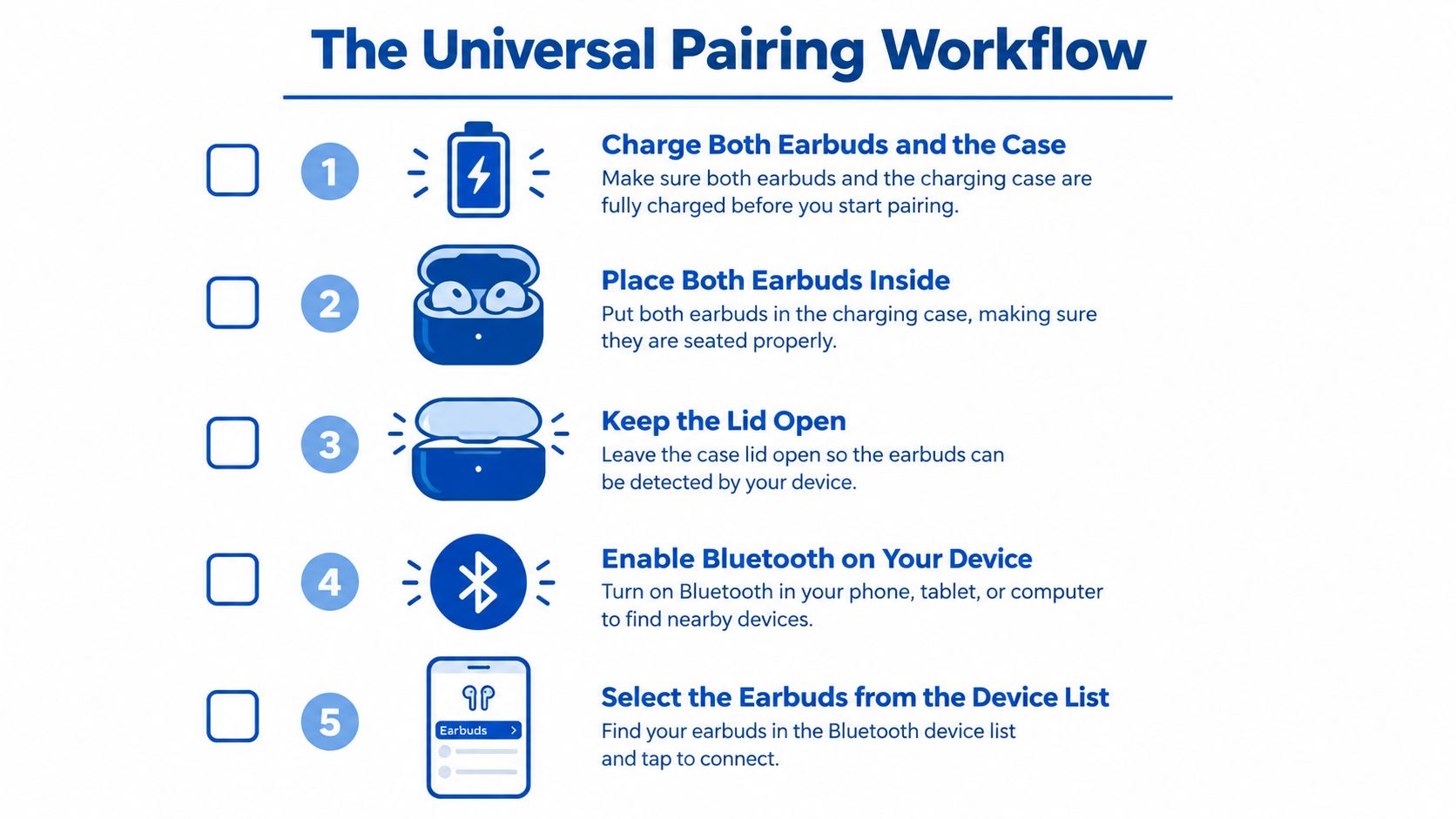
Start with the earbuds, not the phone menu. A clean sequence prevents the two most common causes of failure, stale Bluetooth records and automatic reconnection to another nearby host.
- Charge the earbuds and case. Low power can prevent the case from placing the earbuds into pairing mode.
- Put both earbuds in the case. This gives the left and right sides a chance to coordinate before they contact the phone.
- Keep the lid open. Many models use the open case as part of their setup state.
- Enable Bluetooth on the phone or computer.
- Forget an old entry if the earbuds were paired before, then activate pairing mode until the case indicator flashes.
- Select the earbuds from the available-device list.
- Test both channels. Play a stereo track, check the left and right sides, and confirm that the earbuds reconnect after you close and reopen the case.
The exact pairing control varies by model. On AirPods, Apple says to hold the case's setup control until the status light flashes white, then select the AirPods from the Bluetooth list using Apple's official pairing procedure.
Practical rule: Don't begin fresh pairing while a previously paired phone, tablet, or laptop is nearby with Bluetooth enabled. Turn Bluetooth off on those hosts temporarily so they can't claim the earbuds first.
If the earbuds appear under an old name but refuse to connect, remove that saved entry before trying again. Forgetting the record doesn't erase the earbuds or damage their firmware. It removes the stored relationship so the devices can establish a new one.
Pairing on iPhone, Android, Windows, and macOS
The menus differ, but the radio workflow stays consistent. Put the earbuds into discovery mode first, then open the platform's Bluetooth controls.
iPhone
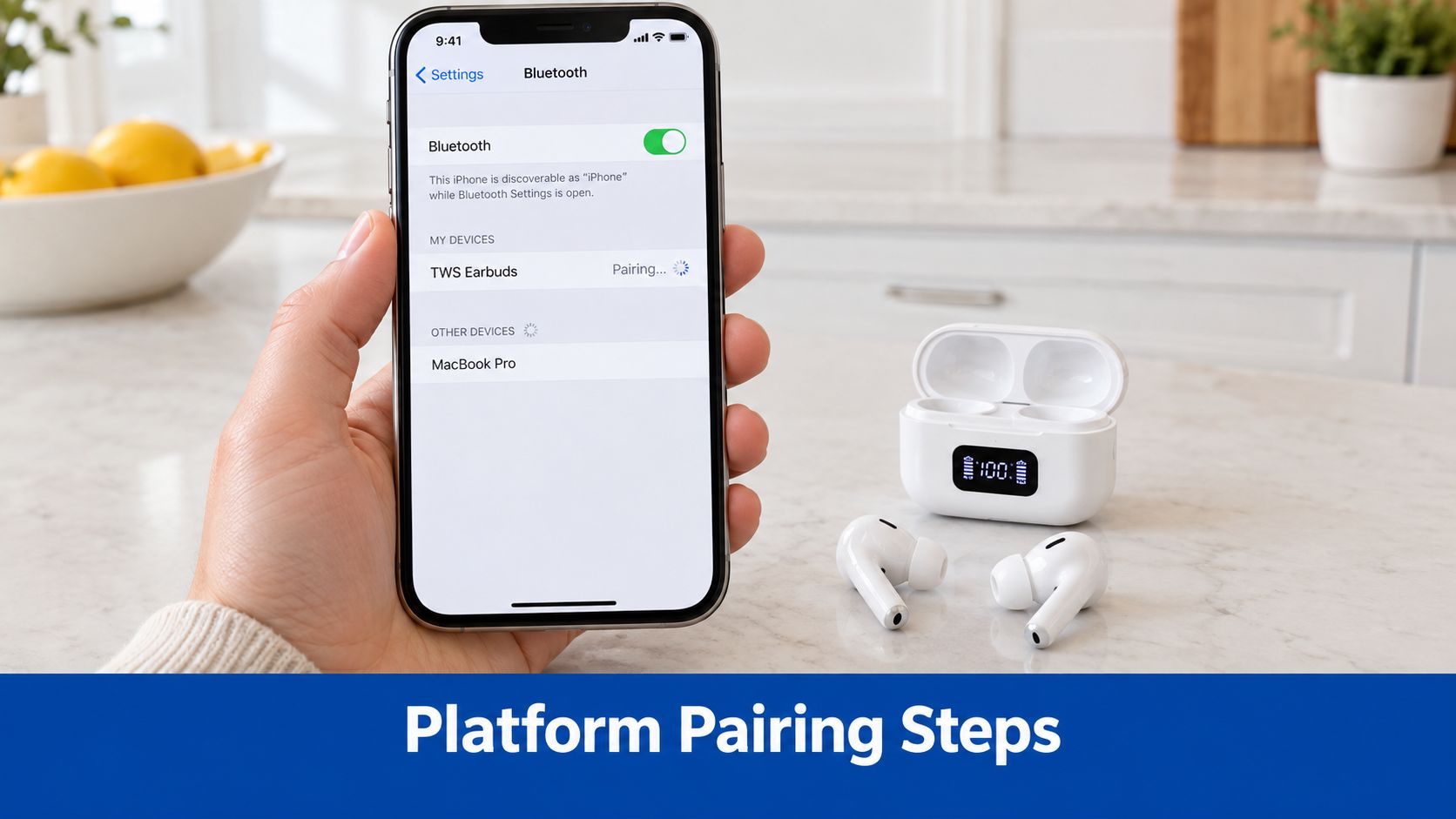
Open Settings > Bluetooth and wait under the available devices list. Tap the earbuds once their name appears. Apple specifies keeping the iPhone within about 33 feet, or 10 meters, of the accessory during pairing in its Bluetooth accessory guidance.
If the earbuds don't appear, return them to pairing mode rather than repeatedly refreshing the phone. An open case isn't enough if the earbuds have already connected to another host.
Android
Open Bluetooth settings, choose Pair new device, and tap the earbuds when they appear. Google recommends refreshing the available-device list if discovery takes longer than expected.
Android separates new discovery from saved connections. A device under saved Bluetooth devices may be paired but inactive, while a device marked Connected is currently handling the audio link. You don't need a companion app for basic pairing on a non-Apple phone, although some manufacturers require an app for EQ, firmware updates, or multipoint controls.
Windows
Open Settings > Bluetooth & devices, turn Bluetooth on, choose Add device, select Bluetooth, and tap the earbuds' name. After pairing, check the Windows sound-output selector. Windows can remember the earbuds correctly while continuing to send audio to laptop speakers, a monitor, or a headset.
macOS
Open Apple menu > System Settings > Bluetooth, locate the earbuds, and select Connect. Then check System Settings > Sound and choose the earbuds as the output device if macOS has retained another audio route.
| Platform | Where to pair | Common quirk |
|---|---|---|
| iPhone | Settings > Bluetooth | The earbuds must be in discovery mode and within the recommended range |
| Android | Bluetooth controls > Pair new device | Refresh the list if the earbuds don't appear |
| Windows | Bluetooth & devices > Add device | Audio may remain routed to another output |
| macOS | System Settings > Bluetooth | Pairing and sound-output selection are separate |
If you're moving between listening and work, you can also summarize articles on the go while keeping the earbuds connected. For spatial listening, review spatial audio settings after basic pairing works.
Troubleshooting Failed Pairing and One-Ear Connections
Randomly tapping the earbuds' name rarely fixes a stubborn connection. Use a controlled escalation and change one variable at a time.
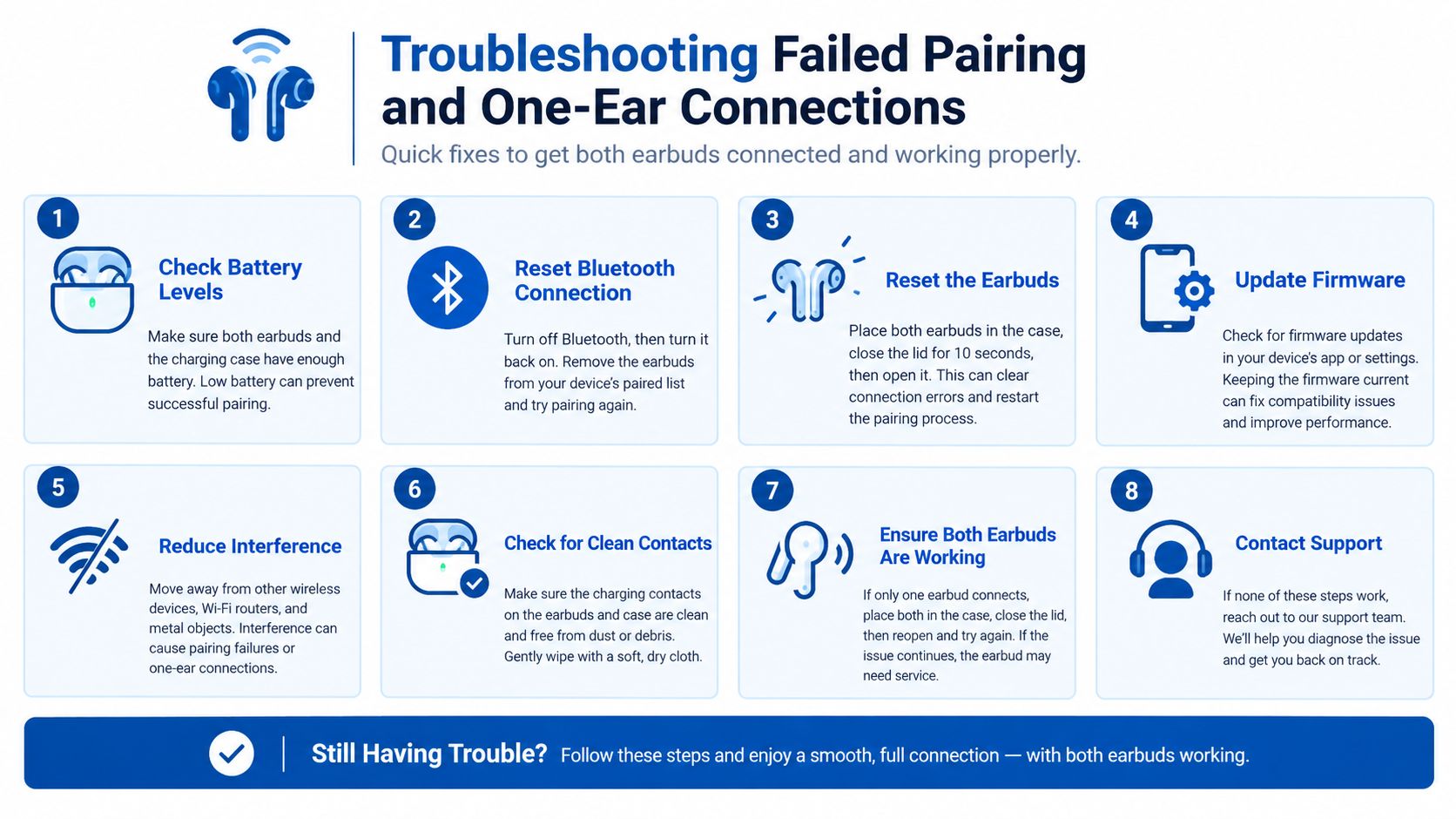
Start by moving the phone and earbuds within roughly 30 feet, removing physical obstructions, and stepping away from likely electronic interference. Confirm that the earbuds and case have adequate charge. Samsung identifies proximity, obstructions, interference, and low battery as practical connection variables, while Google recommends cycling Bluetooth and restarting devices in its Android Bluetooth troubleshooting guidance.
Then work through this order:
- Cycle Bluetooth: Turn it off, wait, and turn it back on.
- Restart both devices: Restart the phone or computer and reset the earbuds according to their manufacturer's instructions.
- Forget the old entry: Remove the saved Bluetooth record from the host.
- Re-enter pairing mode: Put both earbuds in the case, close it briefly, reopen it, and activate the model's pairing sequence.
- Check media output: Confirm the earbuds are the active route instead of the phone, laptop, monitor, or car system.
- Avoid mismatched pieces: Don't combine the left earbud from one set with the right earbud from another. True wireless products can rely on proprietary coordination and firmware identity data.
“Paired” and “connected” aren't interchangeable. Pairing stores the authentication relationship, while connection establishes the active audio link. If the phone says the earbuds are saved but sound comes from its speaker, inspect the output route before resetting hardware.
A one-ear connection usually means the two earbuds failed to coordinate with each other before contacting the host. Return both sides to the case, close and reopen it, and repeat the manufacturer's reset and pairing sequence. Use the earbuds volume control guide only after the left and right channels are both active.
Multi-Device Switching and Multipoint Without the Guesswork
Pairing your earbuds with a phone doesn't prove they can also juggle a laptop. It only proves that one host and the earbuds completed a Bluetooth relationship.
Multipoint is optional, and support depends on both the earbuds and the source devices. Even when the feature exists, simultaneous connections can reduce quality or behave inconsistently when a call, notification, or media stream interrupts another source.
Use this phone-plus-laptop decision path
- Check the specifications. Look specifically for Bluetooth multipoint, not just a Bluetooth version number.
- Pair device A first. Usually this is the phone because it will be the primary reconnection host.
- Open the manufacturer's app if required. Some earbuds keep multipoint disabled until you activate it in their control software.
- Pair device B. Put the earbuds back into the required pairing state, then select them on the laptop.
- Test an interruption. Play audio on the laptop, answer a phone call, and verify whether the earbuds switch as expected.
- Disable one host when necessary. If switching behaves badly, disconnecting the first device is often more dependable than repeatedly forcing the second connection.
Apple's ecosystem-level automatic switching can look like multipoint, but it isn't equivalent to standard Bluetooth multipoint. Google Fast Pair is also platform-specific. Those convenience features depend on compatible accounts, operating systems, and products rather than operating as universal Bluetooth behavior.
| Behavior | Single-point connection | Multipoint connection |
|---|---|---|
| Active sources | One source at a time | More than one compatible source |
| Switching | Disconnect one host, connect another | Earbuds may change source automatically |
| Reliability | Usually simpler | Depends on firmware and host support |
| Best fit | One phone, tablet, or laptop | Phone and computer users who alternate frequently |
For older televisions, airplanes, or wired audio systems, a Bluetooth 5.4 receiver and transmitter adapter can solve a source-side compatibility problem, but it won't create multipoint support inside earbuds that lack it.
Codecs, Latency, and Future-Proof Pairing Choices
A successful connection can still produce delayed video, inconsistent call behavior, or different sound quality. The source and earbuds must agree on supported Bluetooth profiles and codecs, so a label such as Bluetooth 5.3 isn't a complete compatibility answer.
For ordinary listening, prioritize the codec and operating-system support shared by both ends. For gaming and video, latency matters. For shared listening in public spaces, classrooms, travel settings, or accessibility scenarios, LE Audio and Auracast deserve more attention than the version printed on the product box.
Bluetooth LE Audio's complete specification set was finalized on July 12, 2022, and Bluetooth SIG reports that nearly 700 products had completed or were undergoing Bluetooth SIG qualification for LC3 by April 2024. The same source cites an analyst projection that annual Bluetooth earbud shipments could reach 619 million by 2026, representing 66% of wireless-headset shipments.
What to check before buying or troubleshooting
- Source support: Confirm that the phone, television, or transmitter supports Bluetooth LE Audio and Auracast.
- Receiver support: Confirm that the earbuds support LE Audio, LC3, and Auracast. A Bluetooth 5.3 label alone doesn't establish this.
- Firmware: Update the source and earbuds before diagnosing a compatibility issue.
- Use case: Separate ordinary one-to-one pairing from joining an Auracast broadcast. They are different workflows.
- Codec expectations: Remember that advanced codec support only helps when the source and receiver both support the same feature.
Auracast requires compatible support at both ends. An Auracast-capable television paired with earbuds that only support conventional Bluetooth won't gain broadcast-audio functionality.
For safer listening habits during long sessions, Z Audiology's noise exposure tool provides a practical way to think about volume and exposure. You can also compare active-noise-cancellation behavior in this guide to true wireless earbuds with ANC.
Your Pairing Cheat Sheet and Top Questions
Keep the three connection states separate:
- Initial pairing: Put the earbuds into pairing mode and select them from the host's available-device list.
- Automatic reconnection: Let the earbuds find a saved host, then verify that the active audio output points to them.
- Multipoint: Confirm that the earbuds and both source devices support simultaneous connections.
The rule that prevents most wasted effort is simple: forget old records, isolate nearby hosts, and re-enter pairing mode before blaming the hardware. Apple recommends unpairing the accessory, placing it back into discovery mode, and trying again. Forgetting a device removes the saved relationship, and the pairing process can be repeated, as explained in Apple's troubleshooting guidance.
Why do earbuds pair with one phone but not another?
The first phone may still be nearby and automatically reconnecting, or the second phone may contain an outdated saved record. Turn Bluetooth off on the first phone, forget the earbuds on the second, and place the earbuds back into pairing mode.
Does forgetting a device damage the earbuds?
No. It only removes the saved Bluetooth relationship from the host device. The earbuds can be placed into discovery mode and paired again.
Will an Auracast television work with any Bluetooth 5.x earbuds?
No. The television and earbuds both need the relevant Bluetooth LE Audio and Auracast support. A Bluetooth version number by itself doesn't guarantee compatibility.
For an affordable starting point, compare these budget true wireless earbuds against your phone, computer, and switching requirements before purchasing.
DigiDevice offers a curated selection of true wireless earbuds and practical Bluetooth accessories for phones, computers, televisions, and travel setups. Visit DigiDevice to compare compatible audio products, then check the specifications for pairing, multipoint, codec, and LE Audio support before you buy.