

Earbuds Volume Control: The Practical Guide for 2026
You're on a train, the carriage noise is swallowing your podcast, and your thumb keeps nudging the volume higher. One stop later, your ears feel tired. Meanwhile, someone listening at 40% in a quiet room may already be receiving a much stronger signal than the slider suggests. Earbuds volume control is a dose problem, not a percentage problem.
Updated for March 2026, this guide shows how to control volume across Apple, Android, Windows, and macOS, how to troubleshoot uneven output, and how to translate a misleading slider into a safer listening routine. The practical target is simple: start near 50% to 60%, use a device-side limit, and adjust for the seal, source, and surrounding noise.
Why Your Earbuds Volume Feels Wrong
A volume slider is only a control position. It isn't a decibel meter.
Different phones, operating systems, Bluetooth profiles, earbuds, EQ settings, and ear-tip seals can produce very different sound pressure at the same percentage. Research has even reported an average portable-device setting of about 62.12% on a 0 to 100 scale, but that number doesn't prove that every listener at 62% is hearing the same output. Academic research on portable-device volume settings highlights why the slider alone is a poor safety reference.
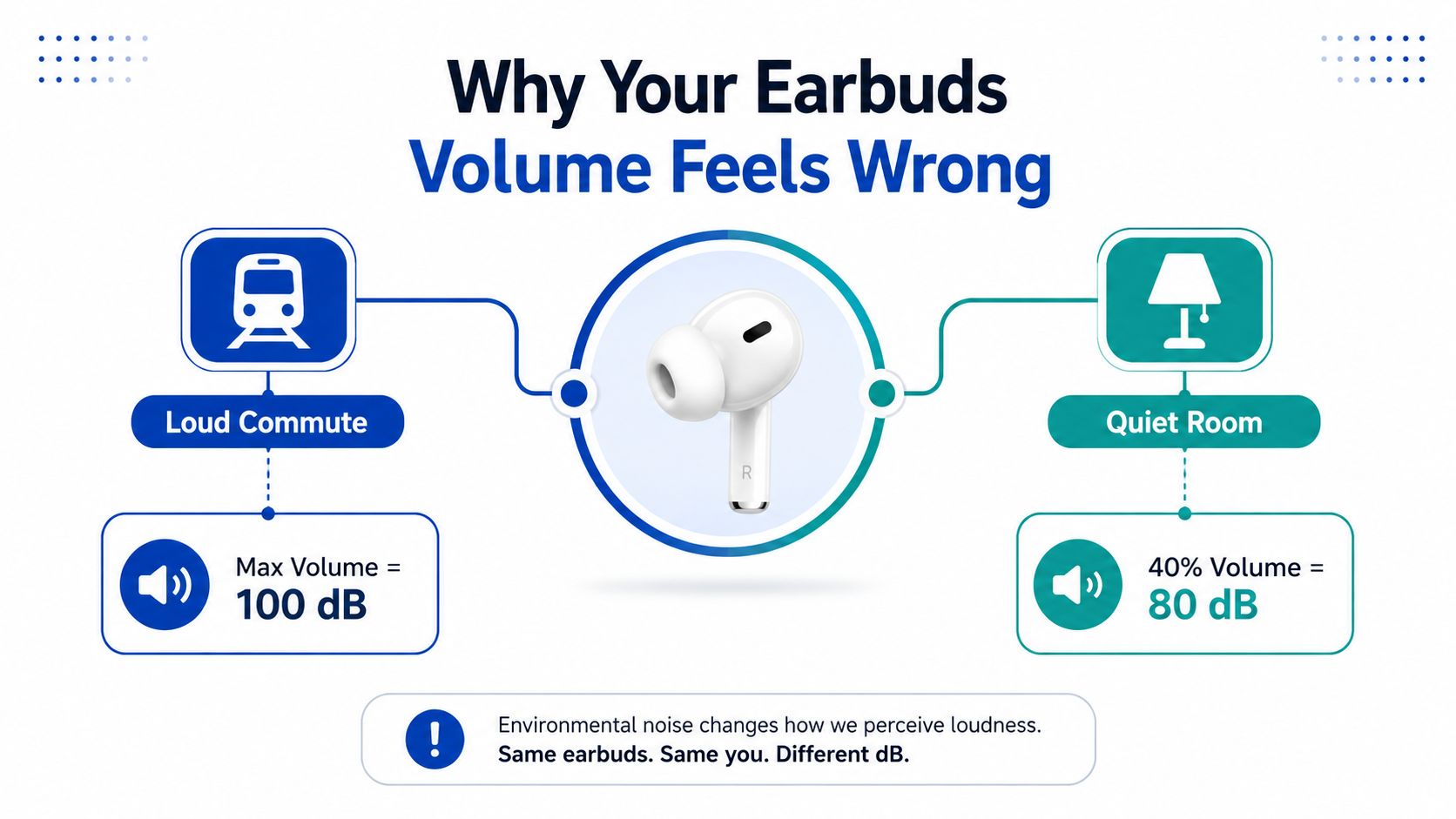
The three variables behind the mismatch
The source device changes the curve. A phone may make the first half of its slider feel restrained and the upper range feel much more aggressive. Windows, Android skins, iOS, and macOS also handle Bluetooth volume negotiation differently. The number on the screen describes a control step, not a universal sound-pressure level.
Background noise encourages compensation. On a train, at a busy platform, or beside road traffic, quiet passages disappear beneath the ambient sound. Most listeners respond by raising the earbuds instead of improving isolation. That makes noise cancelling and a proper passive seal useful hearing-protection tools, not merely comfort features.
Fit changes acoustic delivery. A loose ear tip leaks bass and makes speech seem thin, so users often increase volume. A deeper or tighter seal can make the same track feel substantially louder. The exact change varies by earbud and fit, but a difference of 10 dB or more is possible when the seal changes, as noted in hearing-health guidance from the British Academy of Audiology.
WHO guidance gives consumers a useful starting point: keep everyday listening near 60% of maximum, while adults should keep average exposure below 80 dB for 40 hours per week and children below 75 dB for 40 hours per week. WHO safe-listening guidance also supports automatic volume reduction and parental controls.
Practical rule: If you need to push past your normal setting because the environment is loud, fix the isolation before increasing the volume.
For deeper troubleshooting, check the headphone frequency response guide. If an older iPod or similar player has a physical volume-control fault, MackTechs iPod repair options provide a useful repair reference.
Native Volume Controls on iPhone, iPad, and Mac
Apple devices offer several layers of control, but the safety controls aren't always where people expect them. The side buttons are the fastest option on an iPhone or iPad, while Control Center gives you a more precise vertical slider. The in-app volume control can also differ from the system level, especially in media, video, and call applications.
iPhone and iPad paths
Use this order when setting up safer earbuds volume control:
- Quick adjustment: Press the side volume buttons while audio is playing. The buttons normally control media output, but calls and alerts can expose different behavior.
- Precise adjustment: Open Control Center and move the volume slider. This is easier than repeated button presses when you want a small correction.
- Safety cap: Open Settings > Sounds & Haptics > Headphone Safety and enable Reduce Loud Audio. Apple lets users choose a loud-audio limit, with the available range depending on region and device configuration.
- Notifications: Keep headphone notifications enabled so the phone can warn you when listening exposure reaches a concerning level.
- Balance: Open Settings > Accessibility > Audio & Visual and check the balance slider. Keep it centered unless you intentionally compensate for one-sided hearing or a channel problem.
WHO's device-design guidance goes further than a manual slider. Its safe-listening toolkit says a device should warn users when they reach 100% of the weekly sound dose, then reduce output to a predetermined level if the warning isn't acknowledged. WHO's safe-listening toolkit also supports customizable limits.
AirPods add controls at the ear. Depending on the model, you can use the stem swipe or squeeze, and AirPods Pro models use the Force Sensor for playback and listening-mode actions. Conversation Awareness can lower media volume when you begin speaking, which is useful in shops or offices but can feel like a fault if you don't recognize the trigger.
Mac controls
On macOS, open System Settings > Sound and select the correct output device. You can also adjust volume through the menu bar or Control Center, and compatible Mac models expose a Touch Bar volume slider.
For fine adjustments, Option + Shift + volume keys can provide smaller steps than the standard keyboard controls. If several applications are competing for attention, open Audio MIDI Setup for device configuration, then use an application-level mixer when your workflow requires separate levels.
A useful companion reference is DigiDevice's guide to studio-quality audio on a smartphone, particularly when a phone's output seems quieter after an app or system change.
Native Volume Controls on Android and Windows
Android is more fragmented than iOS. The same earbuds can behave differently on a Samsung Galaxy, Google Pixel, or Xiaomi phone because each manufacturer changes the volume panel, Bluetooth settings, and safety features.
Android control layers
Start with the unified media slider in Quick Settings. Some Android skins split media, call, ringtone, and notification streams, so check that you're changing Media volume, not a call or alert channel.
On Android versions that expose it, open Settings > Sound & vibration > Volume for the full set of sliders. Samsung devices may also provide a Media volume limiter, while Bluetooth settings can expose an Absolute Volume option. If the source and earbuds disagree about volume steps, open Developer options and test disabling absolute volume. Use this as a diagnostic step, not a default recommendation.
The trade-off is straightforward. Absolute Volume usually keeps the phone and earbuds synchronized. Disabling it can restore independent controls when a Bluetooth handshake is stuck, but it can also create confusing jumps or a lower usable range.
Windows 11 control layers
Windows 11 gives you three practical routes:
- Taskbar flyout: Select the speaker icon and move the main volume slider.
- Volume mixer: Open Settings > System > Sound > Volume mixer to control individual applications.
-
Classic mixer: Press Win + R, enter
sndvol, and adjust application channels in the older mixer interface.
Windows uses a logarithmic-feeling curve, so the lower part of the slider can seem nearly silent while the upper part changes quickly. A communications setting can also reduce other audio during calls. Check the communications activity behavior if music or video drops whenever a meeting begins.
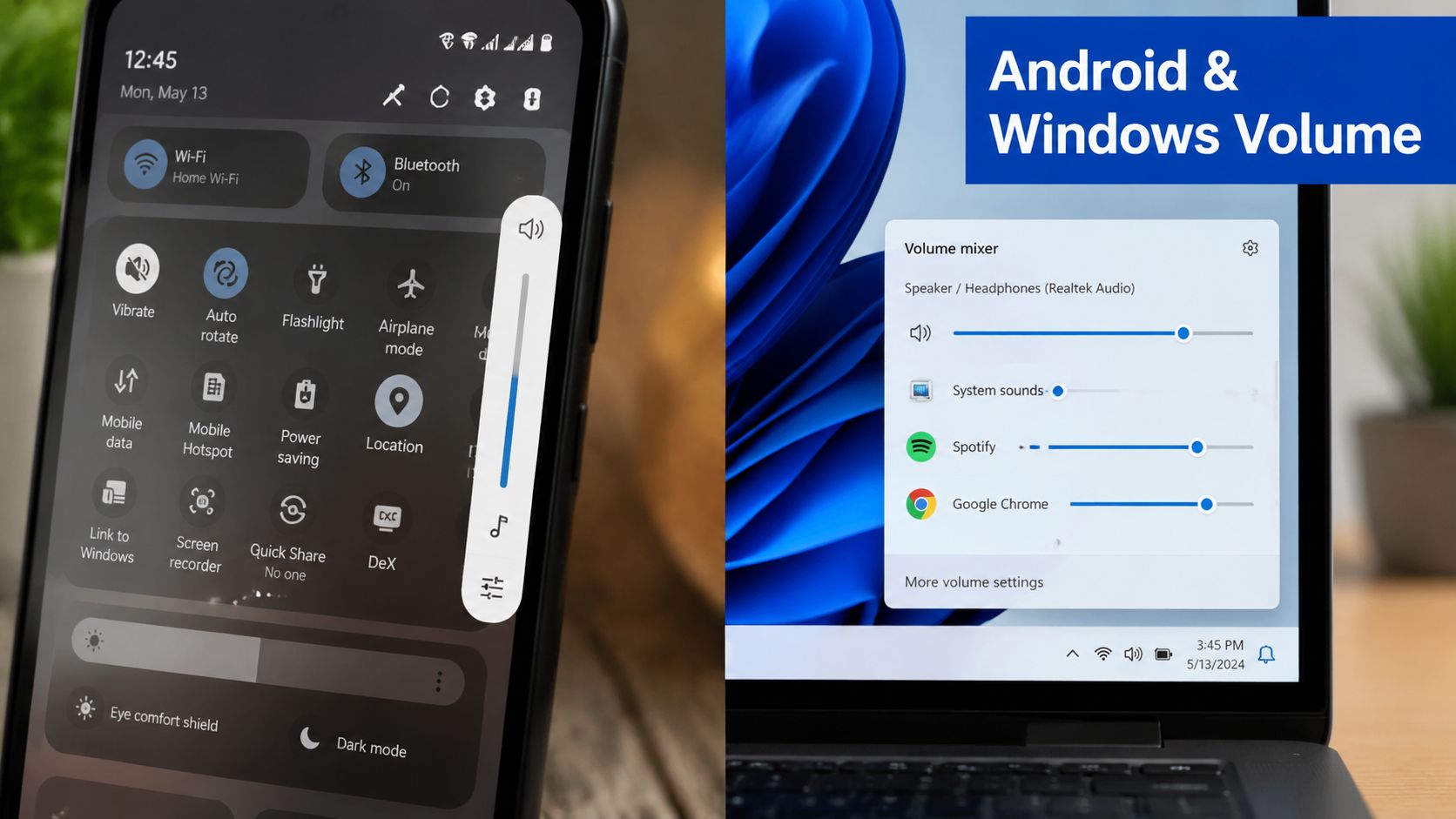
Bluetooth hardware buttons add another variable. On one computer, the earbud buttons may control the Windows master level. On another, they may adjust the earbud's internal amplifier. That mapping depends on the absolute-volume profile and the Bluetooth implementation.
For a wired fallback with a phone, the USB-C headphone adapter with inline volume control and microphone can help isolate whether the problem is Bluetooth negotiation or the source device itself.
Diagnosing Low, Stuck, or Unbalanced Volume
The fastest repairs start with physical checks. I've seen apparently defective earbuds turn out to have blocked mesh, an ear tip that wasn't seated, or a charging contact that failed to wake one side fully.
Remove the tips and inspect the speaker mesh under good light. Don't push debris deeper with a sharp tool. Clean according to the manufacturer's instructions, then check that both earbuds charge and report the same status in their companion app.
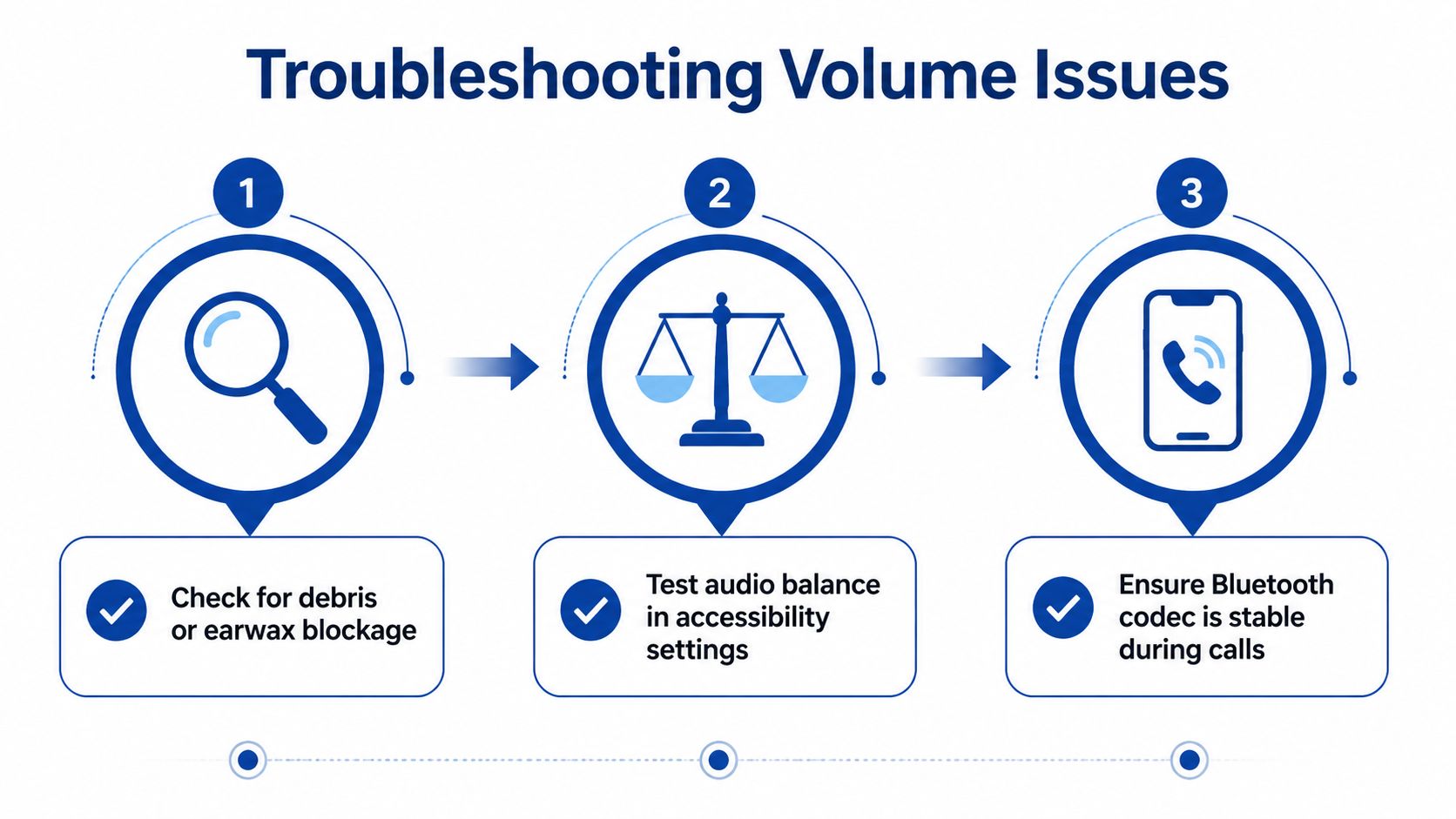
A repeatable imbalance test
Play a stereo test track with a centered vocal or a left-right test tone. Then swap the earbuds between ears.
- If the quietness follows the earbud, inspect its mesh, fit, battery state, or hardware.
- If the quietness stays with the same ear, check the phone's accessibility balance and consider an ear or hearing issue.
- If the problem appears only in one application, inspect that app's audio channel or accessibility settings.
On iPhone and Mac, check Accessibility > Audio & Visual and center the balance slider. Windows provides a similar balance control in the selected output device's properties. Android manufacturers place the setting in different locations, often under Accessibility or Hearing enhancements.
When volume gets stuck
A volume ceiling often comes from a safety limiter, an app-specific setting, or a stale Bluetooth profile. Forget the earbuds in Bluetooth settings, restart the source device, place both earbuds in the case, and pair them again. If the slider remains stuck, test another source before changing developer options.
Audio that drops during a call usually points to profile switching or a codec handshake rather than a simple volume setting. Turn off multipoint temporarily, reconnect the earbuds, and test with a standard call. A hard reset of the earbuds can clear a corrupted pairing state, but it also removes saved connections and custom controls.
A useful diagnostic split: First determine whether the fault follows the earbud, the ear, the application, or the source device. Each result points to a different repair.
For readers who want the electrical side explained, what headphone impedance means is a helpful reference.
Translating Percent Into Decibels and Safe Dose
The unit that matters for hearing is decibels, not the percentage displayed by a phone. A 0 to 100 slider can map loosely from silence to very high output, but the relationship changes with the earbud, seal, source gain, EQ, and recording level.
WHO-linked materials note that personal audio devices may reach maximum levels from 88 to 113 dB(A), which helps explain why unrestricted earbuds can become a public-health concern. WHO-linked evidence on personal audio exposure frames the risk around cumulative dose, not one loud moment.
The Hearing Health Foundation says sounds at or below 70 dBA are considered safe even after long exposure, while headphones and earbuds can reach 100 dB or more. It recommends listening around 50% to 60% of maximum volume. Its headphone and decibel guidance is a sensible starting point, but not a precise conversion chart.
| Volume Percent to Safe Listening Time | Approx. dB SPL | Safe Listening per Day | Typical Environment |
|---|---|---|---|
| 50% to 60% | Roughly 75 to 80 dB in some setups | Longer listening may fit within the weekly dose when exposure is controlled | Quiet office or home |
| 70% | Device-dependent | Shorter sessions are more appropriate | Moderately noisy room |
| 80% | Device-dependent and potentially high | Keep exposure brief and verify with a meter | Loud environment, isolation required |
The table is intentionally approximate. One audiology source says 60% volume often corresponds to about 75 to 80 dB, but that isn't guaranteed across products. Independent testing has also found that limiter behavior can vary widely, with some products still exceeding 95 dB SPL, so a built-in cap shouldn't be treated as laboratory precision.
WHO's adult benchmark is an average below 80 dB for 40 hours per week. The dose model matters because a louder signal uses up safe exposure more quickly. The European Union required personal music players and mobile phones sold after February 2013 to ship with a default 85 dB limit, while allowing users to raise it to 100 dB. BBC coverage of the EU requirement shows the trade-off between default protection and user override.
A subway platform can make any slider percentage misleading. Noise cancelling or strong passive isolation lets you hear detail without compensating with excessive output. For swimmers, musicians, or people exposed to recreational noise, custom swim plugs from Z Audiology illustrate the broader principle: controlling the environment can be more effective than turning the source down after the fact.
Power User Tweaks for Volume That Holds
The most reliable loudness improvements often come from changing the signal path, not moving the slider. A manufacturer app may expose gain behavior, EQ preamp controls, hearing profiles, noise-cancelling intensity, and firmware safety limits that the operating system can't see.
Tune the signal before raising output
Sony Sound Connect, Bose Music, Sennheiser Smart Control, Jabra Sound+, Nothing X, and Beats software all organize controls differently. Look for these areas:
- EQ preamp: A bass boost can consume headroom and make the signal distort sooner. Lowering the preamp before raising the master level often produces cleaner playback.
- Personal hearing profiles: A profile may make speech or high frequencies clearer, reducing the temptation to increase overall loudness.
- Noise control: Use ANC in steady low-frequency noise, but remember that transparency and open-ear designs behave differently in busy spaces.
- Firmware safety settings: Some vendors place limiters under Hearing Protection or advanced device settings, while others enable them without presenting a prominent control.
Codec choice matters, but not in the simplistic way many forums suggest. LDAC, aptX HD, and LC3 affect transmission behavior and compatibility. They don't create a universal safe volume level, and switching codecs won't correct a poor seal or an incorrectly configured source.
Keep applications from fighting
Windows per-app volume mixing is useful when a browser, game, and meeting application need different levels. On macOS, Sound Check can reduce perceived differences between tracks, though it won't turn the system into a decibel meter. Android's Media Volume Limiter can constrain selected listening behavior, depending on the phone's software.
The most common advanced mistake is disabling Bluetooth absolute volume too early. It can help when source and earbud controls are desynchronized, but it usually adds another layer of control rather than improving safety. Change it only after forgetting and re-pairing the earbuds, checking the manufacturer app, and testing another source.
Use codecs to solve compatibility and stability problems. Use EQ, fit, and isolation to solve perceived loudness. They aren't interchangeable fixes.
For desktop listeners, DigiDevice's sound-card guide is a useful place to compare how external audio hardware can change source routing and control options.
Quick Reference and Common Questions
Use this checklist when earbuds volume control behaves unpredictably:
- iPhone and iPad: Check Settings > Sounds & Haptics > Headphone Safety, then review Accessibility > Audio & Visual for balance.
- Android: Open Settings > Sound & vibration > Volume, inspect the media limiter, and review Bluetooth codec or absolute-volume behavior.
-
Windows: Open Settings > System > Sound > Volume mixer, then check the classic
sndvolmixer if one application is still too loud or quiet. - macOS: Use System Settings > Sound or Control Center, then verify the selected output device and balance.
- All platforms: Inspect the earbud mesh, confirm the seal, update firmware, forget the Bluetooth profile, and pair again.
| Volume Problem Quick-Fix Matrix | iOS Fix | Android Fix | Windows Fix | macOS Fix |
|---|---|---|---|---|
| One earbud is quieter | Check Audio & Visual balance and clean the mesh | Check Accessibility balance and earbud app settings | Check device balance properties | Check Audio balance in Sound settings |
| Volume drops during calls | Review call audio routing and reconnect AirPods | Disable multipoint temporarily and re-pair | Check communications activity behavior | Re-select the output device |
| Volume is capped | Check Headphone Safety limits | Check Media volume limiter | Check application mixer and device properties | Check app output and Sound settings |
| Output is unbalanced across apps | Check the app's own player control | Review separate media streams | Use Volume mixer | Check application routing |
| Slider and earbud controls disagree | Reconnect the accessory | Test Absolute Volume behavior | Re-pair and inspect Bluetooth profile | Remove and reconnect the output device |
People Also Ask
Why is one earbud quieter than the other?
Start with the mesh and ear-tip seal. Then play a stereo test tone, swap the earbuds, and check the operating system's balance slider. If the quietness follows the earbud, the accessory is the likely problem. If it stays with the ear, investigate the source balance or hearing side.
Why does volume suddenly drop during a call?
Calls can trigger a different Bluetooth profile, communications ducking, Conversation Awareness, or multipoint switching. Reconnect the earbuds, test with multipoint disabled, and check the operating system's call and communications settings.
Why is loudness capped in certain apps?
The app may use its own volume control, apply normalization, or trigger a device safety limiter. Check the app player first, then the platform's headphone-safety or media-limiter settings. If the limit follows the earbuds across multiple sources, inspect the manufacturer app and firmware.
Power users should keep manufacturer apps and earbud firmware current, but ongoing tuning should still follow the dose-based approach. A stable, clear signal at a moderate setting is better than chasing a percentage that only looks precise.
DigiDevice curates earbuds, headphones, mobile accessories, and audio tools for listeners who care about compatibility and practical control. Visit DigiDevice to compare relevant audio hardware and choose a setup that makes safer, more consistent earbuds volume control easier.