

Spatial Audio Settings: How to Tune Every Device
You've just started a film on your iPhone, turned on spatial audio, and the opening sounds impressively wide. Then a podcast comes on, voices feel oddly smeared, and your laptop game sounds less precise than it did yesterday. That isn't unusual. Spatial audio settings are mode selectors, not universal quality switches.
The practical answer is simple: use Head Tracked for movies, Fixed Spatial when you're sitting still with compatible immersive content, Off for most calls and ordinary music, and the platform's spatial gaming mode when directional cues matter. Calibrate your headphones when personalization is available, confirm the correct output device, and treat app-level controls as separate from system settings.
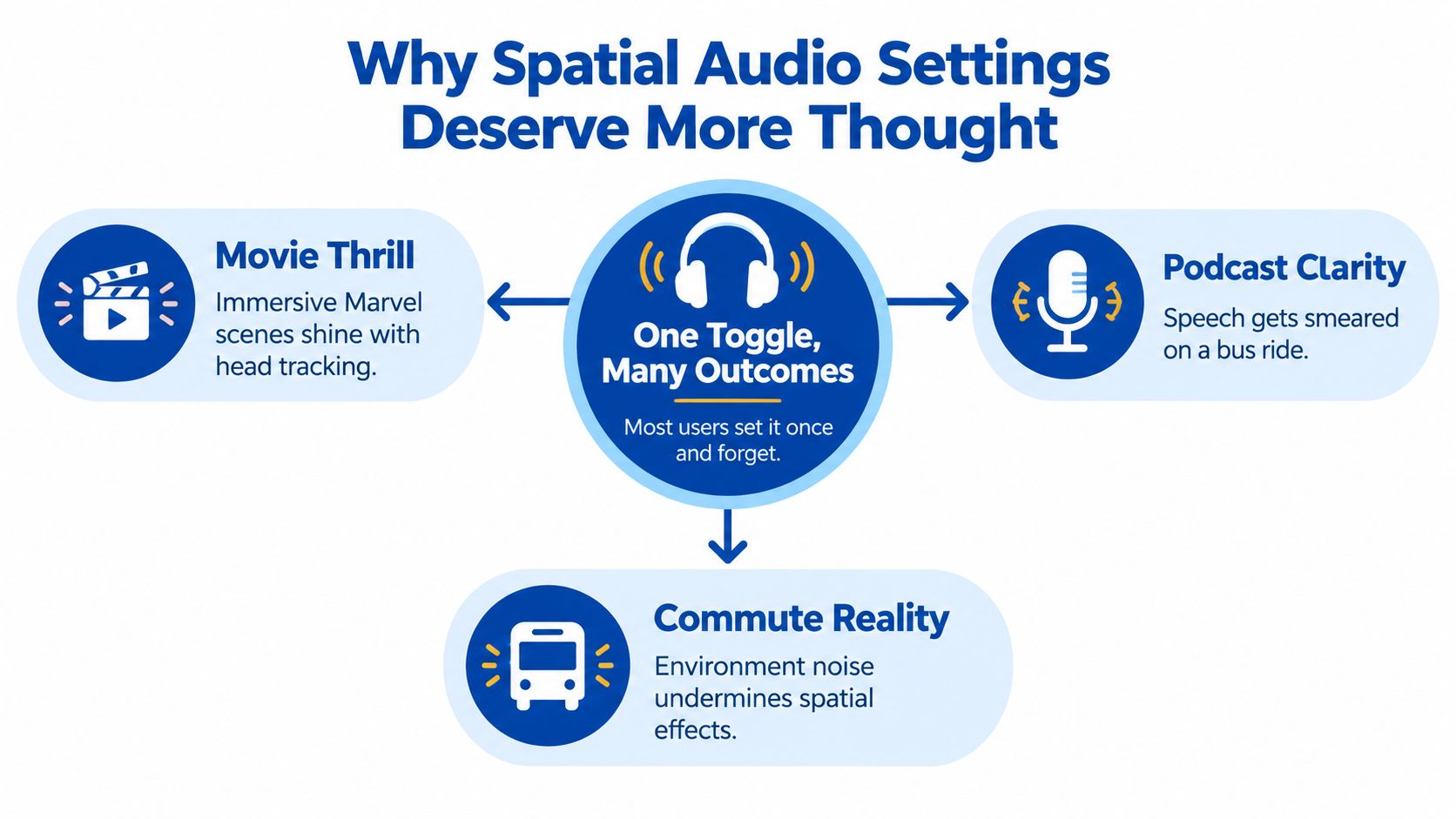
Why Spatial Audio Settings Deserve More Thought
Enabling spatial audio once and never revisiting it is a mistake because the same processing that makes a cinematic scene feel expansive can make a spoken-word recording harder to follow in a noisy commute.
Think of spatial audio as five practical modes:
- Off: Standard playback with no spatial processing.
- Stereo: The familiar left-right presentation, often the cleanest option for ordinary music and speech.
- Fixed Spatial: A wider or three-dimensional presentation that stays anchored to the playback device.
- Head-Tracked: The sound field responds to head movement, so audio appears fixed relative to your phone, tablet, or screen.
- Room or Personalized: Rendering shaped by room information, ear measurements, or a personalized HRTF.
Apple exposes Off, Fixed, and Head Tracked for compatible AirPods, while other ecosystems divide features among Dolby Atmos, Windows Sonic, DTS, Sony 360 Reality Audio, and app-specific controls. Apple's official controls therefore don't map perfectly to Windows or Android terminology. Microsoft also notes that spatial sound can disappear when the wrong output device, driver, or enhancement setting is selected, so a missing toggle often points to configuration rather than broken hardware. See the broader context in this guide to the future of augmented reality.
Match the mode to the listening job
For a film, head tracking can make dialogue and effects feel anchored to the screen. For a podcast, stereo often keeps speech direct and stable. During gaming, a well-configured spatial renderer can help separate front, rear, and overhead cues, but excessive processing can flatten a carefully mixed soundtrack.
The right decision depends on motion and attention, not merely the app name. If you're moving your head while watching a screen, Head Tracked can help. If you're listening casually and want consistent tonality, stereo or Off is usually the better starting point.
Practical rule: If spatial audio sounds impressive for thirty seconds but tiring after ten minutes, switch to Fixed or Off before changing your headphones.
Spatial Audio Settings on iPhone, Mac, and AirPods
Apple's controls are easier to use once you separate content support, AirPods capability, and listening mode. On iPhone, wear your AirPods, open Control Center, press and hold the volume control, tap Spatial Audio in the lower-right corner, and choose Off, Fixed, or Head Tracked, as described in Apple's AirPods spatial audio controls.
Apple defines the choices clearly. Off disables Spatial Audio and head tracking. Fixed enables spatial audio without movement-based changes. Head Tracked enables both spatial rendering and dynamic tracking, so the sound changes as your head moves relative to the device.
The Apple setup I actually recommend
For movie watching on an iPhone or iPad, start with Head Tracked. It makes the device behave more like a visual anchor, which is useful when the screen is in front of you and you occasionally turn your head.
Choose Fixed for desk listening when your head moves freely but the playback device isn't a meaningful visual reference. This is my preferred starting point for immersive music sessions at a desk.
Use Off for phone calls, ordinary podcasts, and music that wasn't mixed for spatial playback. Calls usually benefit from a centered, uncomplicated voice image rather than a moving sound field. If you're troubleshooting loudness or balance, this earbud volume control guide is a useful companion.
Apple's Personalized Spatial Audio setup uses a TrueDepth camera process on supported iPhones. During the capture, Apple instructs you to hold the iPhone about 12 inches from your face, move your right arm 45 degrees to the right for the right-ear capture, and move your left arm 45 degrees to the left for the left-ear capture. The official Personalized Spatial Audio setup provides the capture flow and visual cues.
Once the scan works, leave personalization enabled. It's designed to account for your ear shape rather than forcing every listener through the same generic spatial profile.
On Mac, choose the AirPods under System Settings > Sound > Output, then manage spatial playback in the relevant Music or TV app context. Remember that Bluetooth playback uses AAC rather than Lossless when listening through AirPods, so don't choose a spatial mode expecting a wireless lossless path.
AirPods 3 and older can play supported spatial content but don't provide the same head-tracking behavior as compatible newer models. AirPods Pro 2, AirPods 4, and AirPods Max are the models to consider when dynamic movement is central to your setup. Availability still depends on the device, operating system, app, and content.
Spatial Audio Settings on Android, Windows, and Consoles
Outside Apple's ecosystem, spatial audio is less consistent. Android manufacturers expose different controls, Windows separates system rendering from app behavior, and consoles may offer independent headphone and speaker paths.
On Android, look under Settings > Sound & Vibration > Spatial Audio when the device provides that menu. Samsung and supported Pixel devices may expose Dolby Atmos, while Sony Xperia and selected OnePlus devices may use Sony 360 Reality Audio or another manufacturer-specific implementation. The names matter less than the chain behind them, including the phone, earbuds, codec, app, and content format.
Windows 11 uses Settings > System > Sound > your output device > Spatial Audio. The menu may list Windows Sonic, Dolby Atmos for Headphones, or DTS Sound Unbound. Windows Sonic is the sensible free starting point for gaming. If the control is missing, first select the headphones as the active output device, then inspect driver and enhancement settings. Microsoft's spatial sound troubleshooting discussion reflects how often output selection and software configuration cause the failure.
Platform comparison
| Platform | Settings Path | Spatial Engines | Key Requirement |
|---|---|---|---|
| iPhone and AirPods | Control Center, press and hold volume, Spatial Audio | Fixed or Head Tracked Spatial Audio | Compatible AirPods, supported device, and supported content |
| Android | Settings > Sound & Vibration > Spatial Audio | Dolby Atmos or 360 Reality Audio on supported devices | Manufacturer support, compatible earbuds, app and codec support |
| Windows 11 | Settings > System > Sound > output device > Spatial Audio | Windows Sonic, Dolby Atmos for Headphones, DTS Sound Unbound | Correct output device, drivers, and an enabled spatial format |
| PlayStation 5 | Settings > Sound > 3D Audio | 3D Audio for TV speakers or headphones | Correct output path and console calibration |
| Xbox | Settings > General > Volume & Audio Output > Headset spatial sound | Xbox-compatible spatial formats | Compatible headset and selected headset renderer |
Sony 360 Reality Audio may require ear analysis in the Headphones Connect app. Samsung can separate Dolby Atmos from Dolby Atmos for Gaming, so enable the mode that matches the task rather than assuming one toggle controls everything. Some Windows applications also use exclusive audio mode, which can bypass or override system processing.
For a cleaner PC audio chain, compare your setup with this best sound cards guide. A sound card won't magically fix a bad mix, but the correct output path eliminates one common source of confusion.
Choosing the Right Mode for Your Activity
The best spatial audio settings depend on whether you're moving, watching a visual anchor, competing, or trying to understand speech. Use the following defaults, then change only when you can identify a reason.
| Activity | Recommended Mode | Platform | Why It Works |
|---|---|---|---|
| Commuting and travel | Stereo or Off | Any | Noise and movement can make artificial positioning distracting |
| Movies and TV | Head Tracked | AirPods and compatible Apple devices | Sound remains tied to the screen as you move |
| Laptop music at a desk | Fixed Spatial or Stereo | Mac, Windows, Android | You get a stable presentation without movement cues chasing your head |
| Video calls | Off | Any | Voices stay centered and processing remains predictable |
| Competitive gaming | Platform spatial mode | Windows, PlayStation, Xbox | Directional cues can separate opponents, effects, and environmental sounds |
My defaults by scenario
Commuting: Start with Off or stereo. A bus, train, or airport already supplies constant environmental motion, and head tracking adds little value when there's no stable screen in front of you.
Movies: Use Head Tracked with AirPods when the screen is in front of you. Fixed is better if you're lying down, watching on a side-facing device, or find the sound field distracting.
Calls: Turn spatial audio off. Even when Microsoft Teams offers a dedicated Spatial audio toggle in device settings and meeting controls, the best call setting is the one that preserves speech intelligibility. Teams places the control under Settings and more > Settings > Devices, and also under More actions > Audio settings during a meeting, according to its Spatial audio in Teams meetings guide.
Gaming: Use Windows Sonic, Dolby Atmos for Headphones, DTS Sound Unbound, PlayStation 3D Audio, or Xbox headset spatial sound, depending on your platform. Don't stack multiple renderers. If the game has its own 3D audio engine, disable extra virtualization until you've compared both paths.
For competitive first-person shooters, prioritize a stable fit, clean separation, and low delay over dramatic width. This low-latency wireless headset guide for competitive FPS is the right place to compare hardware behavior rather than chasing the most exaggerated effect.
The Science Behind Head Tracking and Personalization
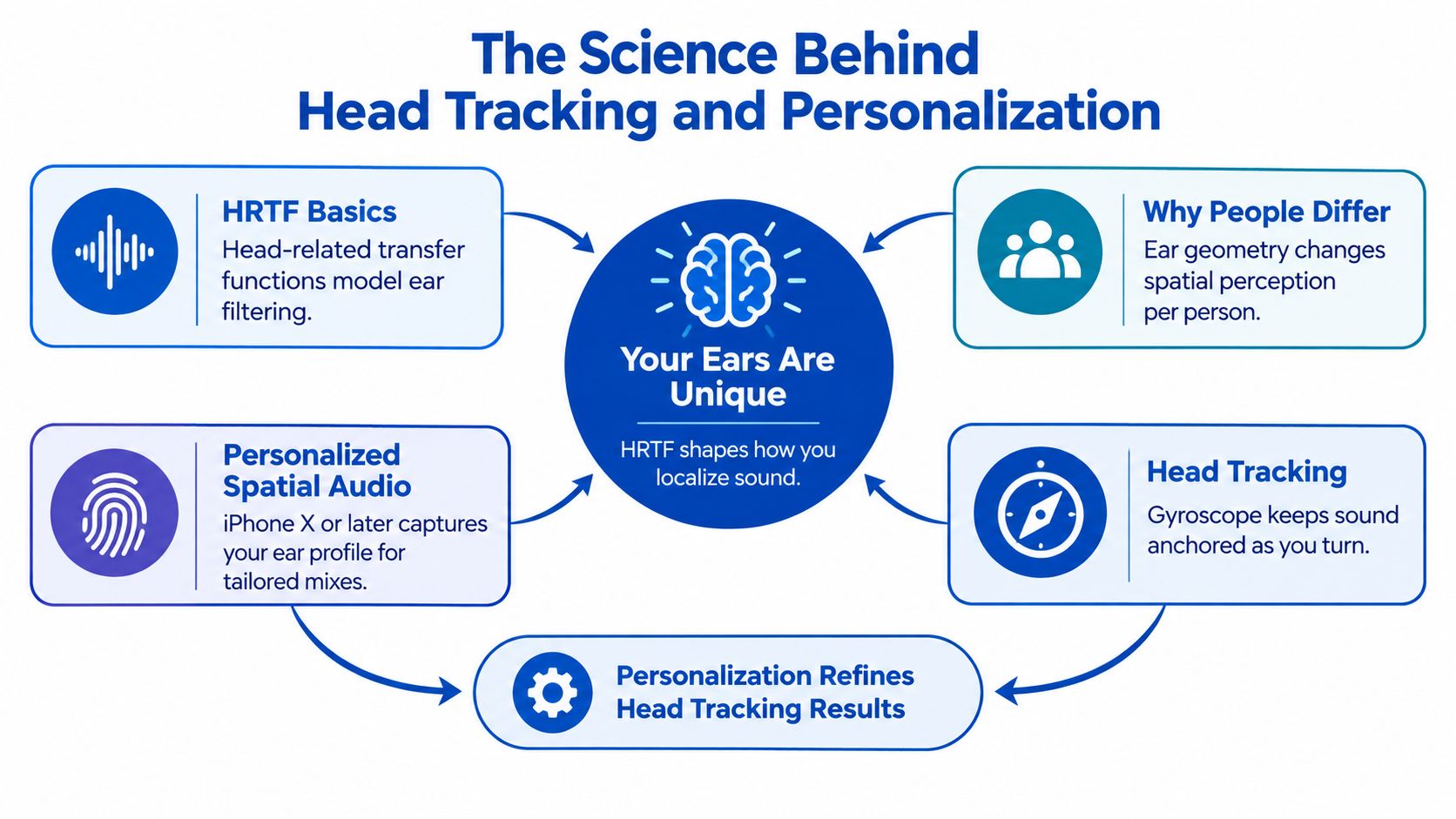
Spatial rendering depends on an HRTF, or head-related transfer function. It models how your head, torso, and ears filter sound before your brain interprets direction. Because ear-canal transfer varies substantially between listeners, one generic headphone profile won't produce the same localization experience for everyone.
A listening study with 245 listeners derived a mean headphone calibration function and compared it with individualized and artificial-ear calibration methods. The study found that the mean calibration function performed well for diffuseness and positional closeness, which supports standardized calibration as a practical baseline when individual ear measurements aren't available. The researchers evaluated differences through diffuseness, externalization, and closeness, so those are sensible things to judge when you test your own setup. Read the headphone calibration research for the technical method.
Why head movement changes the result
Without head tracking, a binaural virtual source can move with your head, which weakens the illusion that the sound exists in a stable space. Controlled listening work found that head-tracked binaural audio improved localization consistency, while broader VR research found that combining head-tracked binaural rendering with room-acoustic rendering increased immersion and audiovisual quality. Head movement also helps reduce front-back reversals, a common localization error.
The practical setup is straightforward:
- Enable real-time orientation sensing on the device or headset.
- Allow the renderer to update HRTFs dynamically as your head moves.
- Test front, rear, and side cues with content you know well.
- Turn tracking off when movement feels distracting or when you're listening without a visual anchor.
Apple's ear scan and Sony's ear-shape analysis are useful because personalization refines the filtering model. When no personalized option exists, don't compensate by widening the stereo field aggressively. Excess width can reduce center focus and make vocals or dialogue feel detached.
For technical background on localization, this resource on SSL for audio engineers offers useful context for readers who want to connect perceptual cues with professional audio practice. If your headphones also sound too bright, boomy, or hollow, adjust the base response before blaming the spatial renderer. A practical headphone frequency response guide can help you identify whether the underlying tonal balance is the primary issue.
Why Spatial Audio Sounds Weak and How to Fix It
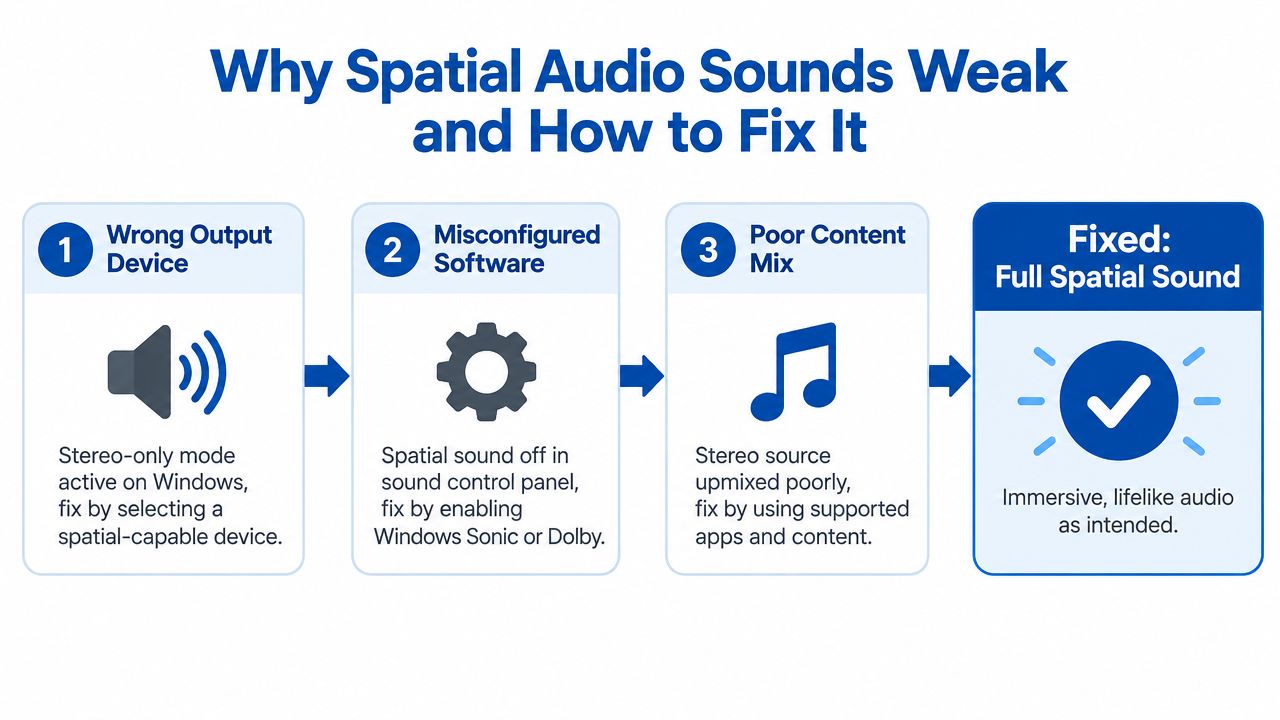
Spatial audio usually sounds weak for one of three reasons: the wrong output device is active, the earbuds aren't delivering reliable physical cues, or the app is overriding the system setting. Don't start by buying new headphones. Confirm the signal path first.
Check the output before changing the mix
On Windows, select the actual headphones under Sound output, then open the Spatial Audio menu. Choose one renderer and test it. If Windows Sonic, Dolby Atmos, or DTS is selected but the game still sounds like ordinary stereo, inspect exclusive mode, driver enhancements, and the game's own audio output selection.
On Android, verify that the spatial option belongs to the earbuds currently connected. A phone can remain paired with one device while sending audio to another active output. Also check whether the app supports the format instead of assuming that every stereo track becomes convincing immersive audio.
Inspect fit, microphones, and firmware
Wireless earbuds rely on a stable seal and correctly functioning microphones for several immersive features. Reseat the tips, clean the grilles, and install available firmware updates. If one earbud's microphone is blocked, transparency, adaptive processing, and head-tracking behavior may become inconsistent.
Codec choice also matters. Your device and earbuds must both support the codec you select, and the app may impose its own delivery limits. Treat aptX Adaptive or LC3 as possible delivery options, not guarantees of better spatial rendering. Content support and the renderer still determine the final result.
Use this 30-second diagnostic flow
- Confirm the source: Look for an Atmos or Sony 360 badge when the service provides one.
- Confirm the output: Make sure the intended earbuds, headset, or speakers are selected.
- Confirm the renderer: Enable one spatial engine, not two stacked effects.
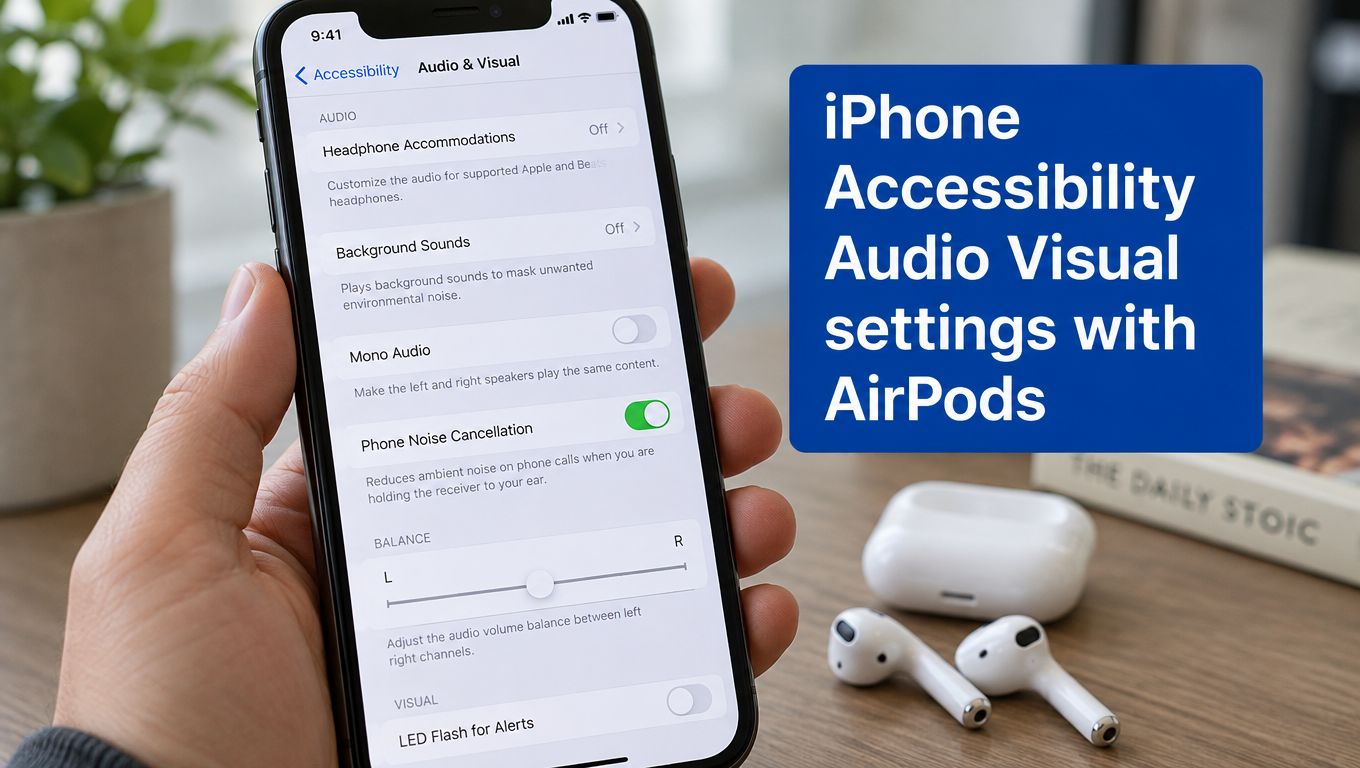
- Confirm accessibility settings: Check that mono audio or unusual balance settings aren't enabled.
- Confirm the app: Review the game, streaming app, or music player's own audio controls.
- Compare quickly: Switch between stereo and spatial using the same passage, not different tracks.
A stereo recording upmixed into a spacious effect can sound bigger without becoming more accurate. If you stream or record gameplay, keep the monitoring chain stable before adjusting broadcast processing. This guide on how to improve your Twitch audio quality is a useful reference for separating game sound, microphone sound, and monitoring output.
Quick Tuning Checklist and Final Recommendations
Use this as a screenshot-ready checklist. Make one change at a time, then listen to the same scene, song, or game segment.
Apple
- Select the mode: Use Control Center, hold the volume control, and choose Off, Fixed, or Head Tracked.
- Scan your ears: Complete Personalized Spatial Audio when your iPhone and AirPods support it.
- Use the visual anchor: Choose Head Tracked for films and Fixed for desk listening.
- Keep calls simple: Turn spatial audio off for ordinary phone and video calls.
- Remember Bluetooth limits: AirPods use AAC playback rather than wireless Lossless.
Android
- Find the device control: Check Sound & Vibration and confirm the connected earbuds are the intended output.
- Choose one engine: Use Dolby Atmos or 360 Reality Audio where your phone and earbuds support it.
- Check the app: Confirm that the service or game offers spatial content.
- Test the fit: Reseat both earbuds and inspect microphones before changing equalization.
Windows
- Select the output: Open System > Sound and choose the headset you're wearing.
- Set one renderer: Start with Windows Sonic for gaming, then compare paid or app-specific alternatives.
- Inspect exclusive mode: Disable software behavior that bypasses the system spatial control.
- Avoid stacking: Don't combine Windows virtualization with a second headset surround mode unless you've tested the result.
Consoles
- Use the console path: On PlayStation 5, open Sound and configure 3D Audio for the active output. On Xbox, open Volume & Audio Output and select headset spatial sound.
- Check the headset: Confirm the headset is connected through the intended wireless, USB, or controller path.
- Compare in-game: Use a familiar map or scene and listen for stable front-to-back placement.
My three strongest recommendations are deliberately conservative. Use Head Tracked for movies, Fixed for desk gaming only when it improves separation without adding confusion, and Off for ordinary music unless the mix is natively spatial. For competitive gaming, use the platform's supported spatial engine, then leave the rest of the processing chain alone.
When your current earbuds or headset can't deliver a stable seal, reliable tracking, or a clean output path, tuning has reached its limit. DigiDevice's curated headphone and soundbar selection is a logical place to look for hardware built around immersive listening, rather than adding another software toggle to a weak setup.
DigiDevice offers a curated range of headphones, true wireless earbuds, soundbars, and other electronics for people building practical immersive-tech setups. Visit DigiDevice to compare spatial-audio-ready hardware and check prices before your next upgrade.