

Bluetooth Audio Transmitter and Receiver: How to Choose
A Bluetooth audio transmitter sends sound from a non-Bluetooth source, such as a TV, PC, or console, to wireless headphones or speakers, while a receiver lets wired speakers, car stereos, or amplifiers play audio streamed from a phone.
You've connected an adapter, your headphones say they're paired, and the actor's lips still move before you hear the dialogue. Or you've bought a receiver when your TV needed a transmitter. The useful distinction isn't whether an adapter has Bluetooth, it's which direction the sound travels and what both connected devices support.
Updated for March 2026. My approach is to follow the audio path before comparing spec sheets, because that's where confusing purchases start to make sense.
What a Bluetooth Audio Transmitter and Receiver Does
Think of wireless audio as a postal delivery. The transmitter mails the package, and the receiver accepts it. Buying another sender won't help if your stereo needs something that can receive.
For a television setup, the TV supplies sound to an adapter operating in TX mode. Your wireless headphones receive that sound. For an older amplifier, an adapter in RX mode receives music from your phone and passes it into the amplifier through a cable.
Follow the direction of the sound
The connection map below separates these roles.
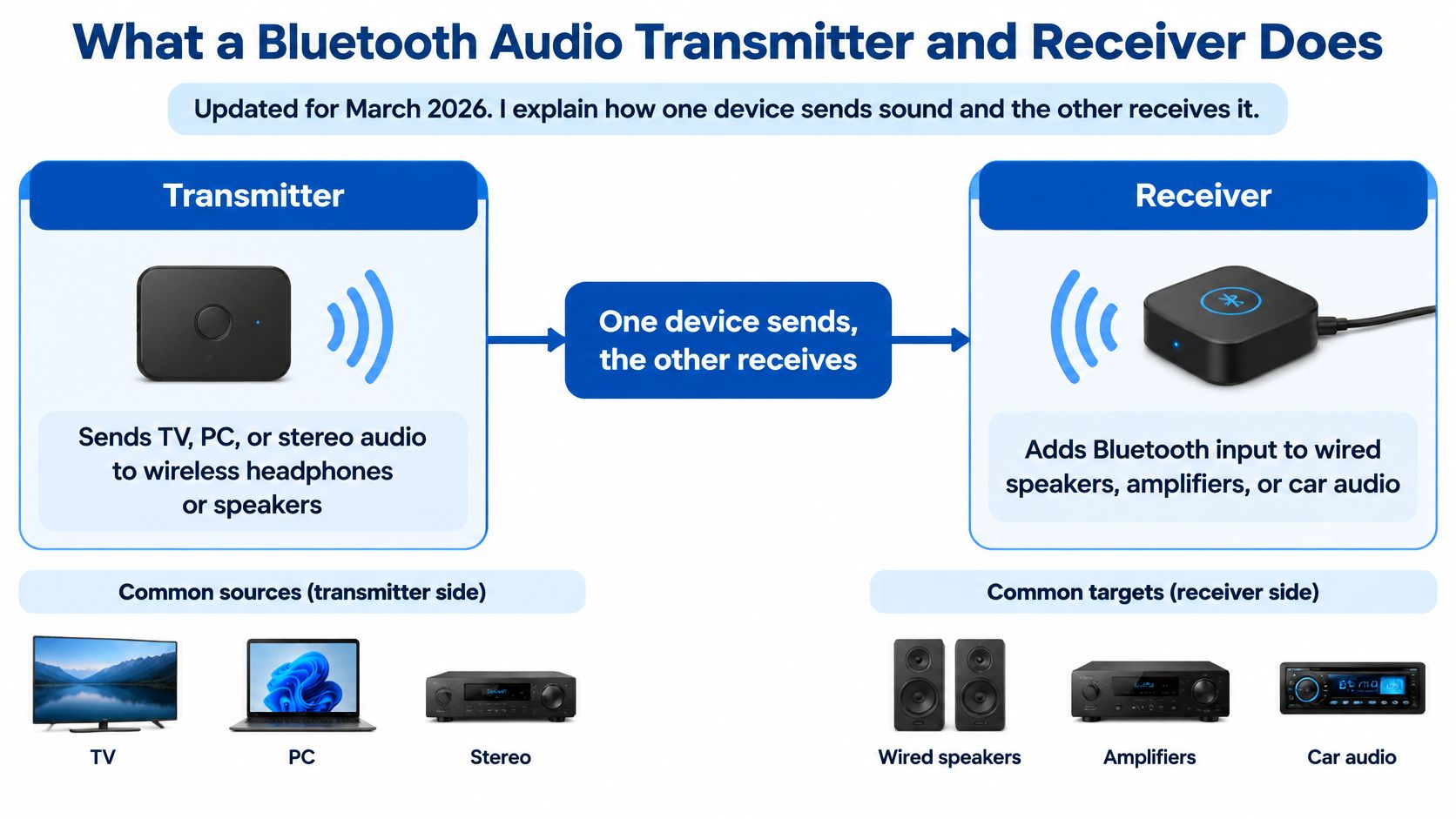
Classic Bluetooth music streaming uses the Advanced Audio Distribution Profile, usually shortened to A2DP. It defines a sending source and a receiving sink, rather than treating every Bluetooth product as interchangeable.
A2DP carries a one-way stereo stream, not microphone audio back in the other direction. Hands-Free Profile, or HFP, is a separate profile for bidirectional voice communication, as explained in the Bluetooth SIG's introduction to Bluetooth LE Audio.
Practical rule: Draw an arrow from the equipment producing sound to the equipment playing it. That arrow tells you whether the adapter needs to transmit or receive.
A switchable TX/RX combo adapter can serve either role. Don't interpret that label as a promise that it performs both jobs simultaneously, supports a microphone, or bridges every kind of Bluetooth connection.
Match the role before the features
- TV to wireless headphones: Look for transmitter operation and an input matching the TV's audio output.
- Phone to an older stereo: Look for receiver operation and an output matching the stereo's input.
- Computer to a gaming headset: Check the audio direction and microphone requirements separately.
- One adapter for different locations: Consider switchable hardware, then verify its capabilities in each mode.
I'd start with this simple routing exercise before comparing sound-quality claims. When browsing audio accessories, keep the required input, output, and operating mode written beside you, rather than relying on a product photo or Bluetooth logo.
Codecs Latency and Range Explained
A codec compresses audio for transmission and reconstructs it for playback. It's part of the connection, but so are scheduling, buffering, and the electronics that turn decoded audio into sound.
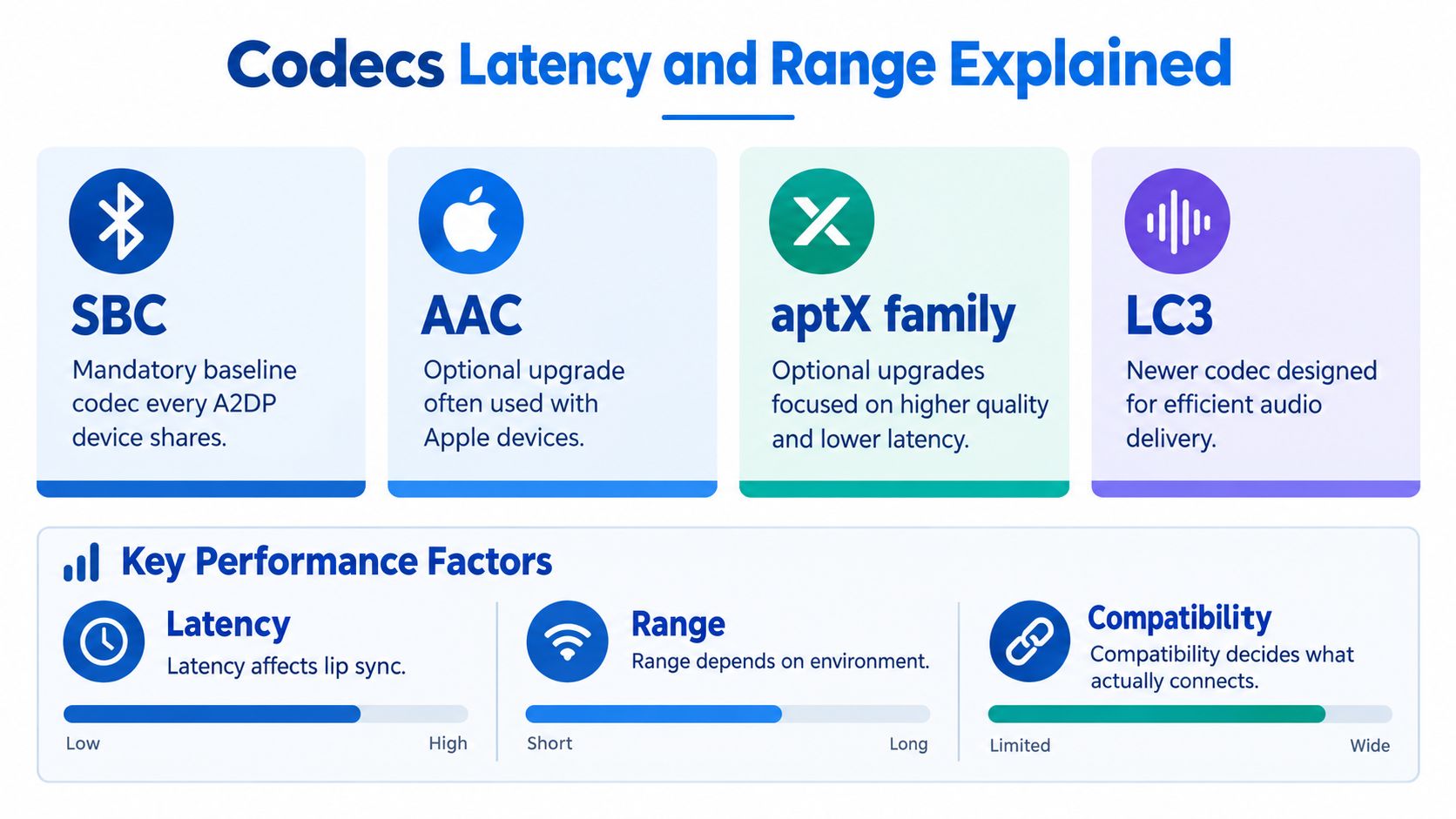
The visual below provides a useful vocabulary check before the more important compatibility questions.
Shared support determines the connection
SBC is mandatory for A2DP, while formats such as AAC are optional. A transmitter and headphones can therefore connect successfully without using the optional codec you expected, because their shared capabilities determine the available path, as described in this technical explanation of A2DP codec support.
Treat codec names precisely. An aptX label isn't enough to establish support for every aptX implementation, and LC3 belongs to the LE Audio architecture, rather than being a universal upgrade for older Classic Audio equipment.
Latency is the complete journey: capture, encode, transmit, buffer, decode, and play. Optional aptX Low Latency can reach approximately 40 ms of Bluetooth link delay, but that figure isn't automatically the delay of your entire television or gaming setup, according to Silicon Labs' Bluetooth audio technical guidance.
For LE Audio, Bluetooth SIG characterization found that LC3 at 80 kbps with a 7.5 ms frame could outperform SBC at 198 kbps in subjective quality, while tuned gaming configurations approached 30 ms or less in total system delay; those are configuration-dependent results, not promises for every adapter, as documented in the LC3 characterization white paper.
A Bluetooth 5.3 or 5.4 label alone doesn't establish lip-sync performance. Look for the negotiated codec and measured end-to-end behavior.
For gamers, check how input lag differs from audio delay before choosing an upgrade. A faster display and a faster audio path solve different problems.
Range needs an honest explanation
Bluetooth audio operates in the 2.4 GHz band, where transmitters face regulatory power and spectral-density requirements. Antenna design, receiver sensitivity, interference, and placement still affect usable range, so a power specification alone can't establish performance throughout your home, as Silicon Labs explains in its FCC compliance guidance.
Keep these distinctions separate:
- Latency affects lip sync: Judge timing with the intended source and headphones.
- Range depends on environment: Test the listening position.
- Compatibility decides what connects: Verify the architecture, profile, and codec.
For another explanation of the audio-adapter concept, this video provides additional context.
Real-World Setups for TV Cars PCs and Hi-Fi
A TV, car stereo, computer, or amplifier can gain wireless audio without replacing the equipment itself. The right adapter depends on which way the sound needs to travel and which connections the existing gear provides.
Bluetooth's cable-replacement roots help explain its appeal. Ericsson, IBM, Intel, Nokia, and Toshiba formalized the technology in the mid-1990s and established the Bluetooth SIG on May 20, 1998, according to the Bluetooth technology historical timeline.
Quiet television and compact cinema
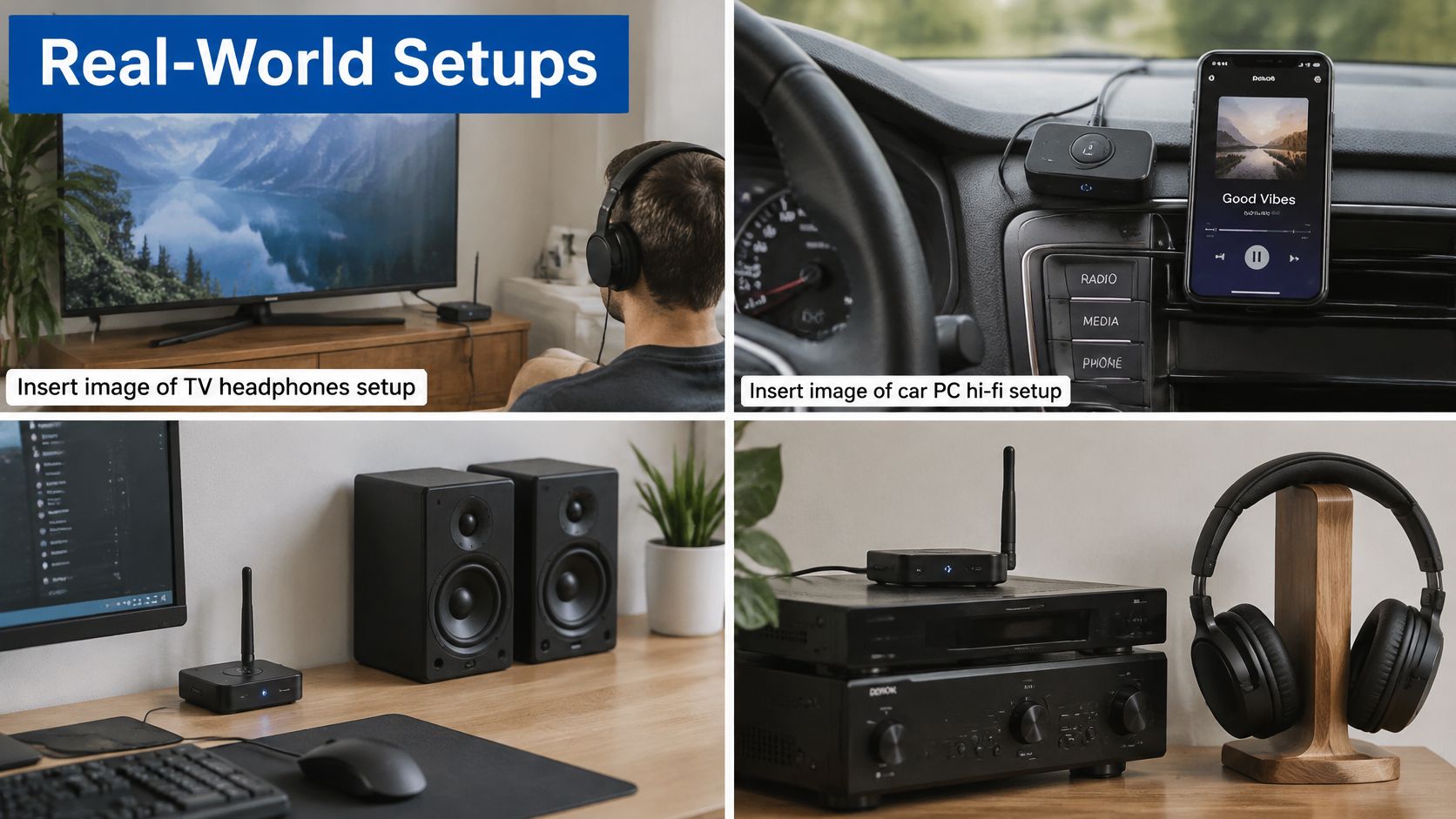
For late-night TV, a transmitter sends audio from a supported TV output to wireless headphones. Start by checking the TV's available ports. An optical output can be useful if the headphone jack is noisy or inconvenient, but the connection is only suitable when the transmitter accepts the TV's optical audio format.
The signal chain works like a row of compatible plugs: the TV's output, transmitter input, Bluetooth codec support, and headphones all need to line up. For example, a compact optical transmitter beside a TV can send audio to wireless headphones without running a cable across the room.
The same port check applies to compact projectors. A connector that accepts audio may not send it out. For a small-room system that combines speakers and other entertainment gear, see this guide to planning a theatre-in-a-box setup.
Older cars, gaming desks, and familiar amplifiers
In a car with an AUX input, a receiver sends audio from a phone to the stereo. Music playback does not automatically mean the adapter supports calls, so check for microphone and voice-profile support if hands-free conversations matter.
- PC or console: Choose a transmitter with an input the device supports. For voice chat, check the microphone and return-audio route separately from headphone playback.
- Hi-fi system: Connect a receiver's audio output to a compatible amplifier or powered-speaker input. Your existing speakers can stay in place while the receiver adds wireless access.
- Car stereo: Follow the signal path from phone to adapter to stereo. An FM transmitter sends audio through the radio, which is a different setup from a Bluetooth receiver plugged into AUX.
In our view, an adapter works best when it fills a specific connection gap. Keep the gear that already sounds good, and add only the wireless link you need.
Pairing and Setup Made Simple
Setup becomes less frustrating when you separate wired routing, Bluetooth pairing, and audio playback. A paired indicator confirms a connection, but it doesn't prove the adapter is receiving sound from the correct port.
Work through the connection in order
- Choose the operating mode. Select TX for sending source audio to headphones, or RX for accepting phone audio into wired equipment. Make this choice before pairing.
- Connect the correct port. The TV's output must feed the transmitter's input. A receiver's output must feed the amplifier's input, not another output.
- Check format requirements. If the optical transmitter requires PCM, select an appropriate PCM output setting on the TV. Consult both manuals rather than assuming every optical adapter accepts every television audio format.
- Arrange reliable power. Confirm whether USB supplies power, carries audio, or does both. For battery-powered adapters, check the charging and playback instructions before leaving them permanently connected.
- Pair the intended endpoints. Put the adapter into its documented pairing mode, then put the headphones into theirs. In RX mode, select the receiver from the phone's Bluetooth menu.
- Test sound before changing more settings. Play familiar dialogue or music, confirm the active output, and adjust volume cautiously. Decide whether TV speakers should remain enabled only after wireless playback works.
- Add another listener if supported. Follow the model's dual-link instructions. Don't assume a remembered device list means simultaneous playback is available.
Handle reconnection without guesswork
If pairing fails, check whether the headphones have reconnected to a nearby phone. Temporarily disconnect that competing source, then repeat the adapter's documented pairing procedure.
After changing operating modes, a fresh pairing may be necessary. I'd check mode selection and the active audio route before deciding the hardware is faulty, but that's a troubleshooting priority, not a claim based on hands-on testing.
For earbud-specific controls, follow the true-wireless-earbud pairing guide alongside the adapter manual. Compare compatible accessories only after you know which part of the connection needs replacing.
Before resetting: Record the current mode, cable connection, and indicator behavior. Changing everything together makes a successful fix harder to identify.
Insert image of a Bluetooth receiver plugged into a car aux port with a phone streaming audio, using an actual store product photograph.
Fixing Lag Lip-Sync and Random Dropouts
A low-latency transmitter can't make ordinary headphones adopt a low-delay path they don't support. The source, transmitter, negotiated codec, receiving hardware, buffering, and TV processing all contribute to the result, as explained in this guide to how audio-to-Bluetooth transmitters work.
Start by identifying the active connection, not the longest list of capabilities printed on either box.
Diagnose the symptom before buying another adapter
| Symptom | What to investigate | Practical next action |
|---|---|---|
| Dialogue consistently trails the picture | Negotiated codec and source processing | Check the active codec, then test available audio-processing settings separately |
| Delay changes after adding headphones | Dual-link operating restrictions | Retest with only the original headphones connected |
| Audio breaks up when you move | Placement, obstructions, and interference | Move the adapter into a more exposed position and repeat the same listening route |
| Trouble appears after a settings or firmware change | Changed configuration or connection state | Review the changed settings and follow the manufacturer's reconnection procedure |
| Music works but the microphone doesn't | Missing bidirectional support | Check the voice profile and platform requirements rather than repeatedly re-pairing |
Use an app, indicator, or status screen if the manufacturer provides one to identify the negotiated codec. If no confirmation method exists, treat the connection mode as unverified rather than guessing from the product name.
Change one variable at a time
- Establish a baseline: Use familiar dialogue and keep the same source material throughout the comparison.
- Isolate source processing: Compare available TV audio settings individually. Treat game mode or processing bypass options as tests, not guaranteed cures.
- Check output compatibility: Confirm the selected digital format matches the transmitter's requirements. PCM compatibility and low latency are separate questions.
- Improve placement: Move the adapter away from enclosed metal-backed positions and test another practical power or cable arrangement.
- Retest the complete system: Repeat the check with the headphones, listening position, and sharing mode you plan to use.
A matched transmitter-and-headphone bundle may simplify compatibility checking, but the word matched isn't a measurement. Ask which codec it uses and whether timing was evaluated in the intended operating mode.
Competitive players should review low-latency wireless headset considerations for FPS gaming before replacing only the transmitter. If the receiving headset is the limiting component, another sender with similar capabilities won't address that limitation.
The useful outcome is a diagnosis: incompatible codec, source delay, unstable connection, or unsuitable hardware. That's much more actionable than concluding that Bluetooth is slow.
How to Choose the Right Bluetooth Audio Adapter
Choose around the complete listening setup, not an isolated adapter specification. For audio and AR enthusiasts, that means considering video timing, platform support, and voice communication alongside music playback.
I'd use the following order when comparing candidates. It keeps attractive extras from distracting you from a basic mismatch.
Build a compatibility shortlist
- Start with the receiving equipment: Record its supported audio architecture and exact codecs.
- Check the source connection: Identify whether you need optical, AUX, RCA, or supported USB audio.
- Choose dedicated or switchable hardware: Buy TX/RX flexibility only if you'll use both roles.
- Define sharing requirements: Distinguish simultaneous headphone playback from switching between source devices.
- Request useful latency evidence: Look for the tested source, headphones, codec, and operating mode, not just a favorable standalone number.
Before replacing headphones, compare headphone types and compatibility considerations. A comfortable headset with a suitable connection can be a more practical choice than a technically impressive model that doesn't fit your source.
Bluetooth Audio Codec Compatibility at a Glance
| Codec | Typical Latency | Best Use Case | Compatibility Requirement |
|---|---|---|---|
| SBC | Implementation-dependent, not a low-delay guarantee | Basic Classic Audio playback | A2DP support at both endpoints |
| AAC | Implementation-dependent | Music when supported by the complete setup | Shared AAC support |
| aptX Low Latency | Low-delay operation with compatible hardware | Dialogue and gaming where supported | Exact aptX Low Latency support at both endpoints |
| aptX Adaptive | Mode- and implementation-dependent | Setups explicitly supporting its operating modes | Shared aptX Adaptive support |
| LC3 | Dependent on framing, transport, and buffering | Compatible LE Audio applications | LE Audio support in the required mode |
The table is a compatibility aid, not a universal ranking. As the timing examples earlier show, a codec name without implementation details doesn't establish the final experience.
Separate Classic Audio from Auracast
LE Audio unicast and Auracast broadcast audio aren't interchangeable shopping labels. Auracast allows a broadcast to serve many listening devices, while a conventional Classic Audio adapter follows a different connection model.
Android's 2025 Auracast expansion covered selected Pixel, Samsung, Xiaomi, and POCO devices, with compatible LE Audio support required in the phone and headphones, according to Ezurio's explanation of Auracast's public-audio transition. Treat that as a documented rollout, not a complete current compatibility list.
For broadcast use, verify these separately:
- Transmitter capability: Does it explicitly create the required Auracast broadcast?
- Receiver eligibility: Can your headphones or hearing device receive it?
- Discovery and access: How do you select the broadcast and enter any required access information?
Don't pay for future-facing terminology without a use case. Existing headphones may make a compatible Classic Audio transmitter the sensible purchase, while public listening may justify investigating broadcast-ready equipment.
Use the available setup and comparison guides to narrow your requirements, then check individual listings against that shortlist. No verified adapter product-page addresses are available here, so a specific purchase recommendation would imply more certainty than the available information supports.
Common Questions and the Right Next Step
Match the audio path before comparing extras. Your most useful shopping document is a short list of the source's outputs, the receiving device's supported codecs, and the features your intended use requires.
Keep the product manuals open while comparing listings. If a seller doesn't explain the relevant operating mode or compatibility, ask before buying rather than interpreting the Bluetooth version as reassurance.
Can one transmitter feed two headphones that stay in sync?
It can if the transmitter explicitly supports simultaneous headphone playback, but verify what happens to the operating mode when both listeners connect. A dual-link claim doesn't, by itself, establish equal timing between different headphones.
Ask whether the intended headphone combination is supported and whether the desired codec remains available. Test with dialogue, not just music, because timing differences are easier to notice when you can see someone speaking.
Can a classic AUX Bluetooth transmitter join Auracast?
Generally, not unless it explicitly includes the necessary Auracast receiving capability. A wired AUX connection describes the physical audio port, not the Bluetooth architecture or broadcast role.
Also distinguish joining a broadcast from creating one. Those are different requirements, so an Auracast feature needs a clear description of what the product does.
Does a Bluetooth receiver make music sound worse than a cable?
It may change the result, but there isn't a universal audible penalty you can predict from the receiver label alone. Codec behavior, the receiver's audio output, and the rest of your system all deserve consideration.
For your own comparison, use familiar music, similar playback volume, and the same amplifier and speakers. Judge sound quality separately from connection stability, then decide whether wireless convenience is worth any difference you hear.
Before purchasing, audit your existing equipment and identify the missing capability. Check price only after checking compatibility, especially if your goal is synchronized video or dependable gaming audio.
DigiDevice offers headphones, adapters, cables, and other electronics that can form part of a compatible audio setup. Visit DigiDevice to compare relevant listings against your source ports, headphone codecs, and microphone requirements. Check Price on the listing that explicitly supports your complete audio path before placing your order.