

What Is Input Lag and How It Affects Your Gaming
You press a controller button, but your character reacts a moment later. You move a mouse to track an opponent, yet the image seems to follow behind your hand. That frustrating disconnect is usually related to input lag, and the monitor is only one part of the delay.
Direct answer: Input lag is the time between a physical action and the corresponding image appearing on a display, usually measured in milliseconds. Excellent gaming performance generally means staying under 10 ms, while 10 to 20 ms is considered very good and delays above 40 ms can feel sluggish, as explained in RTINGS' input-lag testing guide.
In my testing experience, the most useful way to understand the problem is to follow the full path: input device, game and GPU, display processing, then the screen or headset. The same pipeline matters for gaming, augmented reality, audio monitoring, projectors, and even wireless connections. If your setup feels slow, start with the complete system rather than assuming the panel is responsible.
Introduction
A gamer notices the problem during a close match. The controller works, the game runs smoothly, and the monitor has a fast refresh rate, but an on-screen action still seems to arrive late. That small gap can make aiming feel disconnected and timing-based actions harder to perform.
The answer to what is input lag begins with a simple definition. It's the delay between your action and the visible result, measured in milliseconds. The display's processing may contribute to it, but so can the controller, mouse, wireless connection, CPU, GPU, frame queue, and game settings.
A useful mental model has four stages:
- Input sampling, when the device detects your action.
- Game and GPU processing, when the system creates the next frame.
- Display processing, when the monitor, television, or projector handles the signal.
- Visible or headset output, when you finally see the result.
For a practical starting point, review this gaming desk setup guide, then test one stage at a time. Low-latency hardware can help, but only after you identify where the delay is entering the chain.
Understanding Key Concepts
Input lag is the interval between a physical action and the corresponding image appearing on a display. Testing expresses it in milliseconds because even a short delay can affect fast games. Reviewers often describe lower values as excellent, while higher values may feel sluggish, but the number alone does not explain where the delay occurs. The monitor may add processing time, while the controller, mouse, game, GPU, or wireless connection contributes earlier in the chain.
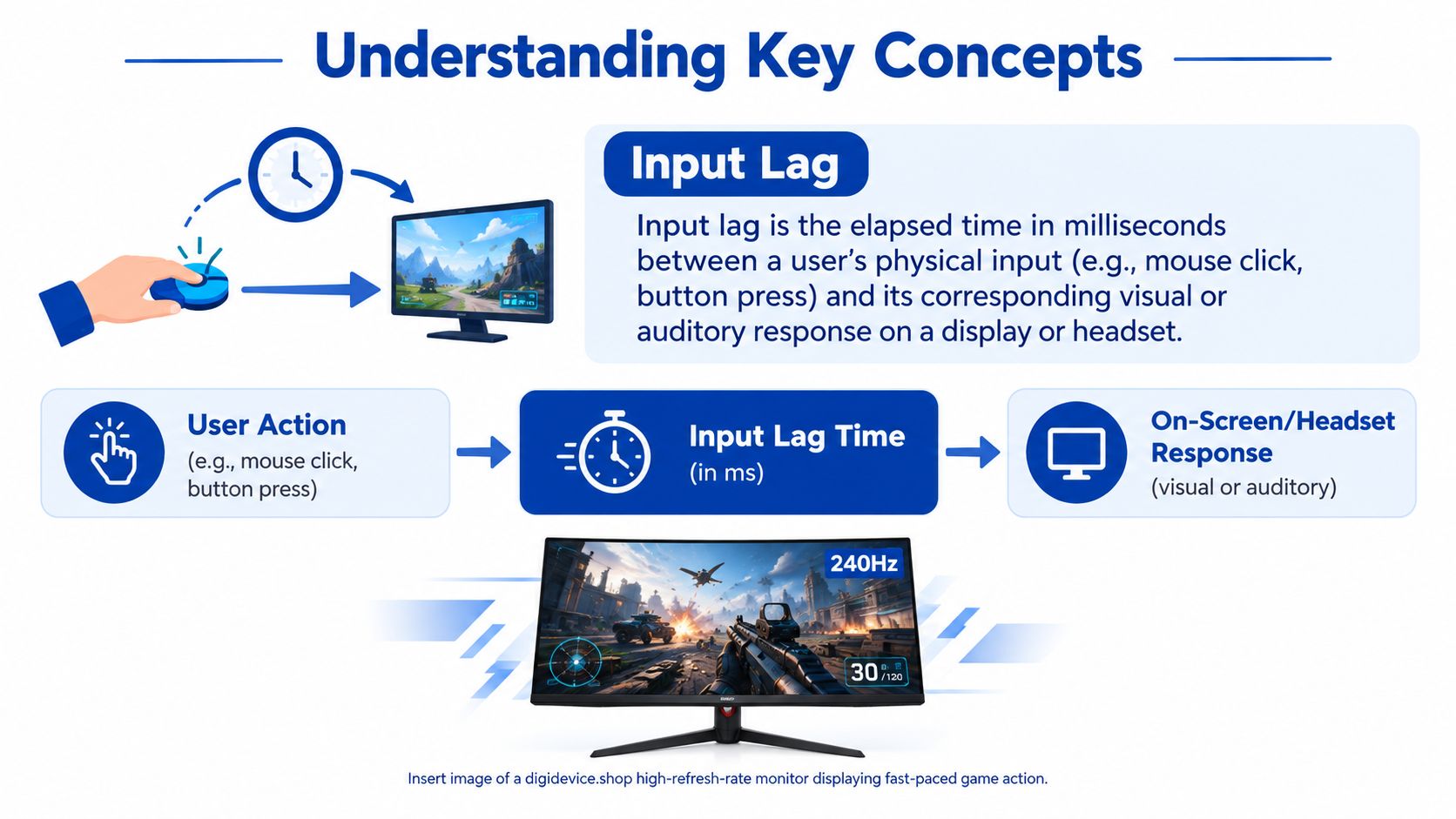
A common mistake is treating input lag and response time as the same measurement. Response time describes how quickly an individual pixel changes from one color to another, often through a gray-to-gray test. Input lag describes the processing interval between receiving a signal and beginning to show the result. A monitor can advertise a 1 ms response time while still having noticeably higher input lag, as shown in this response-time versus input-lag comparison.
The difference becomes clearer with mail delivery. Response time is the speed at which the envelope changes at your door. Input lag covers the complete route, from collecting the message and sorting it to transporting it and placing it where you can read it. Faster pixel transitions cannot remove a delay earlier in delivery.
What the number actually tells you
A display test usually measures the interval from receiving a video signal to starting the image on screen. It does not measure the time required for an LCD or OLED pixel to complete its color transition. Display scaling, filtering, buffering, and image-enhancement features can therefore affect the result.
Refresh rate also matters. A higher refresh rate gives the display more frequent opportunities to present a new frame, though it does not erase delays from input sampling, game processing, GPU rendering, or wireless transmission. I would compare the monitor's measured behavior with the console or PC settings rather than trusting a response-time badge alone. The 144 Hz Low-Latency Gaming Monitor is one product to evaluate in that broader setup.
For online play, the connection adds another part of the experience. Compare wireless choices with this Wi-Fi 7 versus Wi-Fi 6E gaming guide. Network delay affects interaction with an online service, while local input lag covers the time from your action to the response on your own display. Testing each stage separately makes it easier to choose the right product instead of replacing a monitor when the wireless link is the actual bottleneck.
Technical Causes of Input Lag
Input lag behaves like a pipeline. Each stage can add delay, and a strong result at one stage won't automatically fix a bottleneck somewhere else. A low-lag monitor may still feel slow if device polling, frame queuing, or wireless transmission adds delay, a point emphasized in Intel's troubleshooting guide.
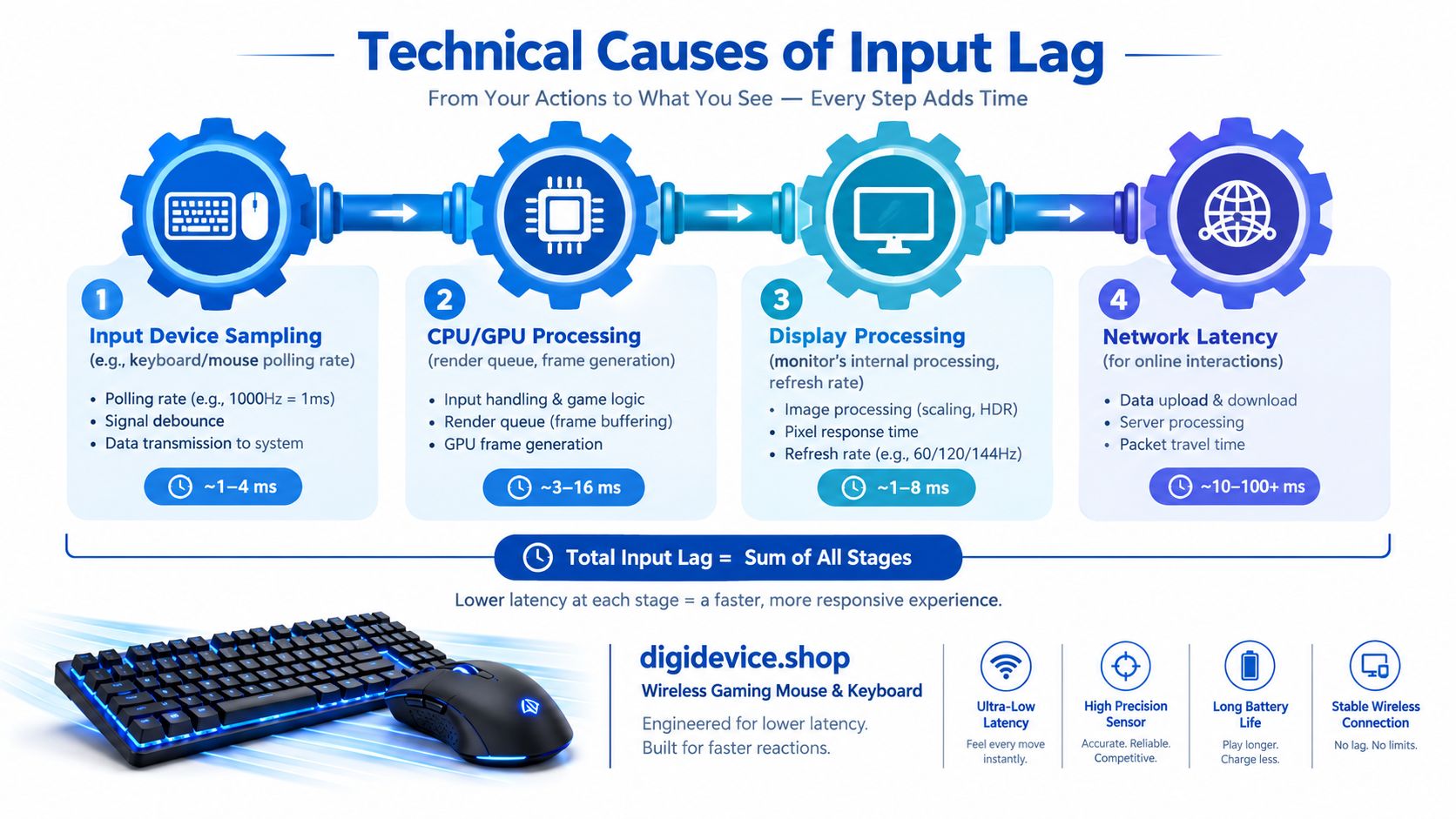
The four-stage pipeline
| Stage | What happens | What can slow it down |
|---|---|---|
| Input device sampling | The mouse, keyboard, or controller detects an action | Polling behavior, wireless variability, device processing |
| CPU and GPU processing | The game updates and renders a frame | Render queues, frame buffering, heavy settings |
| Display processing | The display receives and prepares the image | Scaling, filtering, buffering, enhancement modes |
| Wireless or network transmission | Data travels through a wireless path or online service | Radio conditions, congestion, packet delay |
Input device sampling comes first. A mouse or controller doesn't communicate a continuous stream of perfect information. It samples your movement or button state, then passes that information to the system. With wireless devices, radio conditions and power management can make the timing less consistent than a direct wired connection.
CPU and GPU processing follows. The game engine must read your action, update the world, and create a frame. If frames wait in a queue, the screen may show an older completed frame even though the game has already received your command. VSync and buffering can change this behavior, so a powerful GPU doesn't guarantee the lowest possible response.
Display processing occurs after the signal arrives. Scaling a non-native resolution, applying sharpening, smoothing, noise reduction, or other image enhancements can require extra processing. In my own troubleshooting sessions, turning off unnecessary picture features has often been more useful than chasing a smaller response-time specification.
Wireless transmission matters for AR headsets, cloud gaming, and online play. A cellular or Wi-Fi connection can affect the path between devices and services, but it isn't the same measurement as local display input lag. For racing enthusiasts, the mechanics of physical control also matter, which is why this resource on choosing sim pedals for events can help when evaluating the complete control chain.
For large-screen gaming, the display itself deserves separate testing. The home theater projector versus TV comparison is useful when deciding whether a projector's processing behavior suits competitive play or slower media.
Measuring Input Lag in Practice
The most reliable measurement connects a known physical event to the first visible change on the display. I prefer a repeatable setup over a single impressive reading, because one observation can catch an unusually favorable or unfavorable frame.
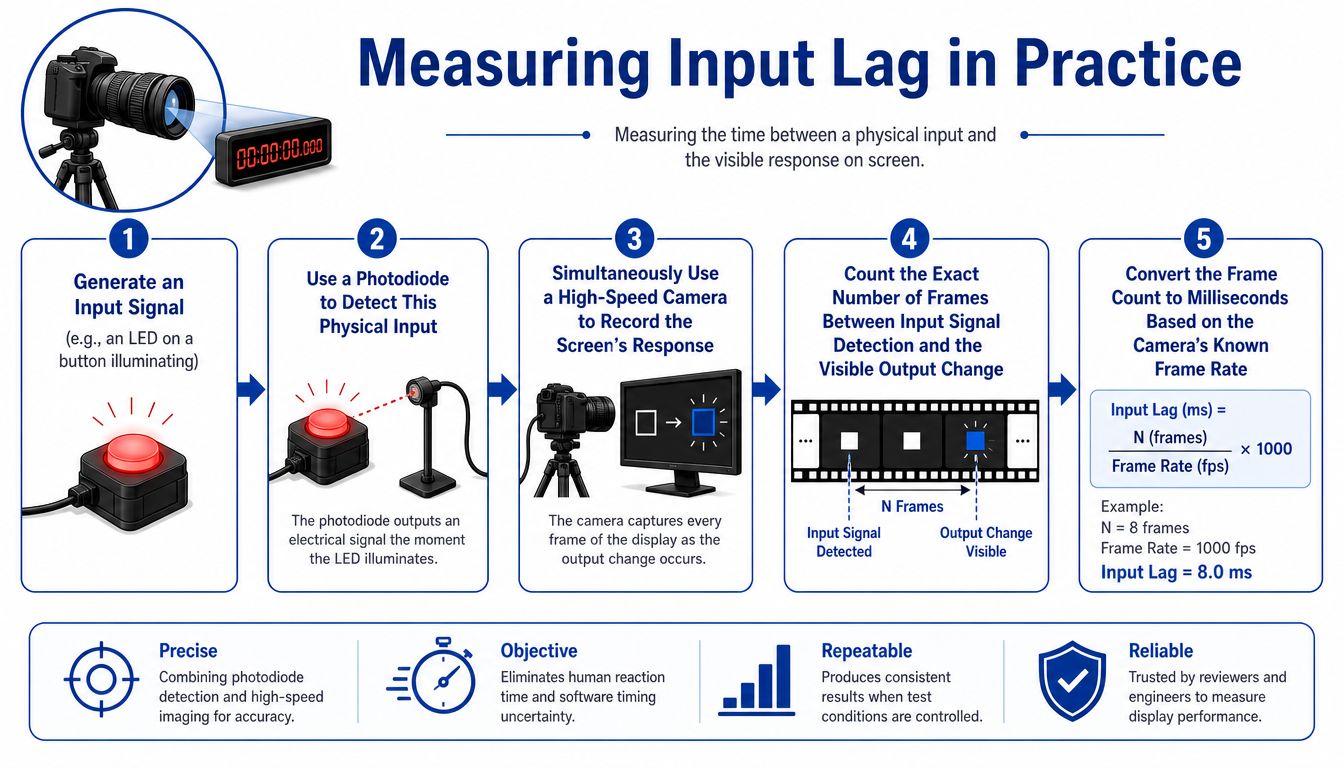
A practical measurement sequence
- Create a clear input event. Use a button or controller action that produces an obvious visual change, such as an illuminated indicator paired with a screen response.
- Detect the physical event. A photodiode can register the light from the input indicator with precise timing.
- Record the display. Position a high-speed camera so it captures the input indicator and the screen in the same recording.
- Count the frames. Compare the frame showing the physical input with the first frame showing the display response.
- Convert the result. Use the camera's known frame rate to translate the frame interval into milliseconds.
A 240 fps camera can count frames between a button press and an on-screen response with approximately 1 ms accuracy, according to Screenlab's explanation of input-lag measurement. The important part isn't just the camera. Independent testing also uses repeatable averaging and removes outliers so an accidental movement or unclear frame doesn't distort the result.
Making the test trustworthy
Keep the input position, camera angle, display mode, resolution, and game scene consistent. Run repeated trials rather than relying on one press, then compare the pattern of readings. If the results vary widely, investigate the setup before drawing conclusions.
Network problems require a different diagnostic approach. A resource such as RETRO//STRESS for finding network breaks can help isolate connection instability, but it won't replace a photodiode test for local display latency.
For a home setup, start with the mobile phone mainboard diagnostic instrument only if you understand its intended electronics-testing role. It isn't a substitute for a calibrated display tester, but it can be useful for broader device diagnostics. For a direct signal path, inspect the HDMI 2.1 cable for 4K 120 Hz and 8K 60 Hz alongside the display's actual settings.
Acceptable Latency Thresholds for Real World Use
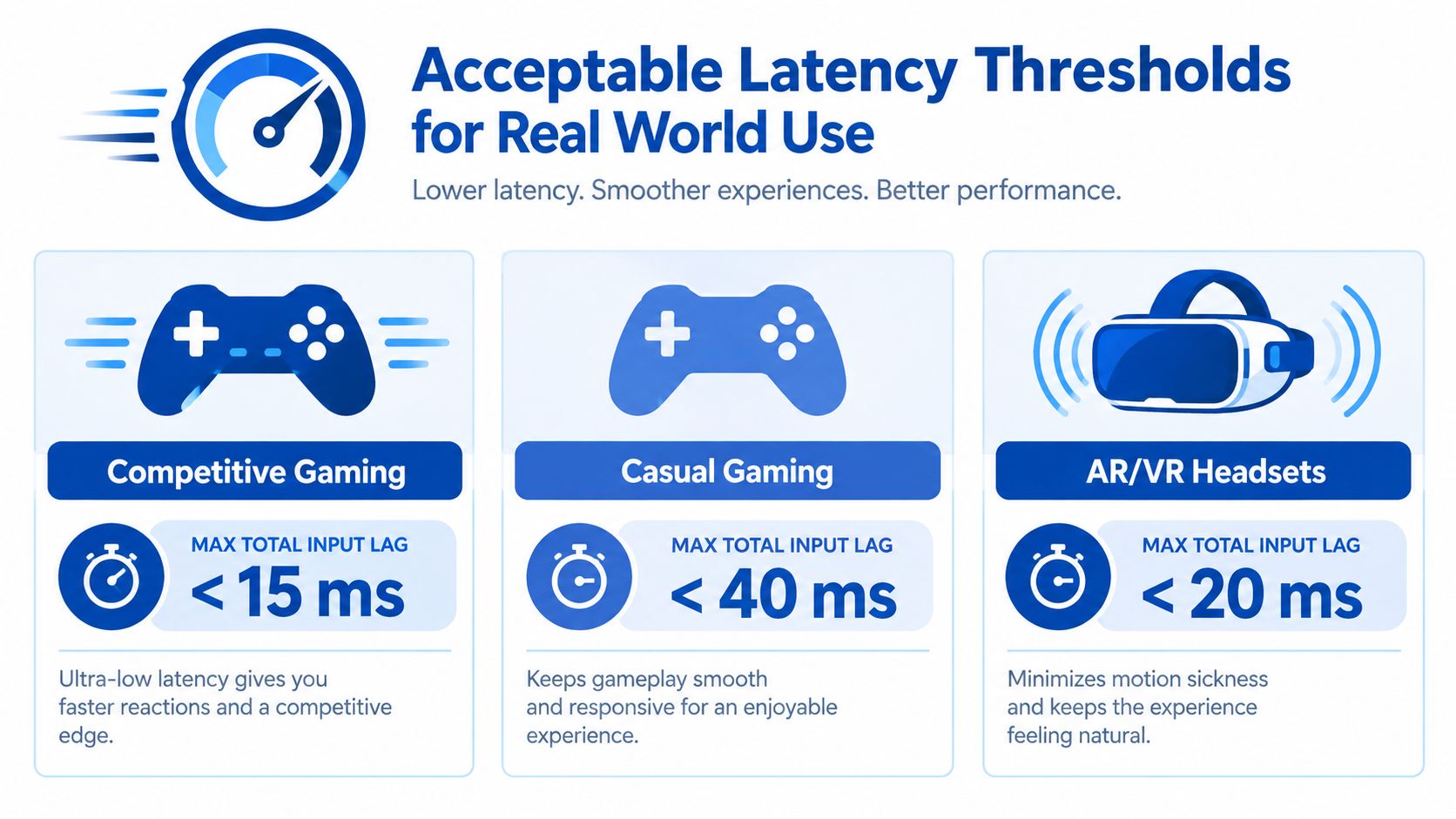
The right latency target depends on the activity. A competitive shooter rewards a tighter response than a turn-based game, while an AR headset needs a responsive relationship between movement and the virtual scene. A number is useful only when you know what the system is being asked to do.
| Use case | Practical target |
|---|---|
| Competitive gaming | Under 15 ms total |
| Casual gaming | Under 40 ms total |
| AR and VR headsets | Under 20 ms total |
| Audio monitoring | Under 10 ms for real-time mixing |
These targets describe total experience goals, not just the display panel. A monitor can meet a low display-lag rating while the controller, frame queue, or wireless link adds enough delay to make the complete system feel slower.
Refresh rate changes the timing window
Compiled benchmark data reports gaming monitors averaging 11.7 ms at 60 Hz and 5.5 ms at 120 Hz, illustrating how refresh rate affects delay, as shown in this gaming monitor and TV latency comparison. A higher refresh rate gives the display more frequent opportunities to show a newly rendered frame, although it doesn't eliminate processing or device latency.
For competitive play, consistency matters as much as the average. A setup that occasionally feels late can be more distracting than one with a stable, slightly slower response. I test by repeating the same movement and watching whether the action feels connected across different scenes, not only in a static menu.
AR and VR users should pay attention to the complete motion path. Head movement, tracking, wireless transmission, rendering, and headset display processing all influence whether the virtual image feels attached to the physical environment.
Audio monitoring has a different failure mode. A musician may hear a delayed vocal or instrument even when the video display feels responsive. For listening hardware, this guide to low-latency wireless headsets for competitive FPS provides a useful starting point, but real-time monitoring still benefits from checking the entire audio chain.
Testing Tools and Methods
No single tool captures every point in the latency pipeline. A high-speed camera can show an input event and the resulting image, while software usually examines the PC and game stages. Smartphone recordings are convenient for quick comparisons, but their frame timing, exposure, and synchronization limit precision.
| Method | Strength | Limitation |
|---|---|---|
| Photodiode tester | Directly detects a physical-to-screen interval | Requires setup and careful positioning |
| High-speed camera | Shows the input event and visual response together | Camera timing and exposure affect readability |
| Software analyzer | Useful for PC and game-level investigation | May not include every display or wireless stage |
| Smartphone camera | Accessible for a rough comparison | Usually less controlled and less precise |
A photodiode kit provides the clearest objective end-to-end measurement. It links a known input event to a visible brightness change, so I can compare display modes, cables, and processing settings under repeatable conditions. A Photodiode Input Lag Tester Kit suits hardware testing where consistent measurements matter more than convenience.
What software can and cannot show
Software analyzers help identify render queues, frame pacing, and game settings. I use them when comparing VSync behavior, graphics options, or a latency-reduction mode. They may stop measuring once the GPU sends the signal, leaving monitor processing and wireless transmission outside the result.
A camera makes the comparison easier to see. I record the same button press and screen reaction in two display modes, then inspect which frame first shows the change. The method resembles a slow-motion replay of the complete action, but camera frame rate, lighting, exposure, and synchronization can affect the reading.
Bluetooth audio needs its own test. I begin with wired audio as a reference, then connect a wireless headset and repeat the same action. If the sound shifts while the image remains consistent, the added delay likely comes from the audio link rather than the game or display. This approach checks another part of the latency pipeline, just as testing a wireless controller or AR headset can reveal transmission delay that a PC analyzer misses.
Keep the measurement terms separate. Response time describes how quickly a pixel changes color. Input lag describes processing from signal receipt to the first visible output. A display can advertise a 1 ms response-time claim and still show 10 ms of input lag, because those figures describe different stages, as noted earlier in this technical comparison of the two measurements. Product testing on DigiDevice should therefore match the tool to the stage being evaluated, from input sampling and GPU processing through display output and wireless transmission.
Practical Tips to Reduce Input Lag
Start with the simplest changes and measure after each one. Changing several settings at once makes it impossible to identify the stage that improved or worsened the experience.
- Enable the display's gaming or fast mode. These modes often reduce scaling, filtering, and buffering. Check the image afterward, because some processing features may be disabled.
- Use a wired controller for a baseline. A direct connection removes wireless variability while you troubleshoot the game and display.
- Use a responsive mouse connection. Confirm that the mouse is communicating consistently, and avoid placing its receiver behind dense electronics or inside a crowded hub.
- Choose the display's native resolution. Unnecessary scaling can add processing work before the image appears.
- Turn off extra image enhancement. Disable smoothing, artificial sharpness, noise reduction, and similar features when playing competitively.
- Check frame queuing and synchronization. VSync and buffering can change how quickly a newly rendered frame reaches the screen. Test the game with a consistent frame-rate configuration rather than assuming the highest frame count always feels best.
- Inspect wireless conditions for AR devices. If a headset connection is unstable, a cell signal booster for rural and remote setups may be relevant to cellular connectivity, but it won't repair local GPU or display processing delay.
- Match the hardware to the use case. A 144 Hz gaming monitor suits fast play better than a display with heavy cinema processing. For audio, compare a Bose QuietComfort Ultra with a wired reference before blaming the game.
For AR users, also review this guide to choosing the right cellular frequency for AR headsets. It addresses connectivity selection, which is separate from the display's local input-lag measurement.
People Also Ask
Why does my setup still feel laggy with a low-lag monitor?
Because the monitor is only one stage. A mouse or controller can sample the action later than expected, the game can hold frames in a queue, and a wireless connection can add variable transport delay. Start with a wired input device, disable display processing, and compare the result using the same game scene.
Can a wireless gaming mouse add more than 1 ms of delay?
It can add variable delay, depending on polling behavior, radio conditions, receiver placement, and power management. Don't assume the mouse is always responsible, but test it against a wired reference if the cursor or aim feels inconsistent.
How do I test input lag on a projector at home?
Use a high-speed camera to record a physical input indicator and the projector image at the same time. Count the frames between the input event and the visible response, then repeat the test under the projector's gaming, cinema, and enhanced-processing modes. Keep the source, cable, resolution, and scene unchanged so the comparison remains meaningful.
DigiDevice brings together gaming displays, cables, diagnostic tools, headphones, projectors, and connectivity hardware for people who want to trace performance problems to the right component. Visit DigiDevice to compare products that can help you build and test a more responsive gaming, AR, or home entertainment setup.