

Phone Mount for Desk: A Practical Buying Guide for 2026
Your laptop camera is on, but your phone is sliding down a stack of books, the charging cable is pulling it sideways, and your Zoom eye line still looks wrong. A good phone mount for desk use fixes more than framing. It has to hold the phone steady, bring the screen into a neutral viewing position, and let power or audio cables connect without turning the mount into a lever.
Direct answer: choose the mount type according to your desk surface and the way you use your phone. Clamp mounts suit solid desks, magnetic mounts prioritize quick access, and arm or tripod systems offer the most framing control, but each has a predictable failure mode. Updated for March 2026.
Why a Phone Mount for Desk Use Is Not Just a Stand
A desk mount has three jobs, and buyers often test only one of them. First, it must resist movement when you tap the screen. Second, it should place the display or camera near eye level instead of making you look down. Third, it needs to manage the charging or microphone cable so the cable doesn't pull the phone out of position.
That combination makes a mount a small stability, ergonomics, and power-delivery tool. A decorative cradle may look tidy, but it can still fail during a call if the hinge creeps, the base tips, or a USB-C plug pushes against the phone.
Start with the failure you can see
During a video call, a low phone changes your posture before you notice it. The webcam may show a poor eye line, while your neck bends toward a screen that should have been raised. One reported ergonomic finding associated unstable holders with up to 22% more neck flexion during 30-minute Zoom sessions than fixed-height alternatives, as summarized in this desk phone holder ergonomics guide.
A stable stand can also reduce hand and wrist strain when you use the phone as a reference screen, timer, recorder, or chat display. The point isn't that every desk needs a tall articulated arm. The point is that the mount should match the posture and interaction you expect.
Treat charging as a mechanical load
A cable doesn't just deliver power. It also applies force. A stiff right-angle plug, a cable routed across the desk, or a cable hanging from the phone can create enough downward or sideways pull to tilt a weak hinge.
For recording setups, the same issue appears with lavalier leads and audio adapters. If the cable exits at an awkward angle, the phone mount has to fight the cable throughout the session. A useful companion for creators is this phone stand for video recording, especially when the recording position matters as much as the resting position.
Practical rule: test the mount with the phone, case, charging cable, and any audio adapter installed. An empty stand can feel solid while a connected phone does not.
The Five Mount Families and Where Each One Breaks
There isn't one universally best mount. Each family trades speed, stability, desk compatibility, and repositioning freedom differently.
A clamp mount is usually the sensible starting point for a traditional solid desk. Its screw or lever spreads force across an edge, but thin laminate edges can flex or offer too little purchase. In a reported usability study, 41% of holder failures involved clamp slippage on laminate desks, while 33% involved gravity-induced tilt from charging-cable pull. Those failure modes matter more than a product listing's promise of “universal” fit.
Suction mounts install quickly on smooth, nonporous surfaces. They can work well on polished glass or a glossy desktop, but heat, dust, and textured finishes weaken the seal. Adhesive mounts look cleaner still, though the clean appearance comes with a commitment. Once bonded, changing the position can leave residue or require a replacement pad.
Magnetic MagSafe-style mounts are fast and visually minimal. They suit users who remove the phone frequently, but the magnetic hold may be less forgiving with a heavy Pro Max phone, a thick case, or an incorrectly positioned ring. Arms and tripod mounts offer the widest range of height and angle. Their longer reach also makes them more prone to drift if the joints rely on weak friction.
| Mount Family | Best Desk Surface | Most Common Failure | Quick Pre-Purchase Test |
|---|---|---|---|
| Clamp | Solid wood or rigid composite edge | Slips on thin laminate | Measure the edge thickness and press the clamp against the intended area |
| Suction | Smooth glass or sealed hard surface | Seal weakens on texture or heat | Clean the surface and check whether the cup holds without the phone attached |
| Adhesive | Flat, clean, hard desktop or side panel | Creep or residue after repositioning | Apply removable tape to mark the footprint and confirm the position first |
| Magnetic | Flat surface with a MagSafe-compatible phone or ring | Phone slides, rotates, or separates under case weight | Hold the cased phone at the intended angle and check for shear movement |
| Arm or tripod | Open desk area with room for a weighted base | Joint drift or tipping under leverage | Extend the arm, attach the phone, and tap the screen repeatedly |
Before buying an overhead or creator setup, compare it with this overhead camera mount guide for unboxing videos. The surface and the camera angle determine whether a compact clamp or a weighted arm makes more sense.
Specs That Matter When You Buy a Desk Mount
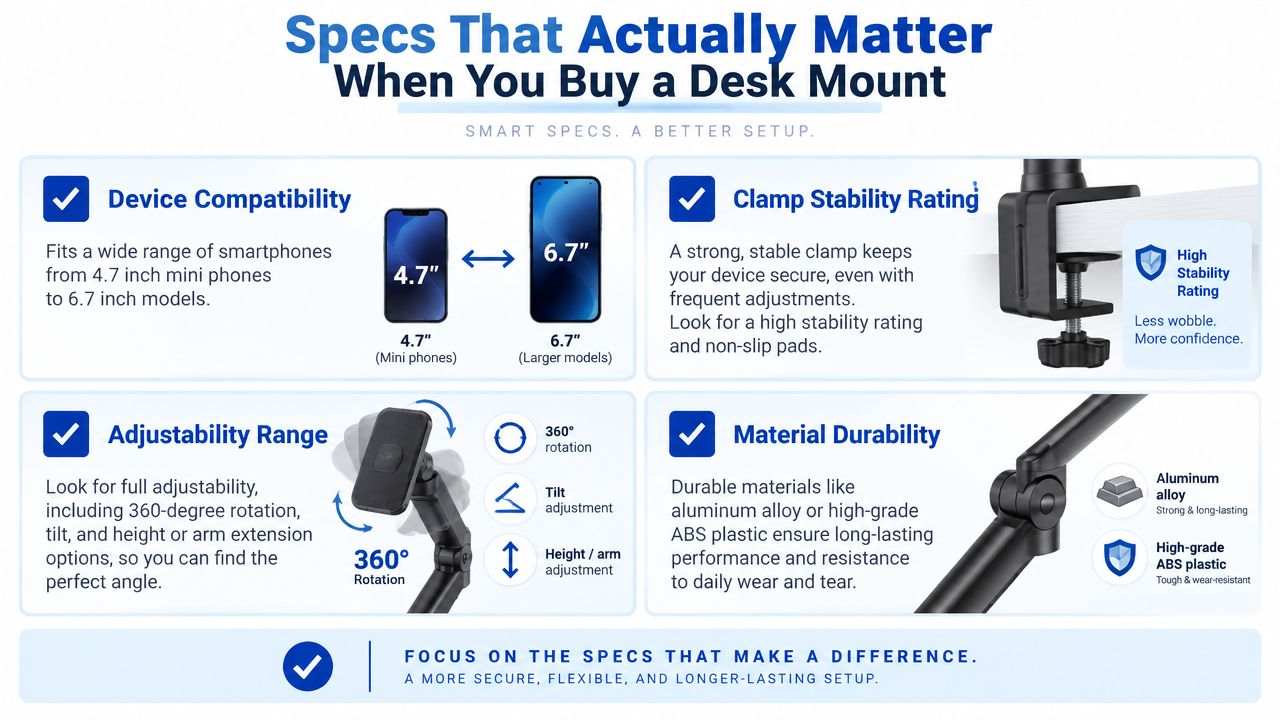
A mount can look polished and still fail on a real desk. Check the measurements that prevent clamp slippage on laminate, cable-pull tilt, and arm drift before paying for decorative features. Compare every candidate against the same mechanical criteria.
Compatibility and adjustment
Start with the phone and case. A useful listing states its supported device width or case thickness. A holder that works with a compact 4.7-inch mini phone and a large 6.9-inch Pro Max-style flagship needs a measurable adjustment window, not only the label “universal.” A thick case can also weaken a magnetic connection, so check this MagSafe-compatible case guide before choosing a magnetic mount.
Then check tilt, swivel, and rotation. Portrait video requires rotation, while a fixed forward tilt will limit framing. Desk-mounted product coverage commonly lists 360-degree rotation, 180-degree tilt, and vertical or horizontal extension. One model offers 5.1 inches of vertical adjustment and 9.3 inches of horizontal adjustment, as shown in this adjustable overhead phone mount listing. Treat those figures as the level of detail a product page should provide.
For long viewing sessions, an expert buying guide recommends at least 6.5 inches of adjustable height. Use that as a screening threshold when the phone must reach eye level, rather than as a requirement for a secondary display.
Mass, footprint, and locking hardware
Forward reach and steep angles increase tipping torque. A practical benchmark calls for a base at least 8 cm wide and around 280 g total mass. Another test rejects a mount if a 60-degree tilt shifts more than 2 degrees within 5 seconds. These criteria appear in the desk phone mount buying guide.
A clamp that slips on laminate needs better surface contact. An arm that drifts after repeated taps needs stronger joints, not a longer reach. Friction hinges depend on pad material, screw tension, and wear. Gear locks hold positions more positively, while spring-tension joints adjust faster but can move under a heavy phone.
Look for a stated durability target. One expert guide recommends a hinge that keeps its angle after 200 or more adjustments, as discussed in this desk phone stand selection guide. Test the mounted phone after repeated tapping, not only immediately after installation.
Inspect the cable opening as well. It should accept a right-angle Lightning or USB-C plug without pressing the connector against the holder. If the listing never shows the phone connected, test cable routing before relying on the mount.
Pass or fail: a listing should show compatibility, footprint, adjustment range, and locking method. Without those details, stability cannot be judged.
Installation and Positioning for Three Real Desk Setups
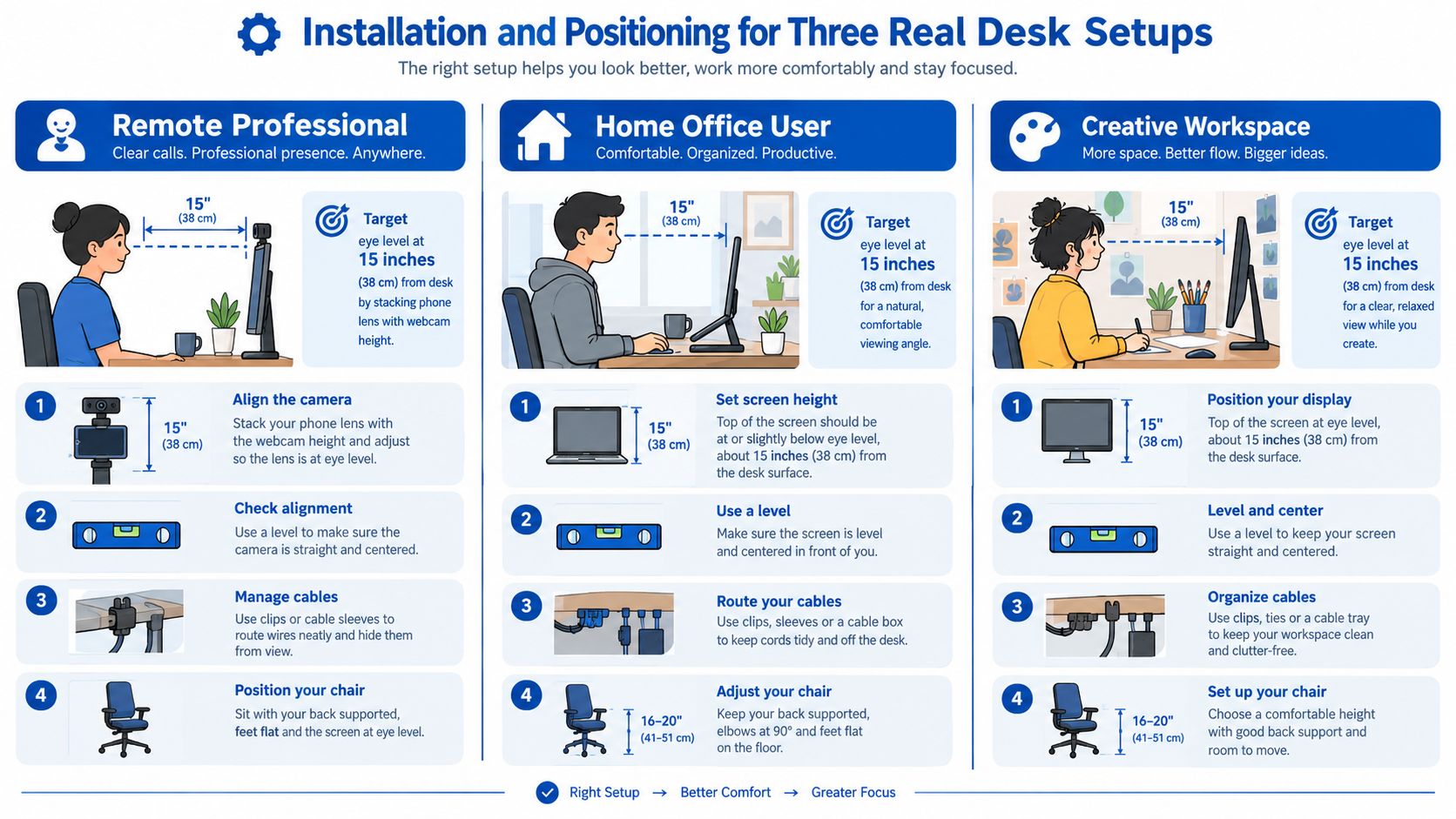
The same phone can need three different positions during a workday. A remote professional wants a neutral call angle, a creator wants framing flexibility, and a gamer wants fast access without blocking the main display.
Remote professional
Set the phone so its camera lens aligns with the laptop webcam or your intended eye line. Keep the screen approximately 55 to 65 cm away, then adjust height rather than leaning your head toward it.
Route the charging lead behind the clamp arm or along the rear of the desk. Leave a small service loop near the phone, but don't let the cable hang from the connector. A cable clip can keep the lead from becoming a downward pull.
Use a flexible arm tripod for phone stand setups when you need to move between calls, recordings, and a second screen position.
Content creator
For overhead framing, raise the phone 15 to 20 cm above eye line and check the camera preview before tightening the joints. A weighted arm or tripod base with an 8 cm footprint gives the phone more resistance to tipping than a narrow upright stand.
Thread the lavalier cable and power cable through the same channel where possible. Separate loose leads can cross the frame, brush the desk, or pull in different directions. Keep the mount outside the main working area so your hands can move without contacting the arm.
The video below is useful for checking how your intended angle behaves before you commit to a permanent position.
Gamer
Place the phone to the left of the primary monitor, where it remains readable without taking your eyes far from the game. A 10 to 15-degree tilt toward the keyboard usually keeps chat, Discord, or a stream dashboard visible without creating a tall obstruction.
Lock every friction joint after the test message is readable during a short play session. Then run a 30-second wobble test for each setup. Tap the screen, connect the charging cable, and watch the camera preview or text. If the phone moves, change the cable route or mount location before blaming the phone holder.
Troubleshooting, Drift, and Maintenance
A mount can pass its first-day test and still fail later. The most revealing failure is drift after repeated repositioning. The friction pad compresses, the fastener can loosen slightly, and the arm begins to sag even though the phone is no heavier than before.
The practical response is to re-tension the joint according to the manufacturer's specification. If the design allows it, a thin silicone shim can restore grip, but a mount that repeatedly needs improvised packing material is telling you to move to a stronger mechanical joint.
When posture exposes the problem
An unstable holder often ends up too low because users compensate for its movement by lowering the phone. That encourages a chin-down posture and can create discomfort around the upper trapezius during a longer session.
Raise the phone to true eye level, then test the mount with the cable connected. If the fixed cradle cannot maintain that position, a multi-axis arm may be a better fit because it separates height adjustment from screen tilt.
Surface and magnetic checks
Adhesive pads can creep on laminate when the surface is dusty, soft, or exposed to repeated lateral force. Suction cups can lose their seal on textured glass. Magnetic rings can also sit off-center inside a case, creating rotation or poor charging alignment.
A replacement silicone suction pad for mobile phone fixtures can help when the surface is compatible, but it won't correct a rough texture or a badly positioned load.
Maintain the mount quarterly:
- Tighten: Check clamp screws, hinge fasteners, and base connections.
- Wipe: Remove dust and oil from suction surfaces and phone contact pads.
- Inspect: Look for compressed silicone, cracked plastic, and cable strain at the connector.
- Retest: Repeat the wobble test with the phone and cable attached.
The Desk-Phone-Mount Buying Checklist for 2026
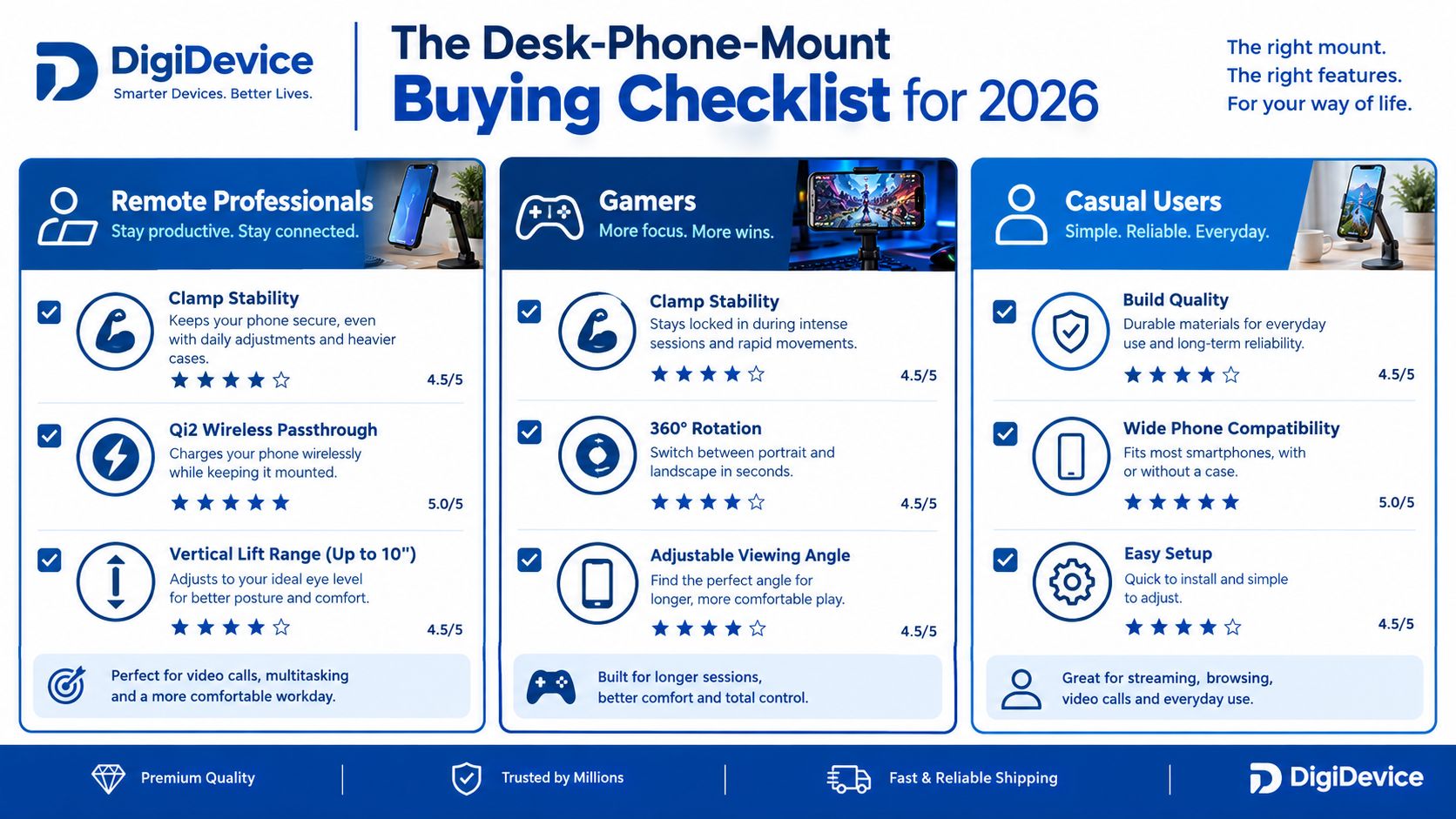
A useful shortlist starts with the person using the desk, not the product category.
Remote professionals should prioritize a stable clamp, Qi2 wireless charging passthrough where supported, and enough vertical lift to reach eye level on a 75 cm standing desk. Content creators need a 1/4-20 thread, a cold-shoe adapter, and a 1.5 kg minimum payload for lens-heavy phone rigs. Gamers generally benefit from a low-profile mount that clears dual 27-inch monitors, uses a side-mounted cable channel, and supports magnetic quick release when they switch between Discord and streaming apps.
Score the candidate before ordering
Give every product a pass or fail on five criteria:
- Compatibility window: Does it fit the phone and case you use?
- Adjustability range: Can it reach the required height, tilt, swivel, and portrait orientation?
- Build mass: Is the base or clamp substantial enough for the phone?
- Friction-lock quality: Does the joint hold after repeated repositioning and touch input?
- Charging passthrough: Can a right-angle cable or wireless charger connect without pulling the phone?
A listing that passes four categories but fails cable routing may still be the wrong choice for an always-connected desk. Conversely, a simple clamp can outperform a more elaborate arm when you rarely change the angle and your desk edge is rigid.
For remote professionals, creators, and gamers, the sensible recommendation is to match a DigiDevice clamp, arm, or magnetic mount option to the surface and failure mode that defines your setup, rather than choosing by appearance alone.
Phone Mount Questions Buyers Ask Before They Click Buy
Will a MagSafe mount work with a non-Apple case?
It can, but the case needs a properly aligned magnetic ring or a compatible magnetic layer. Test the complete phone and case together, not the bare device. A practical benchmark is a 6-magnet N52 ring aligned with the mount's center, with enough contact to resist rotation when the phone is tilted.
If the case isn't magnetic, an adhesive ring may create compatibility, but it changes the case and can interfere with the visual finish. Check the ring position against the phone's charging coil before fixing it permanently.
Does wireless charging passthrough work without throttling?
Don't assume that a mount with a charging opening provides wireless charging. Verify the charger, phone, case, and mount as one system. A useful test criterion is 15W passthrough through a case up to 4 mm thick, with the phone remaining centered and the charger maintaining contact.
Wired charging is often more predictable when the case is thick or the magnetic ring is not perfectly aligned. The cable should enter without bending sharply or pulling the phone downward.
Can it safely hold a heavy Pro Max model?
Check the clamp or arm's stated payload rather than relying on the phone cradle's width. For a heavy 240 g or heavier Pro Max model, a 1.5 kg-rated clamp provides a meaningful load margin, provided the desk surface and mounting point can also resist the force.
The right mount is the one that survives your actual desk, case, cable, and adjustment habits, not the one that looks strongest in a product photograph.
DigiDevice offers desk-use phone accessories alongside cases, chargers, adapters, and cables, so you can build the mount and power setup around the same phone. Visit DigiDevice to compare compatible mobile accessories and choose a desk mounting option that fits your surface and daily workflow.