

Gaming Console Accessories Guide: What to Buy in 2026
Your controller dies mid-match, your new TV won't show 120 Hz, and the headset you just bought pairs with your phone but not your console. That's rarely bad luck. It's a broken chain.
Treat every purchase in gaming console accessories as one link in a signal, power and lifecycle chain, and you'll buy differently. Check the console output, the cable, the display, the charger and the battery together before you pay, not after something refuses to work.
Gaming Console Accessory Categories at a Glance
Match the problem first, then the product. A second pad solves local multiplayer. A better cable doesn't.
| Category | What It Does | Check First |
|---|---|---|
| Controllers | Input device with replacement, extra or adaptive pads | Connection type and latency |
| Headsets | Voice chat and game audio, wired or wireless | Audio path for your console and model |
| Charging docks | Keeps controllers charged on a stand | USB-C power profile and controller model fit |
| Capture cards | Records and streams console video over HDMI | HDMI input and your streaming software |
| Storage | Adds game space via expansion card or external drive | Console's supported storage format and capacity |
| Docks and stands | Holds console or controllers upright, often with HDMI hub | Footprint and controller edition fit |
| Grips and skins | Improves hold and surface grip | Fit for your controller model |
| AV adapters and cables | Links console to TV or monitor, such as HDMI 2.1 | HDMI 2.1 chain end to end |
| Furniture and ergonomic gear | Chairs, monitor arms and desks | Adjustment range and weight rating |
What Each Category Actually Solves
Controllers are usually the first buy because a spare pad covers wear, a dead battery and a second player on the couch. Headsets come as wired 3.5 mm or USB models or wireless sets with a 2.4 GHz dongle, and they're the fix for team chat you can understand.
Charging docks keep two controllers ready on USB-C instead of leaving one tethered to the console overnight. If you stream, browse the capture cards and streaming accessories range for an HDMI input model that your software recognizes without workarounds.
Storage means an expansion card or external drive when your library outgrows internal space. Docks and stands, covered in the console docks, stands and HDMI hubs range, help small rooms by going vertical. Grips and skins add hold during long sessions, HDMI 2.1 cables matter when you upgrade from a 60 Hz TV, and chairs, monitor arms and desks matter when you're seated for eight-plus hours.
Why Accessories Deserve Their Own Budget
This isn't a minor add-on market. The ESA summary of U.S. consumer spending on video games put U.S. gaming-accessories spending at approximately $3.2 billion in 2024, up 6.7% from $3.0 billion in 2023, while hardware spending fell from $6.5 billion to $4.9 billion.
Players keep buying peripherals even when they skip new hardware, because pads wear out, batteries fade and displays change. Start from the category that removes your biggest daily friction, not the one with the longest feature list.
Compatibility Checks Before You Buy Any Accessory
Think of your setup as a garden hose. Water only flows as fast as the narrowest fitting, and an accessory performs only as well as the weakest link in its chain.
A premium cable can't fix a TV port that lacks the feature you want. A fast charger can't force a controller to accept more power than its input allows.
The HDMI 2.1 Chain
The HDMI.org guide to HDMI 2.1 features states that HDMI 2.1 supports up to 48 Gbps of bandwidth, 4K at 120 Hz, 8K at 60 Hz, and resolutions up to 10K for certain uses. Those headline numbers only help if every device in the path supports them.
Three gaming features do the practical work:
- Variable Refresh Rate (VRR): Synchronizes the display with the console's frame output to reduce or eliminate lag, stutter, and frame tearing.
- Auto Low Latency Mode (ALLM): Automatically switches a compatible display into its low-latency gaming mode, so you don't dig through menus each session.
- Quick Frame Transport (QFT): Reduces transport latency by getting each frame to the display faster.
Practical rule: Seeing "HDMI 2.1" on a box doesn't guarantee every feature is available on every port. Check the specific port, not the product family.
I would run three checks before buying anything in the HDMI 2.1 cables and AV adapters range. First, confirm your console's output capability. Second, confirm your TV or monitor supports VRR and ALLM on the port you'll use. Third, buy a cable certified for the bandwidth you need.
Then test the finished chain at 120 Hz output, with HDR on, VRR activated and the console set to its maximum resolution. If the picture drops, flickers or falls back to 60 Hz, one link is failing. Swap one component at a time so you know which one.
USB-C Power and Audio Paths
Power works the same way. The USB Implementers Forum page on USB Power Delivery states that USB Power Delivery 3.1 can deliver up to 240 W over a full-featured USB Type-C cable, with 28 V, 36 V and 48 V options corresponding to up to 140 W, 180 W and 240 W.
The powered device requests an appropriate voltage. It doesn't automatically receive the charger's maximum, which is why a 240 W charger won't charge every controller at 240 W.
Headsets have their own chain. Console, controller port, adapter and headset plug all need to agree, so read the guide to choosing an adapter for an Xbox One headset before assuming a 3.5 mm plug means chat will work. Once your audio path is solid, you can find your way into public lobbies and know teammates will hear you.
Two edge cases catch buyers out. A cable labeled merely "high speed" doesn't by itself guarantee support for every HDMI 2.1 feature. And a high-wattage charger with a low-rated cable becomes a low-wattage setup, because the cable is the narrow fitting.
Wired, Dongle and Bluetooth Connections Compared
A wired controller is a direct road. A dedicated dongle is an express lane. Bluetooth is a shared city street where traffic can slow any trip.
That analogy explains both the averages and the spikes. What matters in a close game isn't just speed, it's whether the delay stays the same every press.
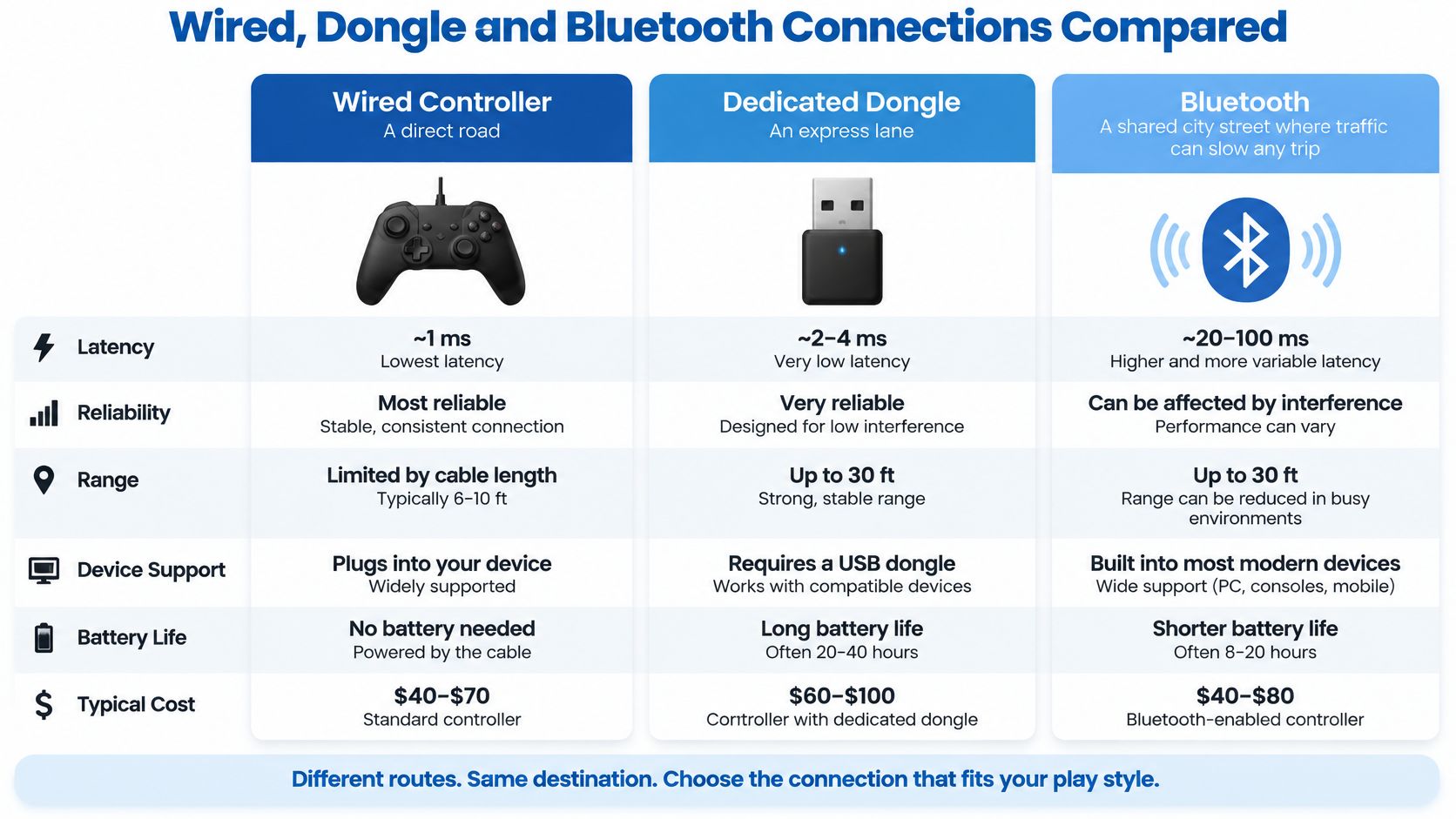
| Connection | Typical Click-to-Response | Consistency | Best For |
|---|---|---|---|
| Wired | 1–3 ms | Most consistent | Competitive shooters and fighting games |
| Dedicated wireless dongle | 2–4 ms | Consistent, purpose-built polling | Competitive play without cables |
| Bluetooth | 5–25 ms | Varies, with occasional spikes | Single-player, casual and travel play |
The LobbyVPN summary of wired vs wireless controllers for competitive gaming reports typical click-to-response figures of approximately 1–3 ms for wired controllers, 2–4 ms for dedicated wireless-dongle models, and roughly 5–25 ms for Bluetooth connections, with Bluetooth showing greater variation and occasional spikes. Bluetooth shares a general-purpose radio protocol and scheduling system, wired links avoid radio transmission entirely, and dongles can use purpose-built, low-latency polling.
Where Milliseconds Matter and Where They Don't
In rhythm games, fighting games and competitive shooters, you're pressing inside narrow animation or frame windows. A spike at the wrong moment turns a clean input into a missed one, even if the average looks fine.
In a single-player adventure, you probably won't perceive that extra delay. I'd take the convenience there and spend the money on comfort instead. Browse the controllers and gamepads category by connection type first, then by grip and layout.
Wireless headsets follow the same logic. Many use dedicated 2.4 GHz dongles for a reason, so check the breakdown of low-latency wireless headsets for competitive FPS and verify the audio path for your exact console and model.
A low average with random spikes feels worse than a slightly higher delay that never changes. Consistency is the spec your hands notice.
Connection problems aren't unique to controllers, either. Tablet owners chasing a dead keyboard follow similar steps to resolve iPad Smart Connector issues, checking contacts and pairing order before replacing hardware.
Treat published ranges as a starting point. Pair the controller, open a training mode, and repeat the same input for a few minutes on your own TV and console. If timing feels uneven there, it won't improve in a ranked match.
Charging, Power and Storage Accessories Explained
Wattage on a charger box is a ceiling, not a promise. Your controller decides how much it takes.
| Power Source or Device | Voltage and Power | What It Means for Buyers |
|---|---|---|
| USB PD 28 V profile | 28 V, up to 140 W | Suits mid-power accessories when cable and device agree |
| USB PD 36 V profile | 36 V, up to 180 W | Needs matching cable and device support |
| USB PD 48 V profile | 48 V, up to 240 W | Requires a 240 W-rated cable |
| DualSense Edge controller input | 5 V, 1,500 mA (about 7.5 W) | Extra charger wattage will not speed up controller charging |
| DualSense Edge battery | 3.7 V, 1,050 mAh | Sets runtime per charge, not charging rate |
A Worked Example With the DualSense Edge
Sony's DualSense Edge wireless controller instruction manual lists a built-in lithium-ion battery rated at 3.7 V and 1,050 mAh, with a controller input rating of 5 V at 1,500 mA, equivalent to approximately 7.5 W. The controller's own input rating limits the power it's designed to accept.
So a bigger charger won't shorten controller charging proportionally. Paying for top-end wattage to charge pads is money spent on a ceiling you'll never reach. Put that budget toward a second controller or a dock you'll use daily.
Before buying from the charging docks and controller power accessories range, count how many controllers your household runs. Then check three things:
- Full-rate ports: Confirm each dock slot charges at full rate when both slots are occupied, not just one.
- Model fit: Confirm the cradle matches your controller model and battery type, because a stand that fits one edition may not fit another.
- Cable rating: Use the cable supplied or one rated for the dock's profile, not a thin cable from a drawer.
Storage and Battery Lifespan
Storage fails buyers differently. The drive fits, but the console won't play games from it, or it throttles when hot.
Check your console's supported storage format and capacity before ordering from the storage expansion and external drives range. For internal expansion drives, confirm whether the console maker requires a heatsink for sustained use. A bare drive that slows down after twenty minutes isn't a bargain.
Buy for the input rating, not the charger rating. The smallest number in the power chain sets your real charging speed.
Batteries add a time dimension. Runtime drops as cells age, so I'd prefer controllers, headsets and handheld accessories with replaceable batteries where that option exists. A sealed battery turns a worn-out cell into a dead accessory, while a replaceable one turns it into a five-minute swap.
Apply that thinking to docks too. If a dock only fits one controller generation and uses a proprietary power brick, its useful life ends with that pad. A USB-C dock with a standard profile has a better chance of surviving your next upgrade.
Best Accessory Picks by Player and Room Type
There's no universal best list. There's a best first buy for how and where you play.
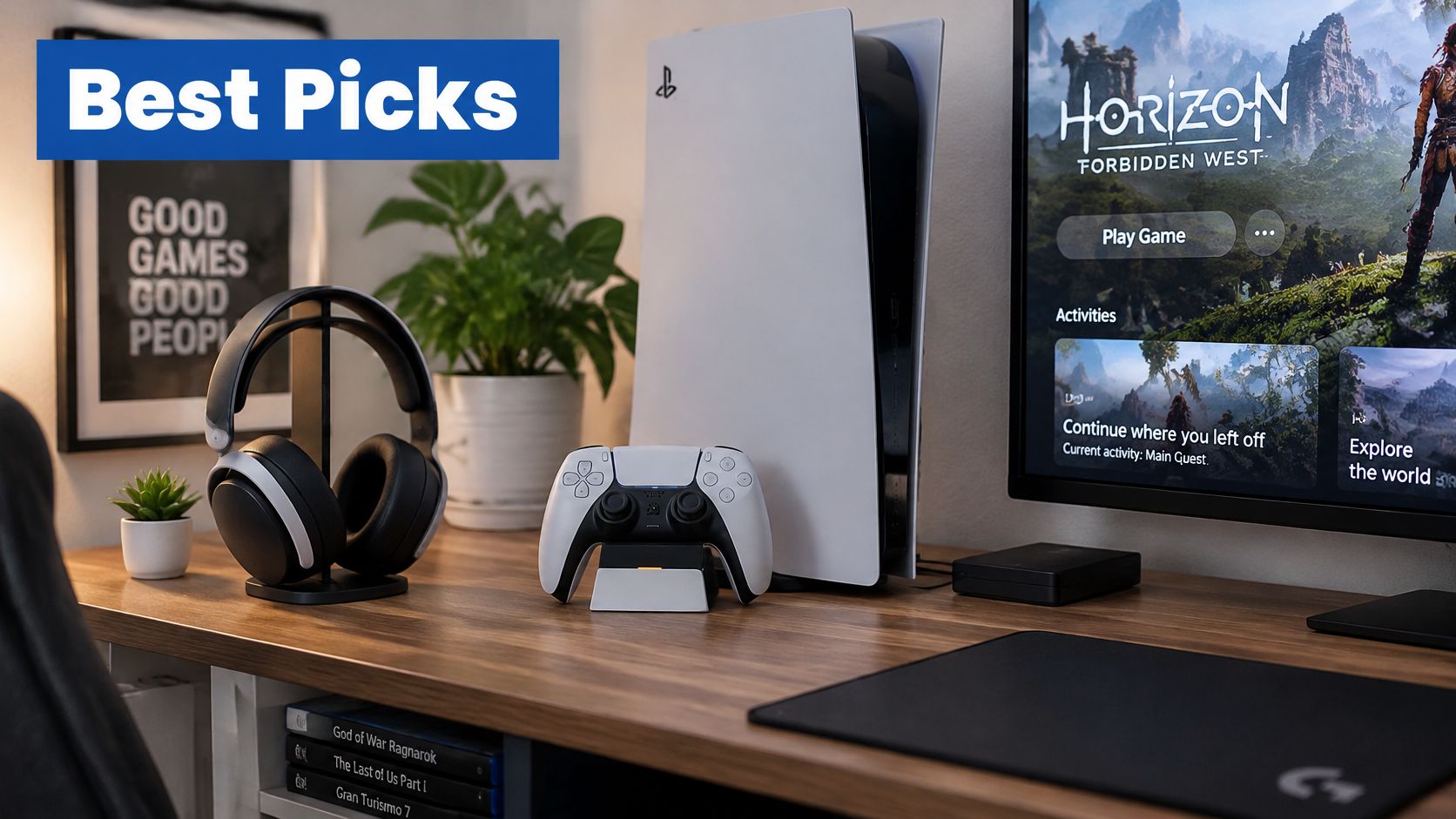
| Player Profile | Priority Accessory | Key Spec to Check | Why It Fits |
|---|---|---|---|
| Competitive gamer | Wired or dedicated-dongle controller, low-latency headset | 1–3 ms wired or 2–4 ms dongle | Consistent timing in shooters and fighters |
| Small-space player | Vertical stand or compact dock, low-profile headset, HDMI 2.1 cable | Cable length to the real run, stand footprint | Clears desk or shelf space |
| Streamer or vlogger | Capture card, headset or USB mic, USB-C hub | HDMI input, microphone type, hub port count | Cleaner capture and audio |
| Adaptive player | Remappable controller, low-cost switches, mounts | One-handed use, remapping, low-force actuation | Builds a setup around the player's needs |
| Long-session desk user | Ergonomic chair, monitor arm, grip | Adjustment range, weight rating | Reduces strain over eight-plus hours |
Competitive and Small-Space Players
Competitive players should buy the connection before the cosmetics. Target the wired or dongle latency ranges in the table, pair that pad with a low-latency headset, and skip Bluetooth for your main game.
Small-space players need measurements, not guesses. A vertical stand or compact dock reclaims shelf space, a low-profile headset stores flat, and an HDMI 2.1 cable should match the actual run between console and TV. Too short strains the ports, too long becomes a coil behind the stand. For layout ideas, see how CTF Mobile Phones organise your gaming space with compact storage and cable routing.
Display choice shapes the whole room too. The projector vs TV for gaming comparison is worth reading before you build a small setup around a screen that adds latency.
Streamers, Adaptive Players and Desk Users
Streamers need a capture card with the right HDMI input, clean audio from a headset or USB microphone, and a USB-C hub that handles charging and wired networking at the same time. Test capture and network together before a live session, because hubs sometimes manage one job well and the other poorly.
Watch a full setup being assembled before you commit to your own parts list:
Adaptive players get the least useful guidance from ranked lists. A 2025 scoping review of assistive technology in commercial gaming found 1,254 potentially relevant publications but only eight studies met its inclusion criteria, so you'll have to test setups yourself. Check one-handed use, low-force actuation, button remapping and simultaneous press support, and consider low-cost switches and mounts before a premium controller.
For comparison shopping midway through your decision, the full range of gaming accessories and immersive tech at DigiDevice sits alongside headsets, gaming desks and console peripherals in one catalog. Match one wired or dongle option to the game you play most rather than buying for every genre.
Long-session desk users should pair an ergonomic chair and monitor arm with a controller grip, then use the gaming desks and ergonomic setup range as a hub for the full workspace. Comfort gear won't show up in a latency test, but your shoulders will notice by hour six.
How to Set Up and Maintain Accessories Properly
Set everything up in the right order and most pairing problems never appear.
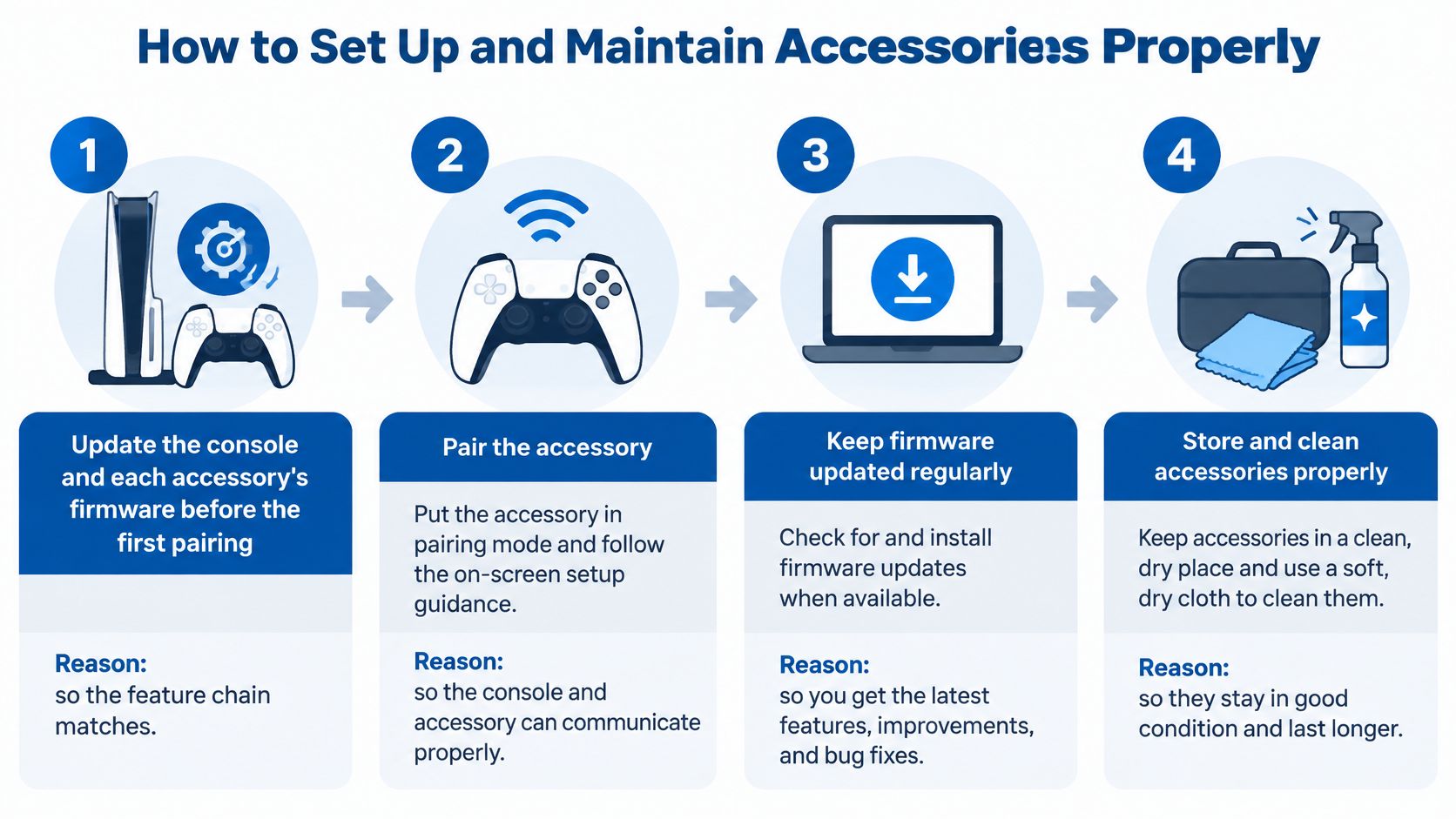
- Update firmware first: Update the console and each accessory before first pairing, so the feature chain matches.
- Pair in order: Connect the dedicated dongle first, then the controller, and confirm input in a system menu.
- Set the display: Enable VRR and your target resolution, then confirm the display's low-latency mode is active.
- Charge fully: Charge new batteries before the first session and keep docks away from heat.
- Route cables loosely: Use the approach in the guide to cable organizer clips, avoid tight bends, and leave slack behind the stand.
- Clean dry: Wipe controllers and ports every few weeks with a dry cloth and compressed air, never liquids.
- Log runtime: Note battery runtime monthly and plan a swap once it drops noticeably.
Judge what you own by years of service, not launch features. A 2025 study of small electrical and electronic equipment found that repair and reuse alone have limited short-term effects on waste-generation rates, so check battery replacement feasibility, spare parts, cable standards and cross-generation compatibility before buying. Ask whether one headset serves several consoles and a phone, and what happens when a wireless accessory loses manufacturer support. When a cable or cell does wear out, start with the replacement cables and batteries range instead of replacing the whole accessory.
Frequently Asked Questions
Do I Need a Wired Controller for Single-Player Games
No. Bluetooth delay is hard to notice in adventure titles, so choose on convenience and comfort there. Reserve wired or dongle links for rhythm, fighting and shooter play, and read what input lag actually means if you're unsure whether you'd feel the difference.
Will a 240 W Charger Charge My DualSense Edge Faster
No. Your controller's input rating sets the charging rate, so the extra wattage adds nothing for pads. Spend on a dock that fits your model or a spare controller instead.
Is an HDMI 2.1 Cable Enough for 4K at 120 Hz
Not on its own. Your console, display and cable must support the feature end to end, including the specific TV port you use. A cable labeled "high speed" doesn't guarantee every HDMI 2.1 function, so test at your maximum resolution after setup.
Confirm Your Setup Before You Check Out
Updated for March 2026. Run this checklist before you pay, and treat every line as one link in the chain: a dock that clears the power check still goes back if it never fit your controller model.
- Platform and model: The accessory matches your console edition and exact controller model for stands, docks and grips.
- Connection type: Wired or dedicated-dongle links cover competitive titles, and Bluetooth is only for convenience play.
- HDMI chain: Console, cable and display all pass your resolution, refresh and VRR checks together.
- Power profile: Charger wattage, cable rating and USB-C profile match the accessory's input rating.
- Lifecycle: Batteries are replaceable, and spare parts or standard cables will be available for years.
- Budget and returns: The price and return policy fit, in case your own test disagrees with the spec sheet.
Pick the category first, then the spec, and the brand last. When your chain checks out, open the product page for your chosen gaming accessory on DigiDevice, where checkout accepts Apple Pay, Google Pay, PayPal, Shop Pay, Venmo and major credit cards.
Stop paying for accessories that were never compatible in the first place. Build a chain that works end to end, from controllers and headsets to docks, cables and ergonomic gear. Visit DigiDevice to compare the specs that matter for your console, your room and your main game, then check out with the one setup you will not need to return.