

Gaming and Work Desk Setup: Ergonomic Steps for 2026
Gamers showed 10.6 degrees more neck extension than during office tasks in a 2026 comparative ergonomics study, even though participants used the same chair. A good gaming and work desk setup therefore needs to support both concentrated typing and the posture you adopt during a tense match, not just look comfortable when you sit down.
Updated for March 2026. Start with the relationship between your body, input devices and screen. Buy furniture and accessories only after you know which part of that relationship needs fixing.
Core Measurements for a Gaming and Work Desk
Target measurements for a combined gaming and work desk
| Measurement | Target value | Why it matters |
|---|---|---|
| Monitor viewing distance | 20-40 in (50-100 cm) | Keeps text readable without leaning forward |
| Minimum desk depth to screen | At least 20 in (50 cm) from eyes | Leaves room for the monitor and input devices |
| Top of screen | At or slightly below eye level | Limits neck extension during long sessions |
| Screen center | 15-20 degrees below horizontal eye level | Reduces upward head tilt |
| Side-to-side monitor placement | Within 35 degrees of forward position | Limits neck and torso rotation |
| Elbow angle at keyboard | Approximately 90-100 degrees, elbows close to torso | Supports relaxed shoulders and forearms |
| Arm's-length reach | Comfortable reach with elbows near the body, not a fixed input-device distance | Keeps keyboard and mouse accessible |
| Wrist position | Straight, aligned with forearm | Avoids sustained wrist bending during typing and mouse use |
The display targets come from OSHA's monitor guidance, which specifies a 20-40 inch viewing range, a screen center 15-20 degrees below horizontal eye level, and side placement within 35 degrees. Treat these as positioning boundaries, not a reason to force a screen into an uncomfortable location.
The OSHA purchasing guide recommends enough desk depth to keep the screen at least 20 inches from your eyes, alongside room for the keyboard and pointing device. That's an eye-to-screen measurement, not a minimum tabletop depth.
Measure usable space, not advertised dimensions
A monitor stand can occupy the exact patch of surface your keyboard needs. A curved front edge, rear shelf or oversized mouse mat can also make a generously sized desk less useful than its specifications suggest.
Measure with the equipment in its working position. Include the monitor stand's feet, the keyboard's rear edge and the mouse movement you use during play.
Arm's length describes viewing distance, not a prescribed keyboard reach. Don't place your keyboard farther away just to match a screen-distance number. Your elbows and relaxed shoulders determine where the input devices belong.
For neutral posture, the OSHA workstation checklist emphasizes supported lower back, relaxed shoulders, aligned wrists and feet resting flat. A desk that accommodates those relationships matters more than one marketed specifically for gaming.
Why a gaming session changes the priorities
During intense play, you may slide forward, brace your forearms or move your face toward the display. A setup that feels fine while reading email can become awkward when you need a broad mouse sweep or start leaning into a match.
Practical rule: Measure the position you actually use, not the upright pose you hold while checking the mirror.
If tabletop height is the sticking point, the desk height guide from Woodstock Furniture from Woodstock Furniture & Mattress Outlet provides useful context for comparing furniture dimensions. For an existing desk, compare keyboard-tray options before replacing the whole surface.
Finish with a tape measure from your seated eye position to the screen. Check that distance with your keyboard and mouse in place before spending money on a desk, chair or monitor arm.
Choosing a Desk That Fits Both Setups
Choose the desk around usable depth first. Width is easy to notice in a product photograph; depth determines whether your screen and hands can occupy sensible positions together.
- Mock up the footprint. Mark the proposed tabletop on the floor with painter's tape. Position your chair, then account for the monitor stand rather than assuming the screen sits flush against the wall.
- Test the working height. Sit with your feet supported and shoulders relaxed. The surface must let you type without lifting your shoulders or bending your wrists upward.
- Check frame stability. For a sit-stand desk, consider the monitor arm, cable tray and equipment load together. A frame that feels stable while lowered may let the screens shake when raised.
- Allocate width by task. Reserve the central area for your main display and inputs. Put occasional-use equipment toward the sides.
- Protect the mouse area. Don't let a headset stand, microphone base or controller dock interrupt the movement your game requires.
Inspect the underside before buying
Drawer boxes, crossbars and thick front aprons can prevent a chair from moving close enough. They can also block a keyboard tray or monitor-arm clamp.
A footrest helps when the chair must sit higher than your feet comfortably allow. It doesn't fix a desk that leaves no space for your thighs.
Buy adjustment you can use, not adjustment that disappears behind drawers, braces or incompatible clamps.
How to Align Your Chair, Desk and Monitor
Adjust from the chair outward. Starting with the monitor encourages you to arrange everything else around a screen position that may already be wrong.
OSHA's keyboard guidance supports keeping input devices close, wrists aligned and elbows near the torso; the accompanying alignment target is approximately 90-100 degrees at the elbows. Use that as a relaxed starting position, not an angle you must hold rigidly.
Set the body and inputs first
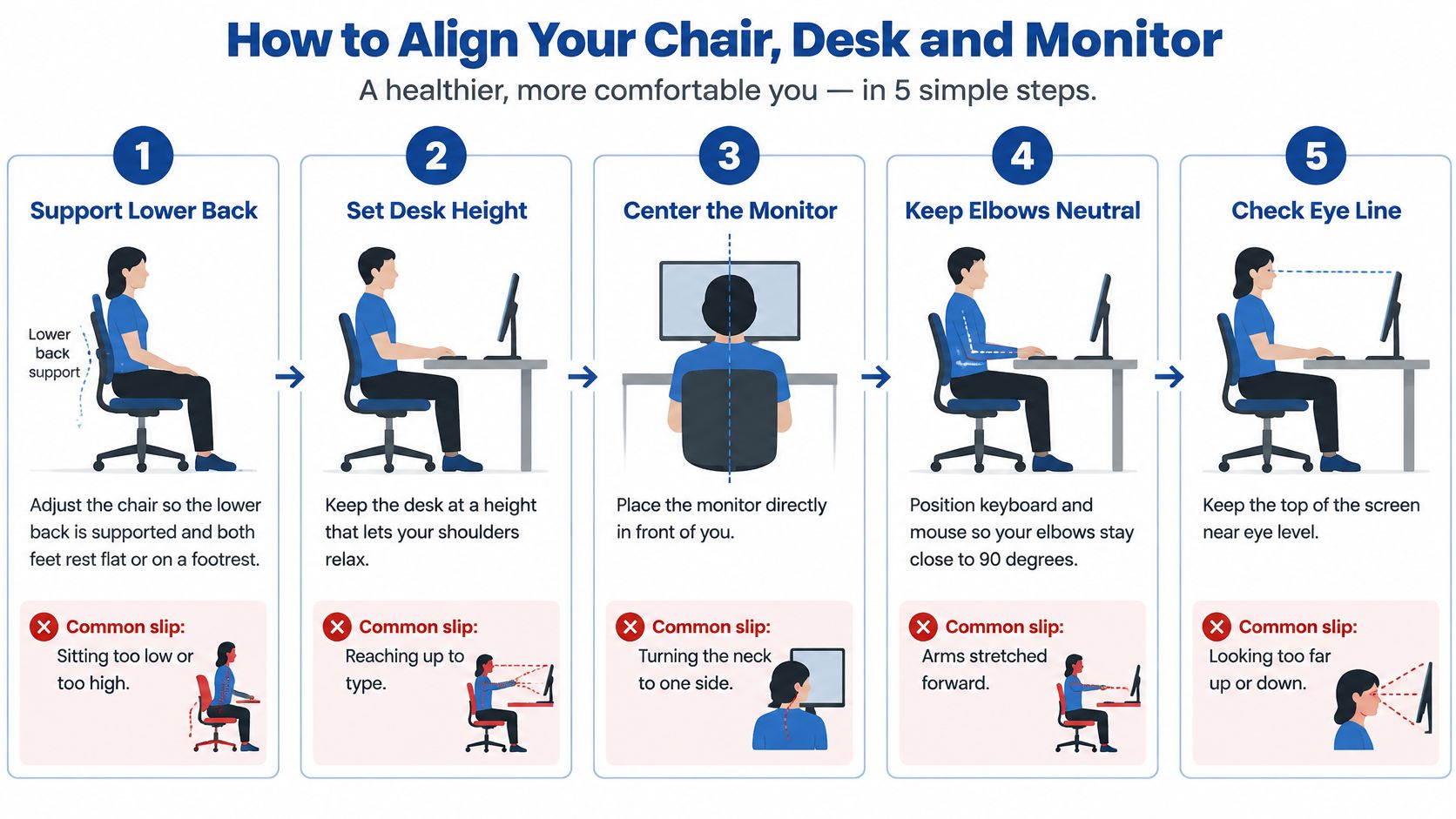
- Support your lower back and feet. Settle back into the chair before adjusting its lumbar support. The common slip is raising the seat to reach a tall desk, then leaving the feet unsupported.
- Bring the working surface to your arms. Let your shoulders drop, then position the desk or keyboard tray around your resting forearms. Reaching upward to type means the surface is still too high.
- Place keyboard and mouse together. Keep them on the same working level, close enough that you don't extend an arm to reach either. A large mouse mat doesn't help if its usable area sits beyond your comfortable reach.
A compact keyboard can reclaim mouse space, but there's a trade-off if your work depends on a number pad. Consider a separate number pad that moves aside during gaming rather than forcing a wide keyboard into every task.
Use this visual checklist while making the adjustments.
Fit the display to the seated position
- Center the primary monitor on your torso. Align the chair, keyboard and screen as a working group. Centering only the display while leaving the keyboard off to the side creates a twist through the workstation.
- Set the screen's top near your eye line. Adjust from your settled sitting position, not while stretching upright. The common slip is raising the display for a cleaner-looking desk and then lifting the chin to use it.
Don't optimize only the monitor. A perfect-looking display position can't compensate for a keyboard that keeps pulling your shoulders forward.
Before buying hardware, check how to set up a monitor arm. Confirm the display's mounting compatibility, its weight and the desktop's clamp clearance so the arm solves a positioning problem rather than creating an installation problem.
For the broader furniture arrangement, Suburban Furniture's guidance can help you plan an ergonomic home office desk setup. Keep the same body-first approach whether you use an office chair or a gaming chair.
Validate under real use
Run a normal gaming session, then a normal work session. Notice whether you slide forward, raise a shoulder, brace a wrist against the edge or repeatedly readjust your lower back.
Recheck after changing chair height, swapping mouse mats or moving to standing. Record the useful settings with a removable mark or desk-memory preset, but allow yourself to change position rather than treating one posture as mandatory.
Dual Monitor Layout for Games and Work
Arrange screens around the task that occupies most of your time, not around symmetry. A visually balanced pair can leave you looking toward the join between displays instead of the application you use.
The OSHA additional workstation guidance recommends a centered primary display, adjacent secondary displays and a docking arrangement for laptop users who need independently positioned screens and inputs.
Use the equipment arrangement below as a visual reference, not a reason to add more displays.
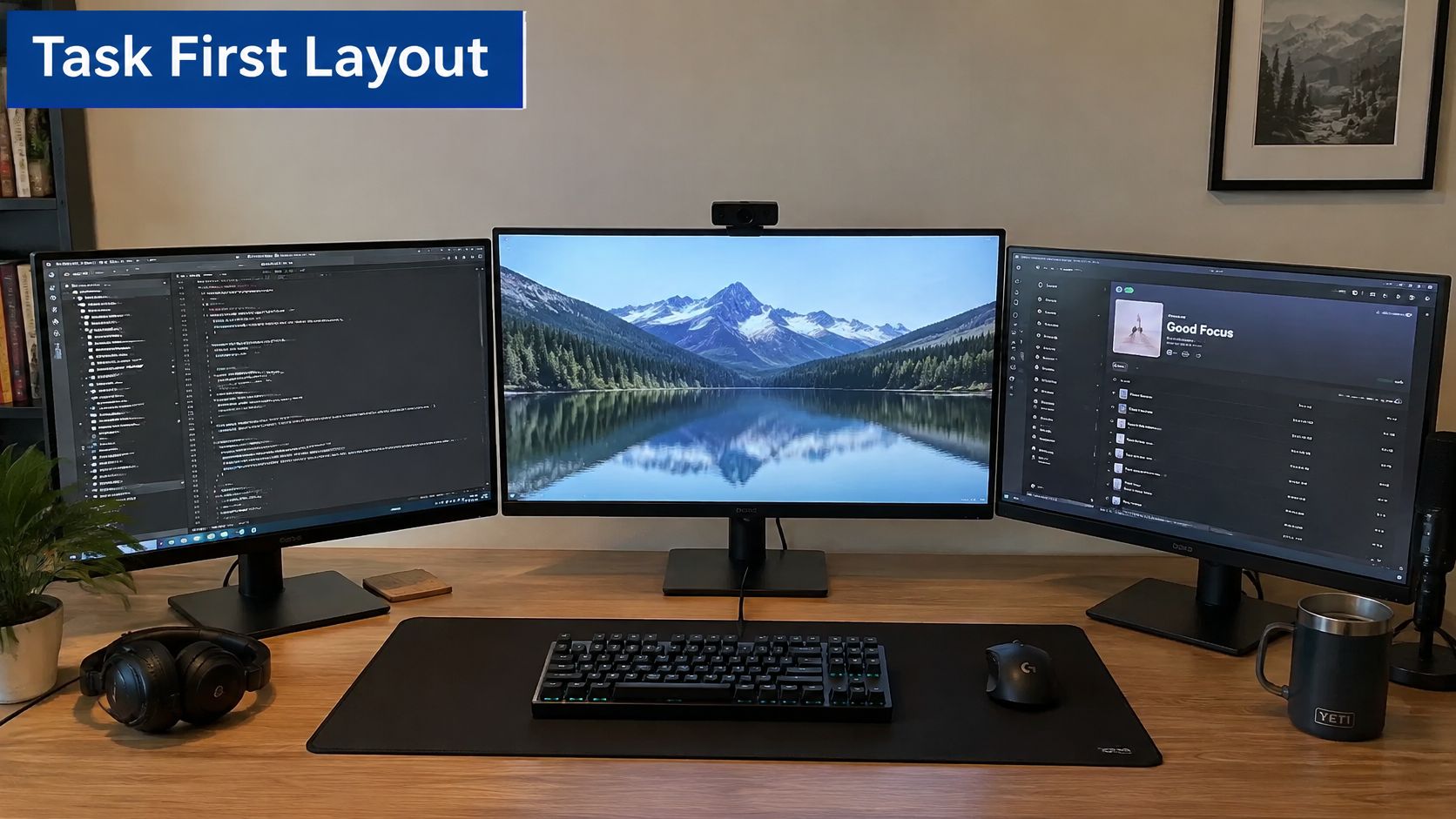
Dual monitor layout by main use
| Main use | Primary screen | Secondary screen | Check before settling |
|---|---|---|---|
| Mostly gaming, occasional work | Centered directly ahead | Beside it, inside your comfortable viewing arc | Launch the game and read text without leaning |
| Even split between gaming and work | Centered for the active task, adjacent to secondary | Close beside the active screen | Turn toward the task and confirm inputs remain accessible |
| Mostly work, occasional gaming | Centered on the work application | Beside it, without requiring a sustained sideways posture | Work through a document and notice neck position |
| Laptop as primary screen | Elevated on a suitable stand, connected through a dock | External display beside it if needed | Keep external keyboard and mouse at working height |
Check the whole task, not just the screens
Open your main application at its normal text size. If you lean forward, adjust text scaling or display position rather than accepting that posture as necessary.
Turn toward the secondary task and check your hands. If the chair rotates but the keyboard stays behind, you've moved the viewing problem into your shoulders and torso.
For an adjustable desk, repeat the check in both working positions. Monitor-arm reach and cable tension can change noticeably as the desktop moves.
The video provides another visual reference for planning the workstation.
Avoid the expensive layout mistakes
A gaming screen directly ahead and a work screen far to the side is a poor compromise if you spend the workday on the side display. Move the active application or reposition the equipment between sessions.
Stacked monitors save width but ask you to look upward. Reserve the upper display for occasional reference rather than continuous reading.
With a laptop, a dock doesn't necessarily raise the screen. Use a stand for elevation and a compatible docking station for external inputs, power and displays.
Once the geometry works, plan the desk's cable management with enough slack for movement. You can also find useful gaming accessories through BlissVector Gaming, but protect input space before adding another stand or dock.
Controlling Light and Glare on Your Screen
Fix window placement, lamp position and reflections before increasing monitor brightness. A brighter screen doesn't remove the bright window reflected across a spreadsheet or dark game scene.
OSHA's workstation evaluation checklist recommends controlling reflected light, positioning displays at right angles to windows and using suitable task lighting. Its useful practical test is whether glare makes you squint or adopt an awkward posture.
Check the relationship between the window, screen and lamp, not just how attractive the room looks.
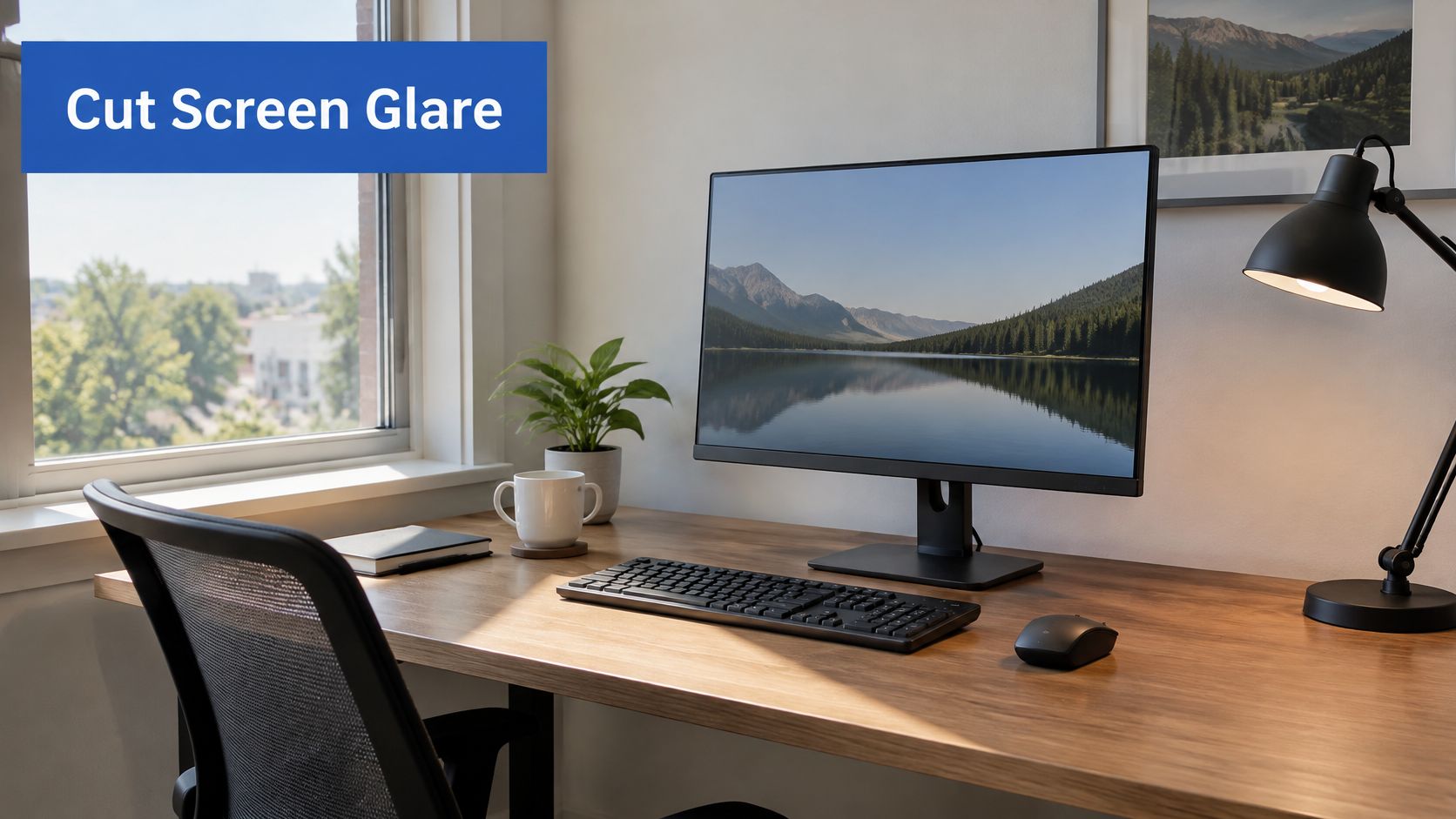
Remove reflections in the right order
- Put the window to the side. Avoid facing a bright window or placing it directly behind you where it can reflect in the display.
- Aim the lamp at the task. Light the keyboard, notebook or paperwork. Check the screen from your seated position to make sure the lamp itself isn't visible in reflection.
- Soften overhead light. Use a suitable diffuser or change the light's position when a concentrated reflection crosses your working area.
- Then adjust screen brightness. Make the display comfortable against its surroundings rather than using maximum output to overpower poor lighting.
A glossy screen may show reflections clearly, while a matte screen can spread them into a wider bright patch. Neither surface treatment makes room layout irrelevant.
Glare check: Open a dark application window and inspect the screen from your normal seated position. Move the light source before changing your posture.
Keep separate work and gaming lighting
For document work, provide steady illumination where you read and write. For gaming, a dim indirect light behind the display can make the room feel less stark without shining onto the panel.
Keep decorative lighting out of the webcam's view if it distracts during calls. Save separate lighting presets where your equipment supports them, so changing activities doesn't require rebuilding the room.
If you're considering a display replacement, compare monitors with eye comfort in mind. Check the room first, though: an expensive monitor won't fix a lamp pointed at its glass.
Fitting Both Setups into a Small Room
A compact room can support both an eight-hour workday and fast-paced gaming if the chair, screen and input devices have clear positions for each activity. Start with the routes through the room: leave space to move the chair and keep doorways, wardrobes and shared sleeping areas accessible.
Choose what can move off the surface
| Component | Useful small-room approach | Trade-off to check |
|---|---|---|
| Desktop | Wall-mounted or folding surface | Wall suitability, load rating and mounting permission |
| Monitor | Clamp or grommet-mounted arm | Desktop strength and clearance behind the desk |
| Headset and controllers | Vertical hooks or a shallow shelf | Reach and interference with chair movement |
| PC or console | Dedicated ventilated position | Intake, exhaust and access for cleaning |
| Cables and power | Under-desk tray or channel | Knee clearance and access to connections |
A folding desk works only if putting it away is practical. If disconnecting a monitor, dock and console becomes a chore, a fixed compact surface may be easier to live with.
A monitor arm can free tabletop space, but some arms swing backward. Check that movement before placing the desk close to a wall. For options designed around limited floor space, compare ergonomic gaming desks for small rooms, and check usable surface area and mounting compatibility.
Make switching activities predictable
Give movable equipment a permanent parking place. Keep the controller on its hook, paperwork in its tray and microphone outside the mouse's travel area.
- Keep a shared input layout. Choose a keyboard and mouse that work for both tasks without changing their height.
- Leave cable capacity spare. Fit the tray around the power strip and adapters, with room for another device.
- Label both ends. Mark display, USB and power leads before bundling them.
- Preserve ventilation. Keep a tower or console out of tightly packed storage compartments.
- Check the camera background. Store loose packaging and occasional-use equipment outside the call's frame.
Separate power and signal cables where practical to make tracing and replacing them easier. Leave service loops so leads can be unplugged without pulling them taut.
Include the dock, network connection and charging points in the room plan. Keep them accessible without routing cables across the walking path.
The best compact layout makes it easy to change tasks without clearing the desk first. Keep work materials, gaming controls and call equipment within reach, but give each a defined place.
Questions Readers Ask About Gaming and Work Desks
Do I need a dedicated gaming chair for a combined setup?
No. You need a chair that supports your body and fits the desk. A supportive office chair can work well, while a gaming chair is useful only if its dimensions and adjustments suit you.
Check whether you can sit back against the support while reaching the controls comfortably. A deep seat that pushes you forward or pronounced side bolsters that restrict your arms can undermine an otherwise adjustable chair.
Consider these checks before replacing it:
- Seat fit. You should be able to use the backrest without the seat edge pressing behind your knees.
- Armrest clearance. The chair must move close enough to the desk without the armrests colliding with it.
- Support placement. Lumbar and upper-back support should meet your body rather than force you into the chair's shape.
A racing-style appearance isn't evidence of a better fit. Buy the adjustment and dimensions you need, not the silhouette.
How often should I take posture breaks during long sessions?
Take regular short breaks and change position before discomfort builds. Use natural stopping points, such as finishing a match, sending a document or ending a call, rather than waiting until you feel stiff.
Stand, walk or change tasks briefly. When you return, notice whether your chair has rolled away, your keyboard has drifted forward or you've started sitting on the seat's edge.
The aim isn't to hold a perfect posture indefinitely. It's to avoid spending the whole session in the same strained position.
A carefully adjusted workstation still needs a user who moves.
If discomfort persists despite sensible adjustments, seek advice from a qualified healthcare professional rather than continuing to buy accessories.
Which upgrade should I buy first on a tight budget?
Buy the item that corrects a specific fit problem. Start with free adjustments, then choose hardware that holds the useful position in place.
If the screen can't move into position, consider a compatible stand or monitor arm. If your feet lose support at the necessary seat height, consider a footrest; if the chair can't support you, prioritize seating.
Leave decorative lighting, matching accessories and extra displays until the essentials work. Cable management comes after equipment positions are settled, otherwise you'll undo it to make the adjustments.
DigiDevice offers gaming desks, electronics and practical PC accessories for building a shared work-and-play station. Visit DigiDevice with your measurements and compatibility checklist, then check the current price of the desk or accessory that addresses your setup's specific problem before purchasing.