

Computer Monitor with USB Ports: A 2026 Buyer's Guide
Does a USB-C socket on a monitor replace your display cable, USB hub, and laptop charger, or does it only look as though it should? A computer monitor with USB ports can do all those jobs, but you need to verify data, video, and charging separately against your laptop's capabilities and power requirements.
Updated for March 2026.
USB Port Types on a Monitor at a Glance
Start at the connection that faces the computer, not the row of sockets intended for accessories. Upstream connects the monitor's USB hub to your computer; downstream connects that hub to your keyboard, drive, webcam, or phone.
Next, find the video specification for that upstream connection. DisplayPort Alternate Mode, compatible Thunderbolt support, or documented USB4 display support matters more than the reversible connector's shape.
Monitor USB port roles, video, speed and power
| Port | Typical role | Carries video | Data speed | Power |
|---|---|---|---|---|
| USB-C upstream with DP Alt Mode | Video, data, and laptop charging over one cable | Yes | USB 2.0 or 3.x, according to lane allocation | 65–100 W typical for docking-oriented models |
| USB-C data-only | Peripherals and hub functions | No | USB 3.x or 2.0 | Advertised device-charging output or none |
| USB-B upstream | Connects a PC to the monitor's hub | No | 5 Gbit/s on USB 3.2 Gen 1 implementations | No laptop charging |
| USB-A downstream 3.x | Drives, card readers, dongles | No | 5 Gbit/s on USB 3.2 Gen 1 implementations | Check the port's charging rating |
| USB-A downstream 2.0 | Keyboards and mice | No | 480 Mbit/s | Low-power accessories |
| USB-C downstream | Phones, SSDs, and faster drives | No, unless explicitly designated as a display output | 10 Gbit/s on USB 3.2 Gen 2 models | Check the individual socket's advertised output |
These are port roles, not guarantees that every monitor implements the same controller. A USB-C downstream socket shouldn't be mistaken for a laptop input just because your cable fits.
The USB Type-C ecosystem document describes early power options of 5 volts at 1.5 or 3 amperes, equivalent to 7.5 or 15 watts. That distinction explains why a USB-C label alone doesn't establish laptop-charging capability.
Read the specification as separate promises
Look for a product sheet that identifies each function rather than combining everything under USB-C connectivity.
- Video promise: The upstream input supports the laptop's display-output protocol and your intended display mode.
- Data promise: The upstream connection and downstream sockets have explicitly listed USB speeds.
- Charging promise: The specification names the power delivered to the laptop, not just the monitor's total electrical consumption.
- Accessory promise: There are enough usable downstream connections for the equipment you leave attached.
A monitor with USB-B upstream can still make a useful desktop hub. Connect HDMI or DisplayPort for the picture and a separate USB cable for peripherals; the inconvenience is another cable, not necessarily worse display performance.
A data-only USB-C input is different. It can expose the hub to the computer without carrying the image, so buying another identical-looking cable won't add a missing video controller.
Buying rule: Count supported jobs before counting sockets. Clearly documented upstream video, charging output, and downstream speed are more useful than a large port total.
Before buying a replacement lead, use this guide to choosing a USB-C cable for data transfer to check that its advertised capabilities match the connection you're building.
Power Delivery and Video Lane Trade-offs
The awkward trade-off appears when a monitor promises a sharp image and fast storage through the same cable. Those functions can compete for the connection's high-speed lanes, so the maximum display specification and maximum USB speed might not be available together.
What the lane allocation changes
VESA's DisplayPort Alt Mode explanation describes four high-speed lanes that can all carry video, supporting up to 4K at 60 Hz with 30-bit color in early DisplayPort 1.2 implementations, or split into two video lanes and two SuperSpeed USB lanes.
The diagram illustrates that allocation. Power Delivery is negotiated separately; charging doesn't consume a pair of video lanes.
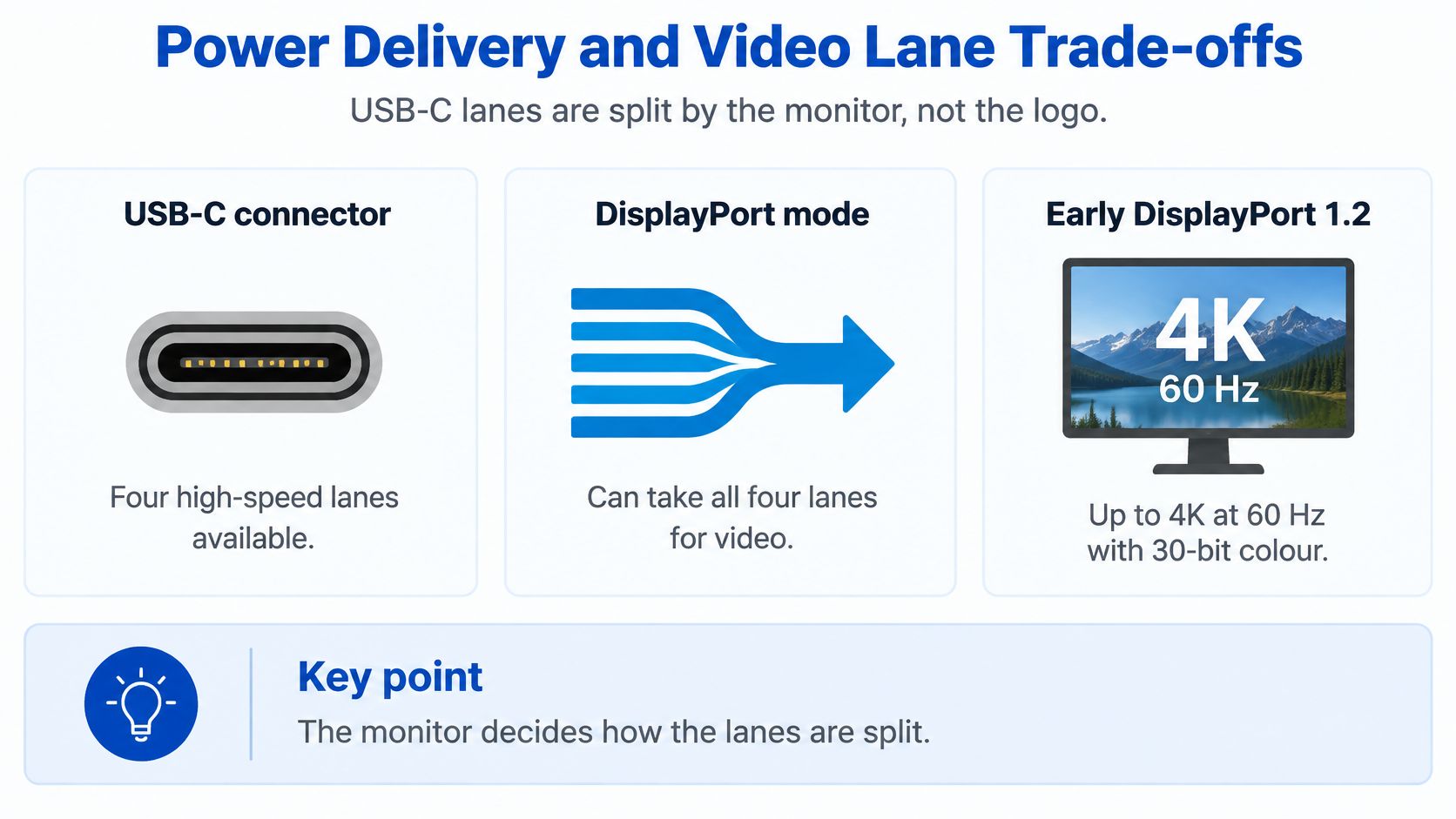
Lane allocation and what each setting gives you
| Lane setting | Video capability | USB 3.x data | Best fit |
|---|---|---|---|
| All four lanes to DisplayPort | Up to 4K at 60 Hz, 30-bit colour in the DP 1.2 baseline | USB 2.0 remains available, not USB 3.x through those lanes | One high-resolution screen |
| Two lanes video, two lanes USB | Less video bandwidth than the full-video configuration | Available | Video plus fast drives and dongles |
| USB4 or Thunderbolt connection | On implementations specified for it, up to 40 Gbit/s shared among video and data | Shares the connection's available bandwidth | Docking with several peripherals |
The last row describes a supported implementation, not every product carrying either name. Check the actual controller specification, display configuration, and cable rating.
Monitor menus sometimes offer settings labelled high resolution or high data speed. Changing one can improve SSD transfers while removing a display mode, or restore the desired picture while slowing the hub.
Charging is a separate budget
Treat the advertised USB Power Delivery output as the laptop-facing rating. Don't automatically subtract the panel's consumption from it, and don't assume the monitor's total power-adapter rating is what reaches your computer.
For a hypothetical example, a 65 W supply might sustain a 13-inch laptop handling documents, while a 14-inch machine exporting video could demand more. Those dimensions don't establish the requirement; the laptop's charger specification and actual workload do.
A battery that slowly discharges during an export reveals a power shortfall even if the operating system displays a charging icon. Peripheral charging and shared-output rules can complicate the result, so check whether the manufacturer guarantees laptop power while accessories are connected.
A working picture proves video. It doesn't prove fast storage or enough charging power under load.
Use the USB-C fast-charging cable guide when checking cable power ratings. A high charging rating is useful, but it still isn't evidence of video support or fast data transfer.
Checking Laptop and Monitor Compatibility
Matching connector shapes is only the start. Check the exact laptop configuration, because similarly named models can have different port capabilities.
CHIP's external-monitor connection guide highlights the compatibility gap between data-only, charging-only, and video-capable USB-C connections, and notes that USB-C monitors commonly provide 65–100 W without guaranteeing that every laptop stays charged under demanding workloads.
Run a live docking test
Use this numbered test before treating the monitor as a permanent docking station.
- Verify the laptop output. Open the manufacturer's specification page and find explicit DisplayPort Alt Mode, Thunderbolt display support, or compatible USB4 display support. A generic USB-C entry isn't enough.
- Identify the monitor input. Match the manual's upstream-port diagram to the physical socket. Don't connect the laptop to a downstream phone-charging port.
- Remove cable uncertainty. Start with the monitor's supplied laptop cable if it's intended for full docking, or use a replacement explicitly rated for video, data, and the required charging power.
- Prove the picture. Select the USB-C input, open Windows Display settings or macOS Displays, and confirm the intended resolution and refresh rate.
- Prove hub data. Attach a USB drive downstream, open a file, and copy a disposable test folder. A power light on a keyboard isn't sufficient evidence that the upstream data connection works.
- Prove charging under your workload. Confirm the laptop reports external power, then compare battery behavior during ordinary work and a demanding task you regularly perform.
- Prove input switching. If you also use HDMI or DisplayPort, switch inputs and check whether the keyboard, webcam, and drive remain assigned to the correct computer.
Avoid the HDMI hub trap
HDMI carries the picture, not the USB connection that makes the monitor's hub available to the laptop. A monitor may require a separate USB upstream cable and an on-screen assignment for that input.
Don't assume hub loss is intentional shutdown. Check whether the monitor has a USB selection or KVM setting before replacing hardware.
For a mixed-cable setup, consult the HDMI-to-laptop connection guide and keep the display path separate from the USB data path in your troubleshooting.
A clearly labelled monitor with adequate charging headroom is preferable to an impressive port list that leaves you guessing which socket connects to which computer.
Matching Monitor Ports to Gamers Creators and Remote Workers
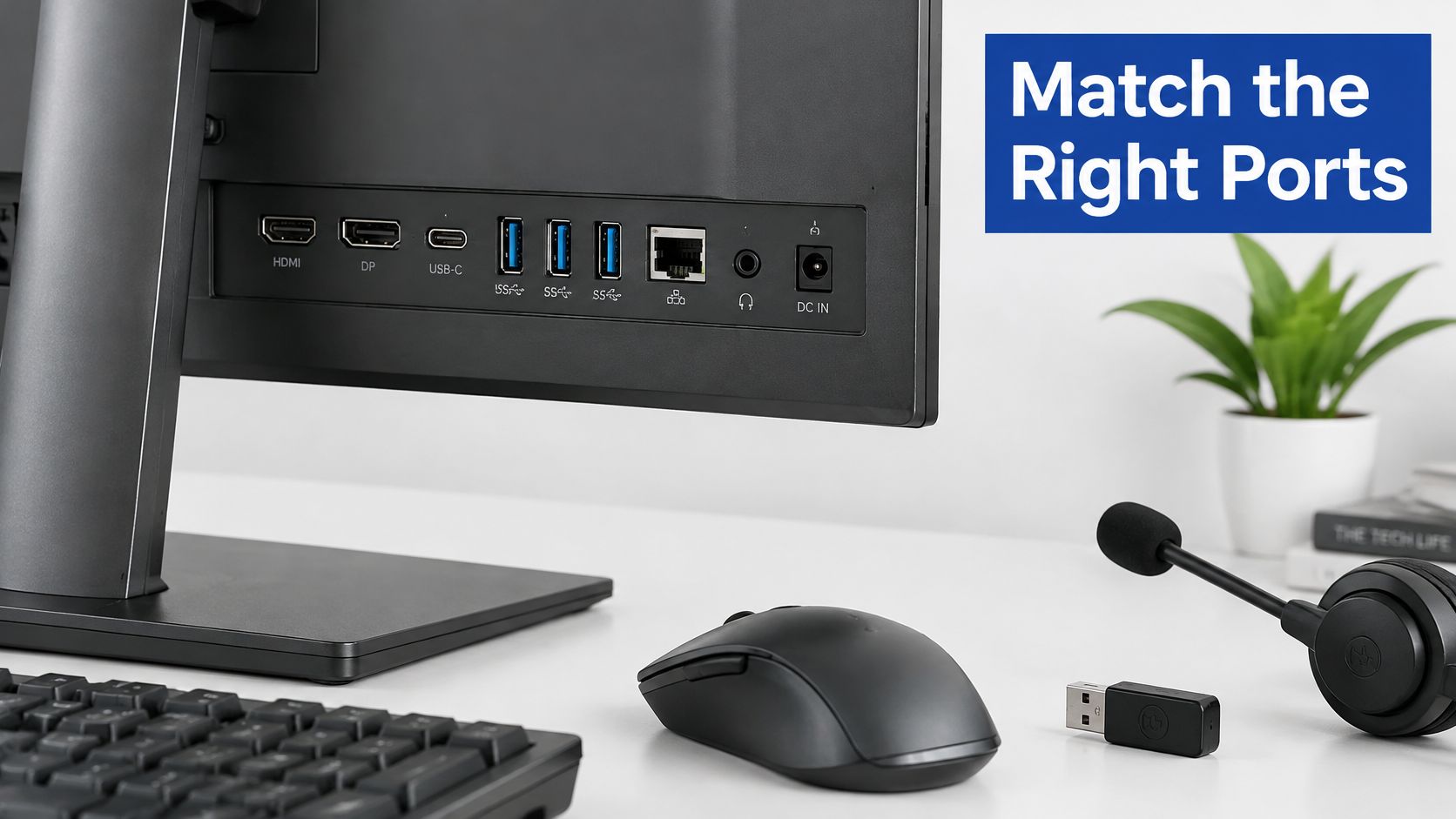
What stays connected to the monitor, and what must connect to the computer? A gaming tower, an editing laptop, and a work notebook need different port arrangements. Choose for the equipment that lives on the desk, then check that each USB-C connection covers its separate jobs: data, video, and charging.
Rear-panel placement matters. A hard-to-reach port may suit a permanent SSD, while a side port is more convenient for swapping memory cards or charging a phone. Use this rear-panel view of a monitor's ports to distinguish display inputs from accessory connections.
Port and spec priorities by use case
The figures below are shopping targets, not universal requirements or measured performance guarantees. For USB-C, verify data, video, and charging separately against the laptop and the monitor's specifications.
| Buyer | Priority ports | Power target | Key display spec |
|---|---|---|---|
| Gamer | USB-A 3.x and 2.0 for keyboard, mouse, and headset | 15–20 W as an illustrative accessory budget; 65 W only if suitable for the laptop | 144 Hz or higher as a shopping target, plus independently measured input latency in ms |
| Content creator | USB-C with DP Alt Mode, card reader, USB 3.x SSD port | 90–100 W as an illustrative target, checked against sustained laptop demand | Wide colour coverage such as DCI-P3, plus brightness in nits |
| Remote worker | USB-C upstream for hub data, with webcam and headset ports | 65 W as an illustrative target, checked against the notebook | Full HD or higher, with dependable hub operation |
Gamers should protect the display path
For a desktop gaming PC, connect DisplayPort or HDMI directly from the graphics card when that suits the setup. Use the monitor's USB upstream connection to link its hub to the computer, rather than expecting that cable to replace the display connection or charge a desktop PC.
Keep wireless receivers clear of crowded cable bundles, and adjust their position if input becomes intermittent. An accessible side port can be more useful than another hidden rear socket. These gaming desk setup ideas can help with receiver placement, cable slack, and monitor-arm clearance.
Creators need storage and colour performance together
A wide-gamut label doesn't establish calibration accuracy, and an SSD-compatible socket doesn't guarantee sustained transfer performance. Check the monitor's colour-mode behavior and factory calibration information, then confirm whether the hub maintains its advertised speed at the display setting you plan to use.
Consider your typical editing workload as a whole. If exports and media transfers happen together, the image mode and access to project files both need to suit that work.
Remote workers need predictable docking
For remote work, prioritize a dependable USB upstream connection and charging output that matches the notebook. Confirm that the monitor's hub provides the USB connections needed for the webcam and headset, and that the laptop supports video and charging over the selected USB-C connection.
One upstream cable can simplify connecting and disconnecting a laptop. The webcam and headset still need their own connections to the monitor, so their cables remain on the desk.
Spec Checklist for Choosing the Right Model
Keep the laptop's specification page beside the monitor manual. Product-page summaries often omit the input-to-hub mapping or the conditions attached to maximum charging output.
Use the checklist graphic as a reminder, then verify the detailed entries against the exact model you're buying.
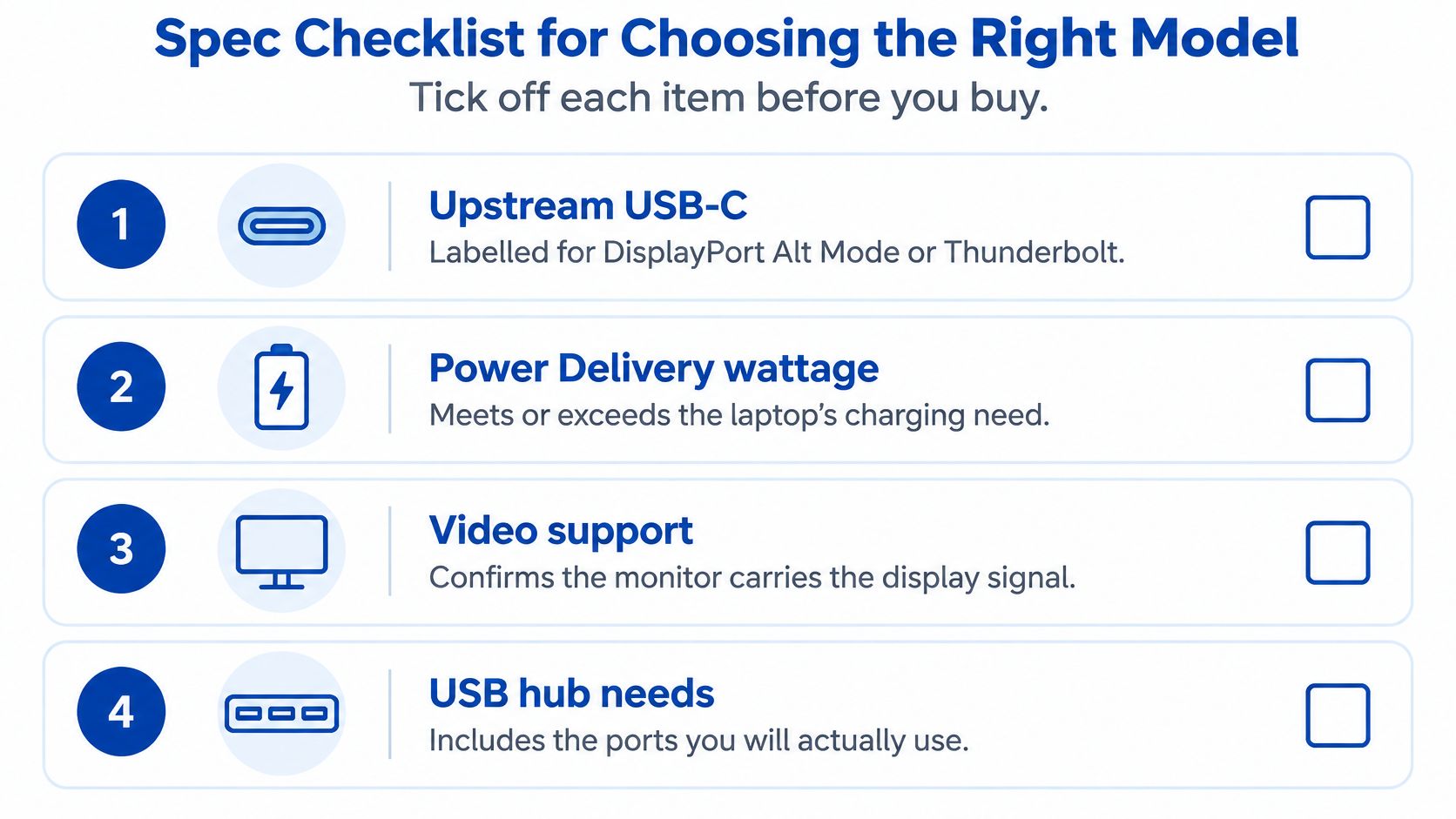
Tick off the specifications that affect daily use
- Upstream connection identified. The manual explicitly names the laptop-facing socket and its video protocol.
- Laptop-facing Power Delivery confirmed. Compare the output with the computer manufacturer's charging recommendation, including any restrictions when accessories draw power.
- Enough downstream ports. Reserve connections for permanent accessories before counting what remains for removable drives and phones.
- Your complete display mode supported. Confirm resolution, refresh rate, colour depth, and any compression requirements together, not as separate maximum claims.
- Hub operation on HDMI documented. Establish whether a separate upstream USB connection is required and how the monitor assigns it.
- Ethernet included where useful. Check operating-system support and whether network access survives sleep and input changes.
- Brightness and colour specified. Look for brightness in nits and coverage of the colour space you use, such as sRGB or DCI-P3.
- Stand and mounting suitable. Verify height adjustment, tilt, VESA mounting compatibility, and access to ports once an arm is installed.
Don't confuse power labels
The wattage printed on a monitor's external power brick isn't automatically its USB-C output. Look specifically for USB Power Delivery to the host or equivalent wording.
Also check whether the monitor supplies that output during standby. A tidy docking arrangement becomes irritating if the laptop stops charging whenever the screen enters its deepest power-saving state.
Before checkout: Write the laptop's recommended charger wattage on a sticky note. Compare it with the monitor's host-charging rating, not the largest wattage printed anywhere on the box.
For the hub, silence in the specification isn't reassurance. If the manual doesn't explain input switching, ask for confirmation before buying, especially when you intend to share accessories between a work laptop and a personal desktop.
Clear the Desk with One Docking Cable
A single docking cable can simplify desk use, but route it only after confirming that it handles the laptop's data, video, and charging needs. Keep the connection accessible until you know it works; hiding a faulty cable makes troubleshooting harder.
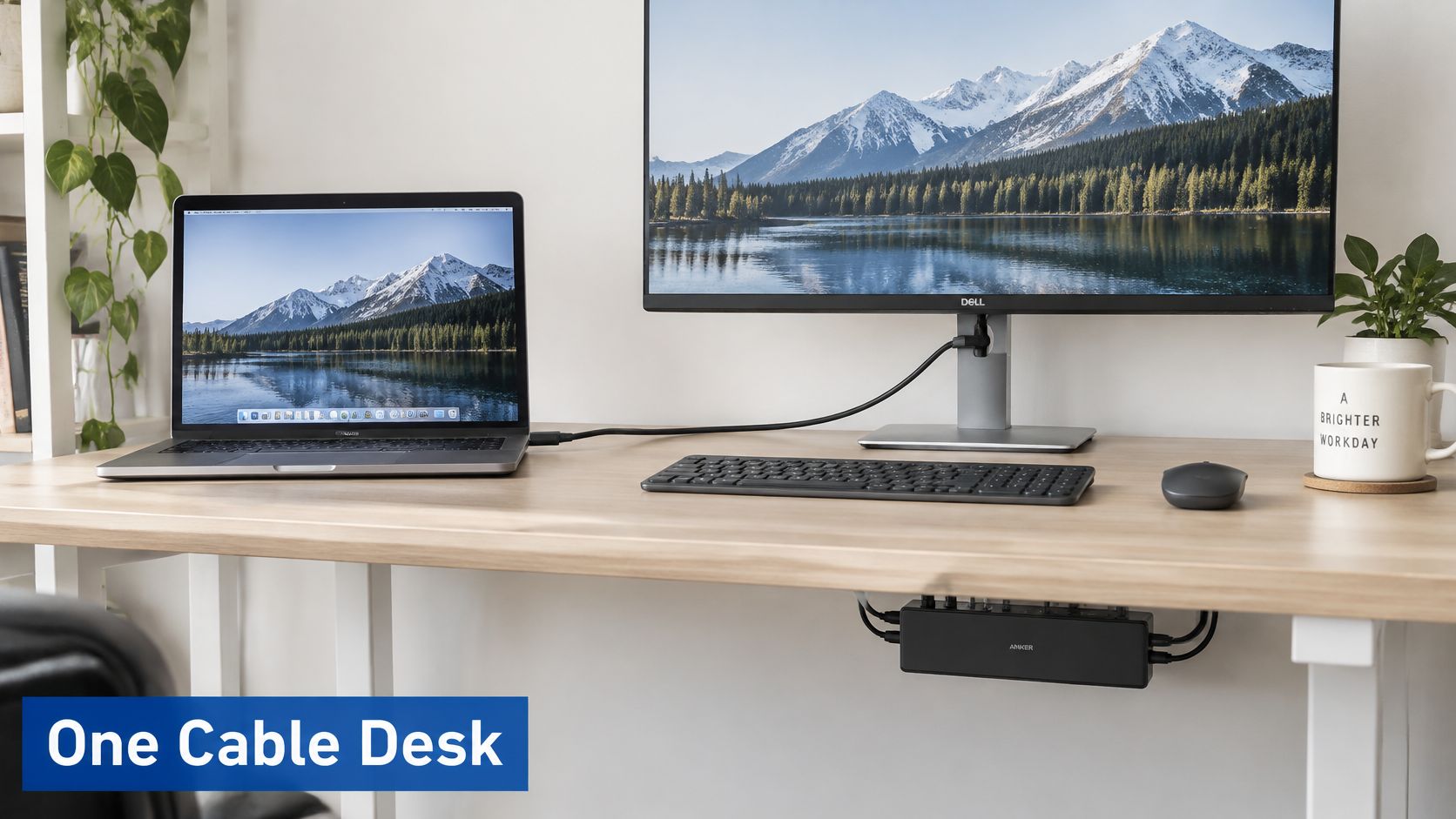
Make departure a single-plug action
- Guide the docking cable through the stand or a desk clip. Leave enough slack to connect without pulling sideways on the laptop socket.
- If the monitor lacks accessory connections, mount a powered hub under the desk with a suitable bracket. Keep its ventilation openings clear.
- Place power bricks and spare leads in a rear cable tray instead of letting them hang from their connectors.
- Secure any charger lead you keep at the desk edge, away from the keyboard and chair mechanism.
- Label the docking lead so it is easy to distinguish from a charging-only cable.
Leave a service loop where cables meet a moving monitor arm. Then move the screen through its normal range and check that nothing pulls tight.
Before placing power accessories out of reach, use the laptop charging through a USB-C hub checklist. A tidy arrangement still needs enough charging capacity for the laptop.
The following video offers a visual companion for planning the connection layout.
Keep the laptop connector reachable. Cable management should make docking easier, not force you to reach behind the monitor whenever you leave.
Troubleshooting USB Ports That Stop Working
If USB-C produces no picture, start with the signal path rather than reinstalling drivers. Verify the laptop output, monitor input, selected source, and video-rated cable before changing software.
Change one component at a time. That keeps a successful fix identifiable instead of leaving you unsure whether the cable, input setting, or reboot made the difference.
USB monitor symptoms, causes and fixes
| Symptom | Likely cause | Fix |
|---|---|---|
| No video over USB-C | Port lacks DP Alt Mode or cable is charge-only | Use a video-capable USB-C port and a suitably certified cable |
| Laptop not charging | Power Delivery wattage below laptop demand | Use a monitor or charger that meets the laptop's requirement |
| USB drive slow | Drive in USB 2.0 port or lanes shared with video | Use a USB 3.x downstream port and check the monitor's lane-priority setting |
| Hub ports drop out | Too much draw on a downstream port | Use a powered hub or connect high-draw equipment directly |
| Hub stops on HDMI input | USB upstream connection missing, incorrectly assigned, or disabled for that input | Connect the appropriate USB upstream cable and check the manual's input mapping |
A cable swap or port change is a quick isolation test. A charging shortfall needs a power-budget check, while hub behavior after input switching usually needs a monitor-menu or upstream-routing check.
For slow storage, compare the same drive connected directly to the laptop. If it's slow there too, the monitor isn't the only suspect.
Frequently asked questions
Does a creator laptop always need a higher-power monitor?
No. Chassis size and creator branding don't establish charging demand. Match the manufacturer's recommendation, then check battery behavior during sustained exports with your normal accessories attached.
Can a data-only USB-C port show a picture?
Not through native DisplayPort Alt Mode. It can connect peripherals, but it lacks the required native video function; specialized USB graphics hardware is a separate solution.
Can a downstream USB-C port charge a phone while the laptop is docked?
Yes, if that socket advertises charging output. Check its individual rating and any shared-power restrictions rather than assuming it matches the laptop-facing port.
DigiDevice offers cables, chargers, adapters, and desk accessories for building a practical monitor setup. Visit DigiDevice to compare compatible accessories against your monitor's video, data, and charging requirements. Check Price before completing your docking setup.