

Best USB C Cable for Data Transfer in 2026
Updated for September 2026
You're probably here because a USB-C cable that “should” have been fast wasn't. You plugged an external SSD into your laptop, started a big transfer, and watched it crawl. The fix is simple: stop buying USB-C by connector shape and start buying it by data spec, certification, and length.
If you want the short answer, the best USB-C cable for data transfer depends on the job. For phones and tablets, buy a 10 Gbps USB 3.2 Gen 2 cable. For external NVMe drives and serious docks, buy a certified 40 Gbps USB4 or Thunderbolt 4 cable, and keep it short.
Why Your USB-C Cable Might Be the Bottleneck
You plug a fast external SSD into a fast laptop, copy a big folder, and the transfer crawls. The drive is fine. The laptop is fine. The cable is the problem.
I see this constantly with USB-C because the connector tricks people into treating every cable as interchangeable. It is not. USB-C tells you the plug shape. It does not tell you whether the cable was built for basic phone syncing, a multi-port dock, or an external NVMe enclosure.
That distinction matters more than buyers expect. A charging-first cable can be perfectly good for topping up a phone and still be a lousy choice for moving footage, backups, or game libraries. If your workflow is data-heavy, buy for data first.
The connector shape hides the real limitation
Two USB-C cables can look identical on a desk and perform completely differently in use. One might be fine for a phone. Another might handle a dock plus display traffic. A third is the right pick for a high-speed SSD. Treating them as the same is how expensive hardware gets dragged down by a cheap cable.
Here's the rule I use: if the box shouts wattage but says little or nothing about transfer speed, I assume it is a charging cable until proven otherwise.
What usually causes the slowdown
The failure pattern is predictable:
- Using the cable that came with a charger. Many bundled cables are built around power delivery, not sustained data throughput.
- Buying by connector shape alone. USB-C on both ends says nothing useful about transfer class.
- Using one cable for every job. Phone backups, docks, and external NVMe drives are separate buying decisions.
- Ignoring cable length. Longer cables are more likely to cut you off from the fastest data modes, especially in premium tiers.
That last point catches a lot of people. The wrong short cable is slow. The wrong long cable is usually worse.
Buy by workflow, not by marketing
If you mostly move photos off a phone, you do not need the same cable class as someone running an external NVMe enclosure for video work. If you use a dock with multiple high-speed devices attached, you should not shop in the same bin as someone replacing a charging lead for a tablet.
That is the angle buyers miss. Charging and data are related, but they are not the same purchase. If you need help separating power specs from transfer specs, DigiDevice's USB-C cable guide focused on fast charging is useful for the charging side. For this article, the priority is simple: choose the cable class that matches the data job.
The USB Speed Ladder From 2.0 to USB4
You plug a phone into your laptop to copy a big video folder. The transfer crawls. In many cases, the problem is not the device. It is the cable class.
USB-C buyers get burned by one bad assumption: newer connector, newer speed. That is false. USB-C is the plug shape. The transfer class can range from old USB 2.0 up to USB4, and those are completely different buying tiers for phones, docks, and external SSDs.
USB-C Data Speed Ladder at a Glance
| Standard | Max Throughput | Lanes | 10 GB Transfer (approx.) |
|---|---|---|---|
| USB 2.0 | 480 Mbps | 1 lane / USB 2.0 pins | Much slower than modern SSD workflows |
| USB 3.2 Gen 1 | 5 Gbps | 1 lane | Faster everyday file moves |
| USB 3.2 Gen 2 | 10 Gbps | 1 lane | Good for phone video dumps and basic SSD work |
| USB 3.2 Gen 2x2 | 20 Gbps | 2 lanes | Better for fast external storage |
| USB4 | 40 Gbps | 2 lanes | Best fit for premium storage and docks |
What each rung actually means
USB 2.0 is the trap tier. It charges fine and wastes your time on file transfers. I would only tolerate it for keyboards, mice, simple accessories, or emergency phone charging.
USB 3.2 Gen 1 at 5 Gbps is the floor for decent data use. It is acceptable for casual photo moves, basic backups, and lighter phone-to-laptop transfers.
USB 3.2 Gen 2 at 10 Gbps is where practical buying starts. If your job is moving phone footage, camera imports, project folders, or standard portable SSD data, this is the safe default.
USB 3.2 Gen 2x2 at 20 Gbps is more specialized. It can be great for fast external storage, but support is inconsistent across hosts and enclosures. I do not recommend buying into 20 Gbps unless your full chain explicitly supports it.
USB4 at 40 Gbps is the premium data tier. Buy it for high-end docks, external NVMe enclosures, and setups where sustained transfer speed affects your work.
My buying cutoff
For data, I treat the ladder like this:
- 480 Mbps: avoid for file-moving jobs
- 5 Gbps: acceptable for light use
- 10 Gbps: the smart default for many buyers
- 20 Gbps: only if your hardware specifically supports it
- 40 Gbps: worth paying for with docks and external NVMe
The USB Implementers Forum's product guidance recognizes USB4 performance labels such as USB4 20Gbps and USB4 40Gbps, which is exactly why packaging matters when you are shopping for transfer speed instead of charging alone (USB-IF USB4 branding and packaging guidance).
A good example is this USB4 magnetic Type-C adapter rated for up to 80Gbps and high-resolution display support. Buy gear like that only if the host, device, and cable path all support the mode you want. The slowest link still sets the speed.
Passive vs Active and Why Length Matters
Length isn't cosmetic. At the high end, it decides whether the cable can still run at full speed.
Passive is cheaper, but short rules apply
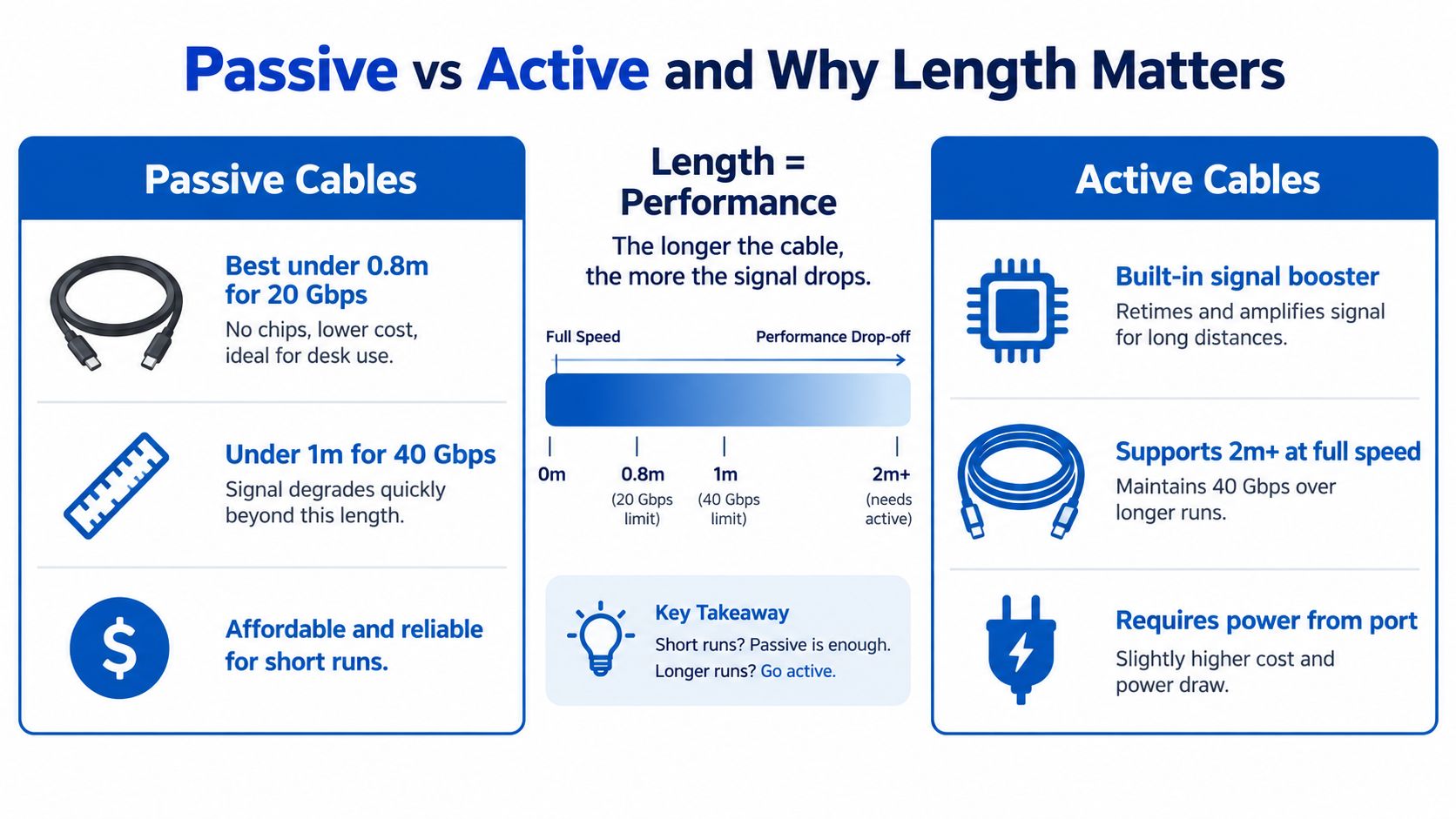
A passive cable has no signal-conditioning electronics doing extra cleanup. That makes it simpler and usually cheaper. It also makes it less forgiving as speeds climb.
Plugable notes that for full 40 Gbps performance, passive USB4 cables are commonly limited to about 0.8 meters, while Thunderbolt 4 certification allows passive cables up to 2 meters while still maintaining 40 Gbps (Plugable USB Type-C cable compatibility guide).
That's why I don't recommend long passive “do everything” cables for demanding data jobs. They're usually where the disappointment starts.
Active earns its keep on longer runs
An active cable uses built-in electronics to preserve signal integrity across longer lengths. Eaton notes that a passive Thunderbolt 3 cable can sustain the full 40 Gbit/s only up to 0.5 m, then drop to 20 Gbit/s at 2 m, while an active cable is required to maintain 40 Gbit/s over longer distances. Texas Instruments also states that USB4 Gen2 supports up to 2 m passive USB-C cable, while USB4 Gen3 and USB4 are limited to up to 0.8 m passive (USB-C cable e-marker and signaling guide).
That's the point where active cables stop being overkill and start being necessary.
Buy passive for short desk runs. Buy active only when the setup actually needs the distance.
A long charging cable from DigiDevice, like this extended USB Type-C charging cable, is useful for power. I would not treat a long charging-oriented cable as a default choice for premium data transfer unless the data certification is explicit.
Here's a quick explainer that gets the physical tradeoff across clearly:
How to Read Cable Markings and Certifications
If the packaging only says “USB-C cable,” that tells you almost nothing.
Look for the speed number first
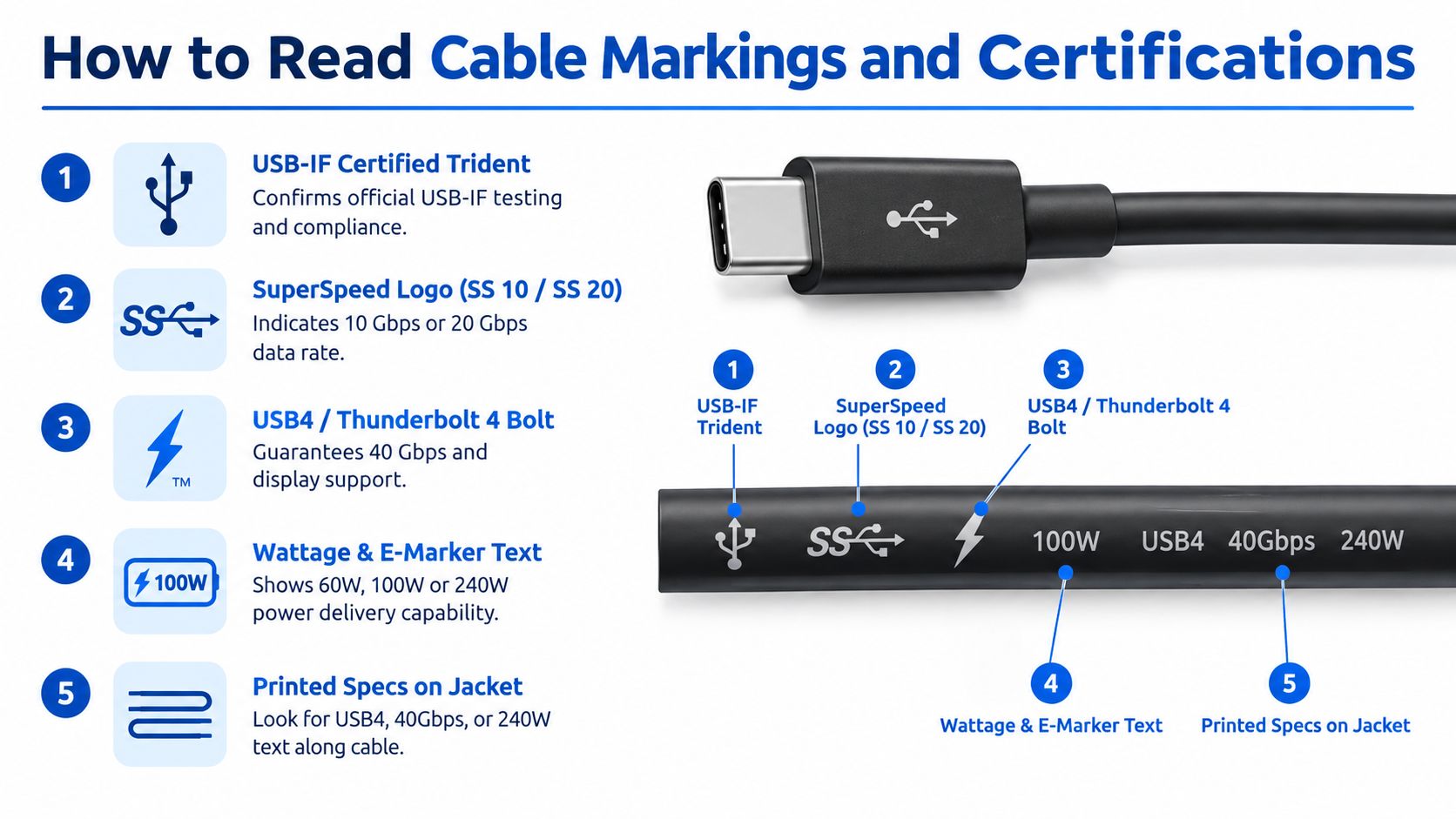
The easiest buying shortcut is the printed speed marking. TechAdvisor notes that certified USB4 cables commonly use a clear speed marking system, where the USB logo plus a number such as 20 or 40 indicates rated throughput, and markings may also appear as 5, 10, 20, 40, or 80 to show maximum transfer speed (TechAdvisor USB4 and Thunderbolt cable markings).
That's what I check before anything else.
If I don't see a clear speed class on the product page, connector, jacket, or packaging, I assume the listing is weak and move on.
What to scan in ten seconds
Use this quick scan before you buy:
- Check the printed speed badge. Look for 5, 10, 20, 40, or 80.
- Check the cable jacket text. If it says USB4 or Thunderbolt 4, that's useful. If it only says fast charging, that's not enough.
- Check the power claim separately. High wattage does not guarantee fast data.
- Check certification language. USB4 and Thunderbolt labeling is more meaningful than vague marketing copy.
ACT Connectivity puts it plainly: the same USB-C plug can be used for cables supporting 5 Gbps, 10 Gbps, 20 Gbps, 40 Gbps, and even 80 Gbps in newer USB4 2.0 implementations, so buyers need to check the rated data speed rather than assume all USB-C cables are equivalent (ACT USB-C explained).
“Fast charging cable” is a power statement. It is not a data statement.
If you're sorting out chargers, adapters, and the connector mess around them, DigiDevice's charger adapter types guide is useful background. But for data work, the speed label is the filter.
Matching Cable Class to Your Workflow
Most buying guides fail. They mash charging, data, and display into one recommendation. That's lazy.
The right cable depends on what you're connecting.
Cable Class by Workflow
| Use Case | Recommended Cable | Min. Speed | Max Length |
|---|---|---|---|
| Phone and tablet backups | USB 3.2 Gen 2 passive cable | 10 Gbps | Short is better for reliability |
| USB-C dock with peripherals and displays | USB4 or Thunderbolt 4 cable | 20 Gbps or 40 Gbps depending on dock class | Keep premium passive cables short |
| External NVMe SSD | Certified USB4 or Thunderbolt 4 cable | 20 Gbps or 40 Gbps | Around 0.8 m for passive 40 Gbps setups |
| CarPlay, basic charging station, MIDI gear | USB 2.0 cable can be acceptable | 480 Mbps | Length depends more on convenience than throughput |
Phones and tablets
If you move photos, ProRes clips, lossless libraries, or big project folders from a phone or tablet, a 10 Gbps USB 3.2 Gen 2 cable is usually the sane buy. It's enough for fast everyday transfers without paying for bandwidth you won't use.
Docks and workstation setups
Docks are where weak cables get exposed. Add displays, Ethernet, USB accessories, and storage to one connection, and cheap cables start acting flaky or slow.
For a setup built around a hub like this 11-in-1 USB-C docking station, I'd skip basic charging cables and go straight to a proper USB4 or Thunderbolt-class cable. The point is headroom.
External NVMe drives
This is the easiest workflow to classify. If you bought an external NVMe enclosure, don't kneecap it with a bargain cable.
TechGearLab cites independent Wirecutter testing where an Amazon USB4 cable reached 5,828 MB/s read speed with a USB4 2.0 enclosure, which is roughly 46.6 Gbps and shows why USB4 and Thunderbolt-class cables matter for modern NVMe workloads (TechGearLab USB-C cable guide).
That's exactly why I treat data transfer as its own buying decision.
USB4 vs Thunderbolt 4 for Data Transfers
You plug an external SSD into a fast laptop, copy a huge video folder, and the transfer rate still looks mediocre. At that point, the question is not charging. It is cable class.
For data transfers, USB4 and Thunderbolt 4 sit in the same high-speed tier, but they solve slightly different buying problems.
USB4 vs Thunderbolt 4 Comparison
| Feature | USB4 | Thunderbolt 4 |
|---|---|---|
| Main data classes | 20 Gbps or 40 Gbps | 40 Gbps |
| What the label tells you | You need to check whether it is the 20 Gbps or 40 Gbps version | The branding already points to the top tier |
| Cable behavior at longer lengths | Short passive cables are the safe bet for full speed | Certified passive cables can hold 40 Gbps up to 2 m |
| Charging relevance | Varies by cable | Often paired with stronger all-around specs, but still verify wattage |
| Best fit | Fast storage and single-cable desk setups | Docked workstations with stricter compatibility expectations |
Buy USB4 for storage-first setups
USB4 is the right pick if your priority is moving files fast and nothing else in the chain is unusually demanding.
That includes external SSDs, NVMe enclosures, and a single good dock where you care more about throughput than display guarantees. The catch is simple. USB4 is sold in 20 Gbps and 40 Gbps classes, so the label matters. If the listing does not clearly say 40 Gbps, assume it is not the one you want for serious storage work.
This is the better value buy for data-first workflows.
Buy Thunderbolt 4 for stricter dock compatibility
Thunderbolt 4 is the safer recommendation for workstation desks. You pay for fewer weak links.
Eaton says Thunderbolt 4 cables support 40 Gbps data transfer, 100 W power delivery, and high-bandwidth display setups such as one 8K display or dual 4K displays (Thunderbolt 4 explained by Eaton).
That matters if your cable has to do several jobs at once. A dock pushing displays, storage, Ethernet, and USB peripherals is less forgiving than a phone backup or an SSD copy job. In that setup, Thunderbolt 4 is the cable I trust first.
My rule
Buy USB4 if your workflow is centered on file transfer speed. Buy Thunderbolt 4 if your workflow is centered on dock reliability with storage attached.
Same connector. Different decision.
Best Picks and Buying Checklist for 2026
You plug an external SSD into a fast port, start a big file copy, and wait longer than you should. The drive is fine. The laptop is fine. The cable is the weak link.
Here's the short version. Buy by workflow, not by connector shape.
Best USB-C Data Transfer Cables for 2026
| Pick | Best For | Spec | Length | Expected Throughput |
|---|---|---|---|---|
| USB 3.2 Gen 2 cable | Phone backups and tablet media transfer | 10 Gbps | Short passive cable | Around the 10 Gbps class |
| Certified USB4 passive cable | External NVMe and premium dock use | 40 Gbps | Around 0.8 m | Around the 40 Gbps class |
| Thunderbolt 4 cable | Docked workstation and display-heavy setup | 40 Gbps | Up to 2 m in certified passive cases | Around the 40 Gbps class |
Pick 1 for phones and tablets
Buy a USB 3.2 Gen 2 cable for phone and tablet transfers. It is the right floor for anyone who backs up photos, moves video clips, or dumps files to a laptop on a regular basis.
Do not pay USB4 money for this job.
Verify before checkout: the listing must say 10 Gbps or USB 3.2 Gen 2. If it only says charging, fast charging, or USB-C, skip it.
Pick 2 for external NVMe and serious storage
Buy a certified USB4 passive cable around 0.8 m for external SSDs and NVMe enclosures. This is the cable class I recommend most often for storage-first setups because it targets the workload directly instead of bundling in dock priorities you may not need.
Short and certified wins here. A vague long cable is how people turn a fast enclosure into an average one.
Verify before checkout: the cable should clearly show USB4 and 40 Gbps.
Bottom line: For external NVMe, buy the shortest certified high-speed cable that fits your desk.
Pick 3 for docks and creator desks
Buy a Thunderbolt 4 cable if one cable has to carry storage, display traffic, dock I/O, and daily plug-unplug abuse. This is the safer desk cable for workstation setups that need fewer surprises.
It costs more. It also saves more troubleshooting.
Verify before checkout: look for Thunderbolt 4 branding, 40 Gbps, and support details that match your dock and display setup.
Buying checklist I'd actually use
Use this before you click Buy:
- Ignore the connector and read the data spec. USB-C only tells you the shape.
- Match the cable to the job. Phone backup, dock duty, and NVMe transfer are separate buying decisions.
- Buy short first. Length becomes a problem faster as speed goes up.
- Look for explicit speed markings. 10 Gbps, 20 Gbps, and 40 Gbps beat vague marketing copy.
- Prefer certified labels for premium setups. Generic listings are where bad surprises start.
- Separate charging claims from data claims. High wattage does not mean high throughput.
- Check both ends of the chain. Port, enclosure, dock, and cable all have to support the mode you expect.
If you are rebuilding a desk or travel kit, compare the cable with the rest of your gear instead of buying it in isolation. DigiDevice's cables and adapters collection is useful for checking form factors and pairing a cable with the actual devices in your chain.
The mistake to avoid is simple. Do not buy a long charging cable and expect it to be a high-performance data cable. For data transfer, clear specs beat convenience every time.
If you want a clean way to shop by setup, DigiDevice carries docks, adapters, charging gear, and mobile accessories that fit modern laptop, phone, and storage workflows. Start with the device chain you need to support, then buy the cable class that matches it.