

HDMI Cable to Laptop: Setup, Adapters, and Fixes
You've connected an HDMI cable to your laptop, selected an input on the monitor, and still got a blank screen. Before buying another cable, check the signal direction, port capability, adapter type, input selection, and display settings. An HDMI connection is a chain, and the cable is only one part of it.
Direct answer: A laptop HDMI port usually sends video and audio out to a monitor, TV, or projector. It generally won't accept an HDMI signal from a game console or set-top box, and a USB-C-to-HDMI setup only works when the laptop's USB-C port supports video output.
Why HDMI Cable to Laptop Connections Fail Before You Even Start
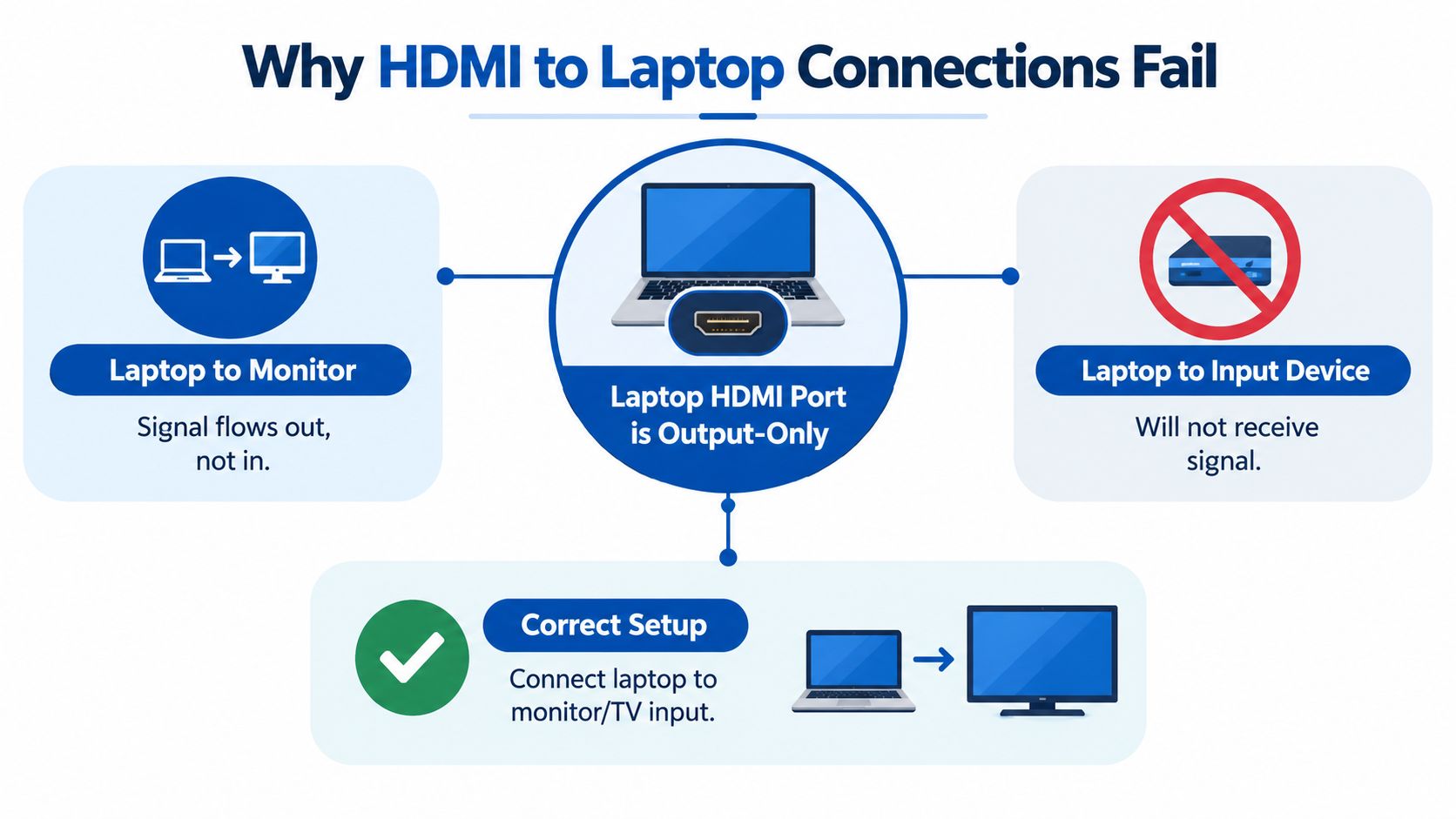
The most common failure happens before the cable is connected. Laptop HDMI ports are typically output-only, meaning the laptop sends a signal to another display. They don't normally receive video from a console, camera, or cable box, so there's no HDMI input setting waiting to be enabled. A USB capture card or wireless projection is the practical workaround when you need another device's picture on the laptop screen, as explained in this overview of HDMI input versus output on laptops.
Separate the two connection jobs
There are two very different setups:
- Laptop to monitor or TV: The laptop is the source. Connect its HDMI output to the display's HDMI input.
- Console or set-top box to laptop: The laptop would need to receive the signal. Its built-in HDMI port normally can't do that, so you need capture hardware or another display.
HDMI works through a source-and-sink relationship. The source sends video and audio, while the sink receives and interprets that signal. The physical connector may fit, but the direction and protocol still have to match.
That's why a standard USB-C-to-HDMI adapter is normally directional. It takes video from a compatible USB-C source and sends it to an HDMI display. It doesn't turn an HDMI output into a laptop input.
Practical rule: Don't replace the cable until you've confirmed which device is supposed to send the picture and which device is supposed to receive it.
Treat no signal as a layered fault
A blank display can come from several layers:
- The display is set to the wrong HDMI input.
- The cable isn't fully seated or is damaged.
- The laptop port doesn't support the required video mode.
- A USB-C, DisplayPort, dock, or hub adapter can't negotiate the signal.
- Windows or macOS hasn't enabled the external display.
- A graphics driver, firmware, or BIOS state is blocking detection.
HDMI has developed through major bandwidth milestones. The standard began at 4.95 Gbps in HDMI 1.0, supporting 1080p at 60 fps, then reached 10.2 Gbps in 2006, 18 Gbps in 2013 for 4K at 60 fps, and 48 Gbps in 2017 for 8K at 60 fps, according to the HDMI specification history. Those changes matter because the laptop port and adapter can limit the signal even when the cable itself is capable.
For a DisplayPort-equipped laptop, a DisplayPort-to-HDMI adapter for laptop and monitor connections can be appropriate, but its supported standard still has to match the display you're driving.
Identify Your Laptop Port and Pick the Right Cable
Start by looking at the laptop, not the cable. Connector shape tells you what can physically plug in, but it doesn't always tell you the maximum resolution or refresh rate available.
A full-size HDMI Type A port is the straightforward case. Use a standard HDMI cable from the laptop to the monitor or TV, then check the laptop's HDMI specification if you need 4K or a high refresh rate.
Some thin laptops, tablets, and convertibles use Mini HDMI Type C or Micro HDMI Type D. These require the smaller connector on the laptop side. A full-size HDMI cable won't fit unless you add the correct passive adapter.
USB-C needs more caution. USB-C is a connector shape, not a guarantee of video output. Look for a DisplayPort symbol or Thunderbolt icon beside the port, then verify the laptop's specifications. HDMI Alt Mode over USB Type-C allows a source device to connect directly to HDMI displays without a protocol converter or dongle, and it supports the HDMI 1.4b feature set, including 4K output, surround sound, ARC, 3D, CEC, Deep Color, and HDCP, according to the HDMI Forum's USB Type-C Alt Mode overview.
Mini DisplayPort is an older laptop and dock connection. It can feed an HDMI display through the correct adapter, but the adapter's capabilities determine whether you'll get basic HD, 4K, or a higher refresh rate.
| Laptop Port | Direct Cable | Adapter Needed | Notes |
|---|---|---|---|
| Full-size HDMI Type A | HDMI-to-HDMI cable | No | Check the laptop and display specifications for bandwidth limits. |
| Mini HDMI Type C | Mini HDMI-to-HDMI cable | Optional | The laptop end must use the smaller Type C connector. |
| Micro HDMI Type D | Micro HDMI-to-HDMI cable | Optional | Common on compact devices and some convertibles. |
| USB-C with DisplayPort Alt Mode | USB-C-to-HDMI cable | Sometimes | Confirm the DP icon, Thunderbolt icon, or manufacturer specification. |
| USB-C data-only port | No direct video cable | Active DisplayLink hardware may be required | A passive USB-C-to-HDMI cable won't create video output from a data-only port. |
| Mini DisplayPort | Mini DisplayPort-to-HDMI cable | Usually integrated | Confirm the adapter supports your target resolution and refresh rate. |
A passive HDMI-to-USB-C adapter isn't a normal output solution because the signal direction and conversion requirements don't match. For a useful example of how small connectors can still contain advanced hardware, read this technical exploration of hacking Doom onto a Lightning adapter.
For a USB-C laptop with video support, a Baseus USB-C hub with HDMI, Ethernet, and power delivery can consolidate display and peripheral connections, but a direct USB-C-to-HDMI adapter is easier to troubleshoot when the display is blank.
Match Cable Bandwidth to the Resolution You Actually Want
Cable shopping gets confusing when the packaging lists HDMI versions, “8K,” refresh rates, and marketing labels without explaining the complete signal path. The useful question is simpler: What resolution and refresh rate do you need, and what can the laptop's port output?
The HDMI version of the laptop port usually sets the ceiling. Independent guidance commonly describes HDMI 1.4 as suitable for 1080p at 60 Hz, with 4K often limited to 30 Hz, HDMI 2.0 as the typical 4K at 60 Hz option, and HDMI 2.1 as the route to 4K at 120 Hz and beyond, as summarized in this HDMI refresh-rate comparison.
| HDMI Version | Max Bandwidth | Resolution / Refresh | Typical Use |
|---|---|---|---|
| HDMI 1.0 | 4.95 Gbps | 1080p at 60 fps | Basic HD office work and video. |
| HDMI 1.4 | 10.2 Gbps | 4K at up to 30 Hz | Office displays and standard 4K playback. |
| HDMI 2.0 | 18 Gbps | 4K at 60 Hz | 4K monitors, TVs, and media playback. |
| HDMI 2.1 | 48 Gbps | 4K at 120 Hz and higher modes | High-refresh gaming, VRR, HDR, and demanding displays. |
The table describes the interface standard, not a promise made by every cable. Your laptop GPU, laptop port, adapter, display input, and cable all need to support the desired mode.
Choose by workload
For a 1080p office monitor or projector, a High Speed HDMI cable is generally the sensible starting point. There's no advantage in paying for an Ultra High Speed cable if the laptop only outputs basic HD.
For 4K at 60 Hz, use a Premium High Speed or equivalent cable and verify that both ends support HDMI 2.0-class output. A DisplayPort-to-HDMI path can also work, but VESA notes that dual-mode interoperability paths may target HDMI 1.4-era modes such as Ultra HD 4K at up to 30 Hz, so the adapter's negotiated standard matters as much as the connector fit. The VESA interoperability guidance explains that limitation.
For 4K at 120 Hz, variable refresh rate, or full-bandwidth HDR, use a certified Ultra High Speed cable and an HDMI 2.1-capable laptop path. An HDMI 2.1 cable can carry lower modes, while an older cable may still work perfectly for 1080p or 4K at 60 Hz.
A USB-C docking station with HDMI output can be convenient for desk use, but its listed HDMI mode is part of the decision. If the dock is limited to 4K at 30 Hz, it won't become a 4K60 solution because you connect a faster HDMI cable.
Connect the Cable and Configure Your Display Settings
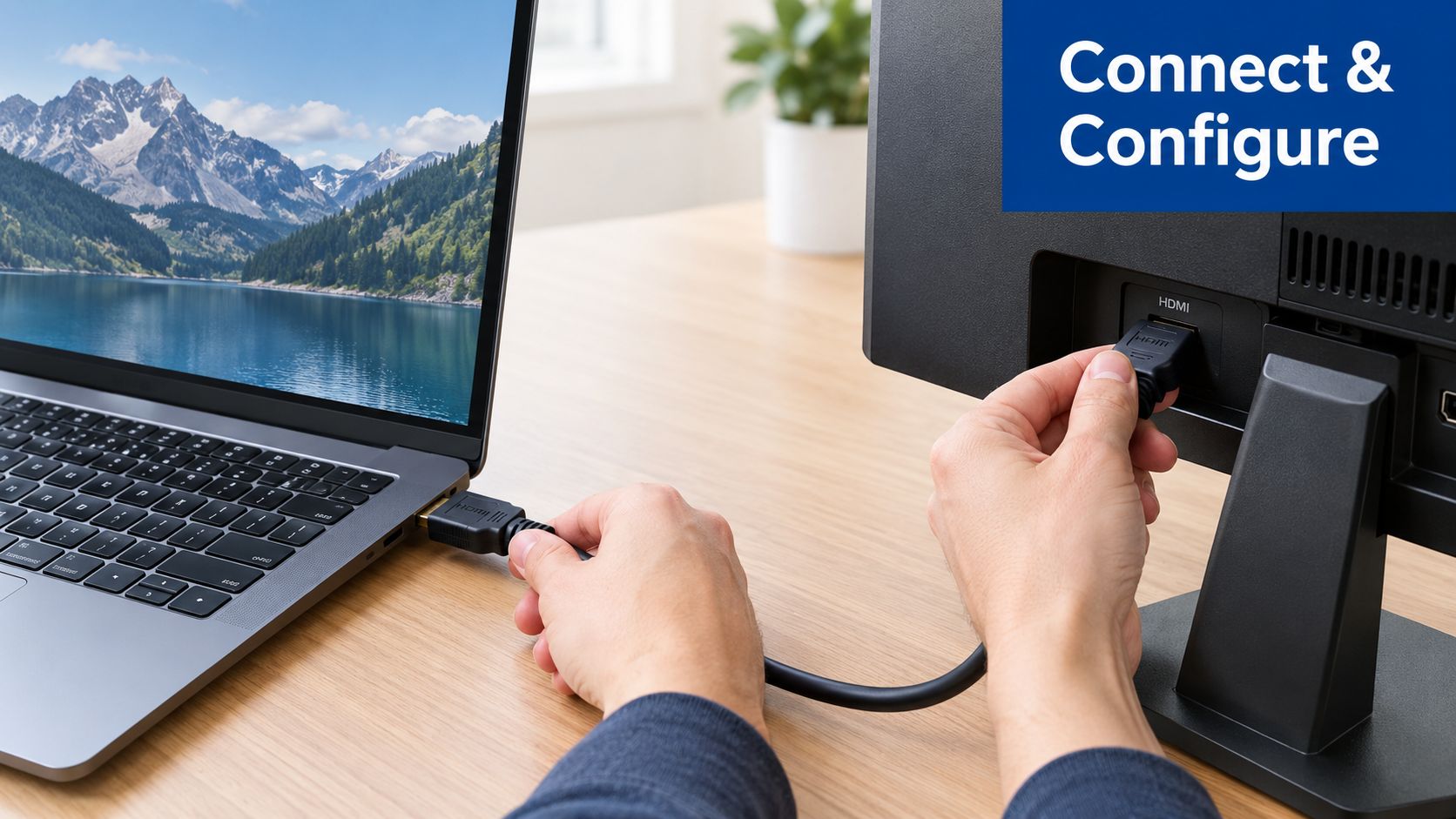
Once the port and bandwidth are clear, make the physical connection in a controlled order. Turn on the monitor or TV, connect the HDMI cable to the display input, connect the other end to the laptop output, and then select the HDMI source used on the display.
The input selection is easy to miss. A monitor with several HDMI sockets may stay on its previous source, while a TV may default to a streaming interface or another connected device. Use the remote or monitor controls to choose the exact HDMI input where the cable is plugged in.
Windows display modes
On Windows 10 or Windows 11, open Settings > System > Display. If the second screen appears, select the mode that matches the task:
- Duplicate these displays mirrors the laptop screen, useful for presentations and classroom projectors.
- Extend these displays creates a separate desktop, which is usually better for office work and multitasking.
- Second screen only turns off the laptop panel and sends the desktop to the external display.
You can also press Windows key + P to open the projection menu quickly. If Windows detects the display but chooses an awkward mode, set the external screen to its native resolution under Display resolution, then review Advanced display settings for refresh rate.
High-density screens can make text look too small. Adjust scaling rather than forcing a non-native resolution, especially when the external monitor is designed for a specific panel size.
macOS audio and display output
On macOS, open System Settings > Displays and configure mirroring, arrangement, resolution, and refresh rate. For sound, open System Settings > Sound > Output, then select the monitor, TV, or HDMI device.
Some applications keep their own audio routing, so the system output can be correct while an individual app continues using the MacBook speakers. Check the app's audio menu if video reaches the display but sound doesn't.
macOS laptops also generally provide HDMI output, not HDMI input. If your goal is to use a MacBook as an Xbox screen, the HDMI cable alone won't do it. A practical overview of the TechiePlus Xbox monitor setup helps clarify why capture hardware is needed for that direction.
For related projector wiring, DigiDevice also publishes this phone-to-projector connection guide, which is useful when the display endpoint is a projector rather than a monitor.
Troubleshoot HDMI No Signal the Smart Way
A new cable is not the first diagnostic step. Start with the display, then isolate the cable, port, adapter, and software in that order.
Run the fault isolation sequence
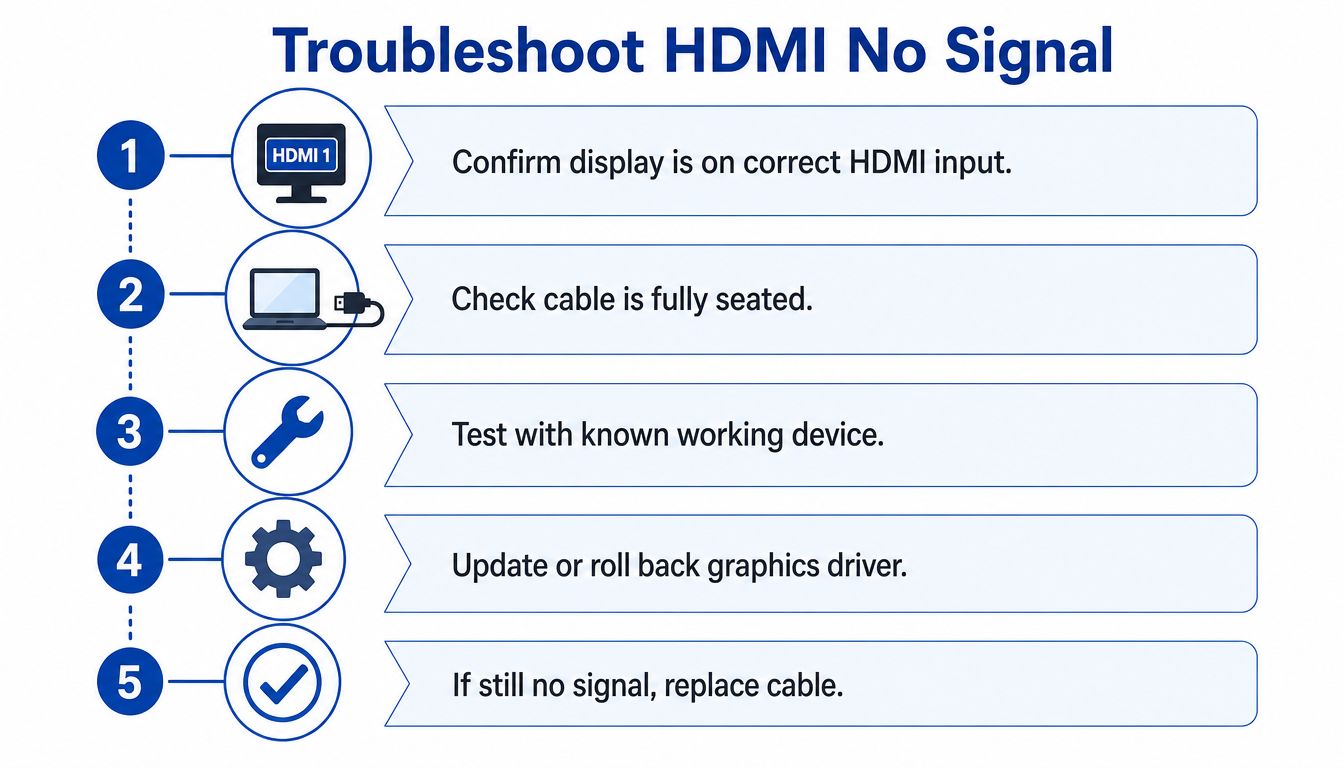
- Confirm the HDMI input. Use the display's Source or Input control and select the socket you're using.
- Reseat both ends. Push the connectors firmly into the laptop and display. A partially seated plug can produce a blank screen or intermittent image.
- Test known-good hardware. Try the cable with another source and display. Then test the laptop with another display. If the fault follows the cable, replace it. If it follows the laptop port, investigate the port or driver.
- Verify USB-C capability. A USB-C port may handle charging and data without carrying DisplayPort Alt Mode video. Check the laptop specification and look for a DP or Thunderbolt symbol.
- Force display detection. On Windows, press Win+P and choose Duplicate or Extend. You can also restart the graphics driver with Win + Ctrl + Shift + B.
- Check software and firmware. Update or roll back the graphics driver when the hardware path works but higher resolutions or refresh rates don't. BIOS settings and dock firmware can also affect external display negotiation.
Industry troubleshooting guidance recommends reseating the connection, confirming the display input, testing another cable and display, then applying operating-system display controls. The VCOM HDMI troubleshooting workflow follows that same physical-first logic.
If a dock is involved, remove it from the chain and connect directly to the laptop. Active docks and hubs can introduce firmware and negotiation problems that look exactly like a bad HDMI cable. For a broader reference, this guide to troubleshoot HDMI connection problems covers common monitor-detection failures.
The laptop's HDMI output and the monitor's HDMI input also need a compatible mode. VESA's dual-mode guidance shows why a DisplayPort-to-HDMI adapter can work for 1080p yet fail to deliver the 4K refresh rate you expected.
Use a 48 Gbps Ultra High Speed HDMI 2.1 cable when the laptop, display, and use case require HDMI 2.1-class bandwidth. It won't fix a data-only USB-C port or a wrong input, but it removes the cable from suspicion when the rest of the chain is capable.
Quick Reference Checklist and Final Questions
Keep this sequence beside your monitor when setting up an HDMI cable to laptop connection:
- Confirm direction: Laptop HDMI is normally output-only. Use a capture device when another HDMI source must appear on the laptop.
- Identify the port: Check whether the laptop uses full-size HDMI, Mini HDMI, Micro HDMI, USB-C with video support, or Mini DisplayPort.
- Match the hardware: Confirm the laptop port, adapter, display input, and cable support the resolution and refresh rate you want.
- Connect carefully: Power on the display, connect the cable, select the correct HDMI input, then configure the operating system.
- Choose a mode: Use Duplicate for presentation mirroring, Extend for a larger workspace, or Second screen only when the laptop panel isn't needed.
- Route audio: Select the HDMI display under Windows Sound or macOS Sound Output.
- Diagnose in layers: Reseat the cable, test another source and display, bypass the dock, verify port capability, then address drivers and firmware.
People Also Ask
Can a laptop receive HDMI from a game console?
Usually not. Most consumer laptops have HDMI output only, so a console can't send its picture directly into that port. Use a USB capture card or wireless projection instead.
Why does USB-C to HDMI show no signal?
The USB-C port may support charging and data but not DisplayPort Alt Mode video. Adapter negotiation can also fail, especially through a dock, so test a direct compatible adapter and confirm the laptop specification.
Will an HDMI 2.0 cable work in an HDMI 2.1 port?
Yes, it can carry supported lower-bandwidth modes, but it won't provide HDMI 2.1 performance by itself. The laptop port, display input, adapter, and cable must all support the target mode.
A brief black screen while switching TV inputs usually comes from HDMI handshake renegotiation. That's different from a permanent no-signal condition and often clears after the display finishes changing sources.
The connection problem is rarely just “the cable.” Check input selection, port capability, adapter negotiation, driver state, and display configuration before replacing working hardware.
DigiDevice offers practical HDMI, USB-C, docking, and DisplayPort accessories for laptop-to-monitor, TV, and projector setups. Visit DigiDevice to compare compatible cables and adapters, then choose the product whose supported direction, resolution, and refresh rate match your equipment.