

How to Connect Phone to Projector the Right Way
You've got the presentation ready, the projector is powered on, and your phone is connected. Yet the screen says No Signal. The usual mistake is treating this as a cable problem when it's really a compatibility problem involving the phone's video output, the projector's input, and the signal protocol between them.
This guide shows how to connect a phone to a projector using the method most likely to work for your equipment. It prioritizes wired reliability, separates AirPlay, Chromecast, and Miracast correctly, and explains why a USB-C connector alone doesn't guarantee video output.
Updated for March 2026.
What Your Phone and Projector Need to Talk to Each Other
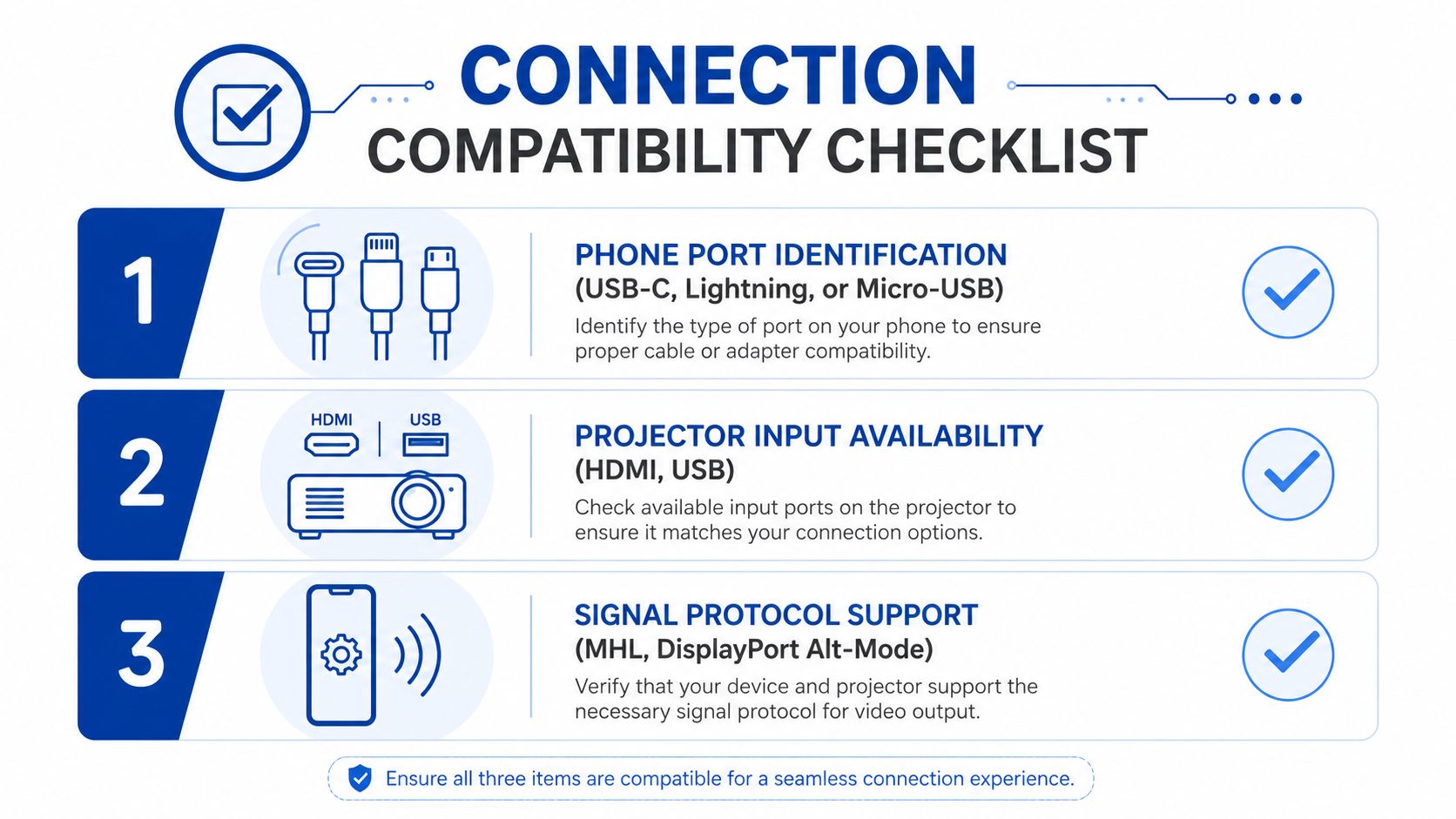
Before buying an adapter, check three hardware gates. Your phone must be able to send video, the projector must accept the connection, and the chosen protocol must support the content you want to display.
Gate one is the phone port
A USB-C port only guarantees a physical USB-C connection. It might support charging and data while offering no display signal at all. Look for DisplayPort Alt Mode or explicit video output in the phone specifications. A compatible USB-C port sends a real display signal, while a passive cable cannot create one if the phone lacks that mode, as explained in this USB-C display connectivity reference.
Lightning iPhones need Apple's Lightning Digital AV Adapter, followed by a separate HDMI cable. Apple also supports VGA at the projector end through the same adapter path, but VGA is an older fallback rather than the preferred connection. iPhone 15 and later models use USB-C, but you still need to verify video-output support for the specific device and cable.
Gate two is the projector input
Most current phone connections use HDMI. Check whether the projector labels its port HDMI, USB-C video, or VGA. A regular USB port may only play files from storage and might not accept live phone mirroring.
Gate three is content and network support
Wireless projection requires the projector to advertise an appropriate receiver, such as AirPlay, Miracast, or Google Cast, or to use a compatible streaming dongle. Protected streaming content can also fail when the phone, adapter, cable, and projector don't agree on HDCP. Confirm the projector's input before you connect, and use this projector screen sizing guide if the image size is part of your setup decision.
Wired vs Wireless Which Path Actually Fits Your Setup
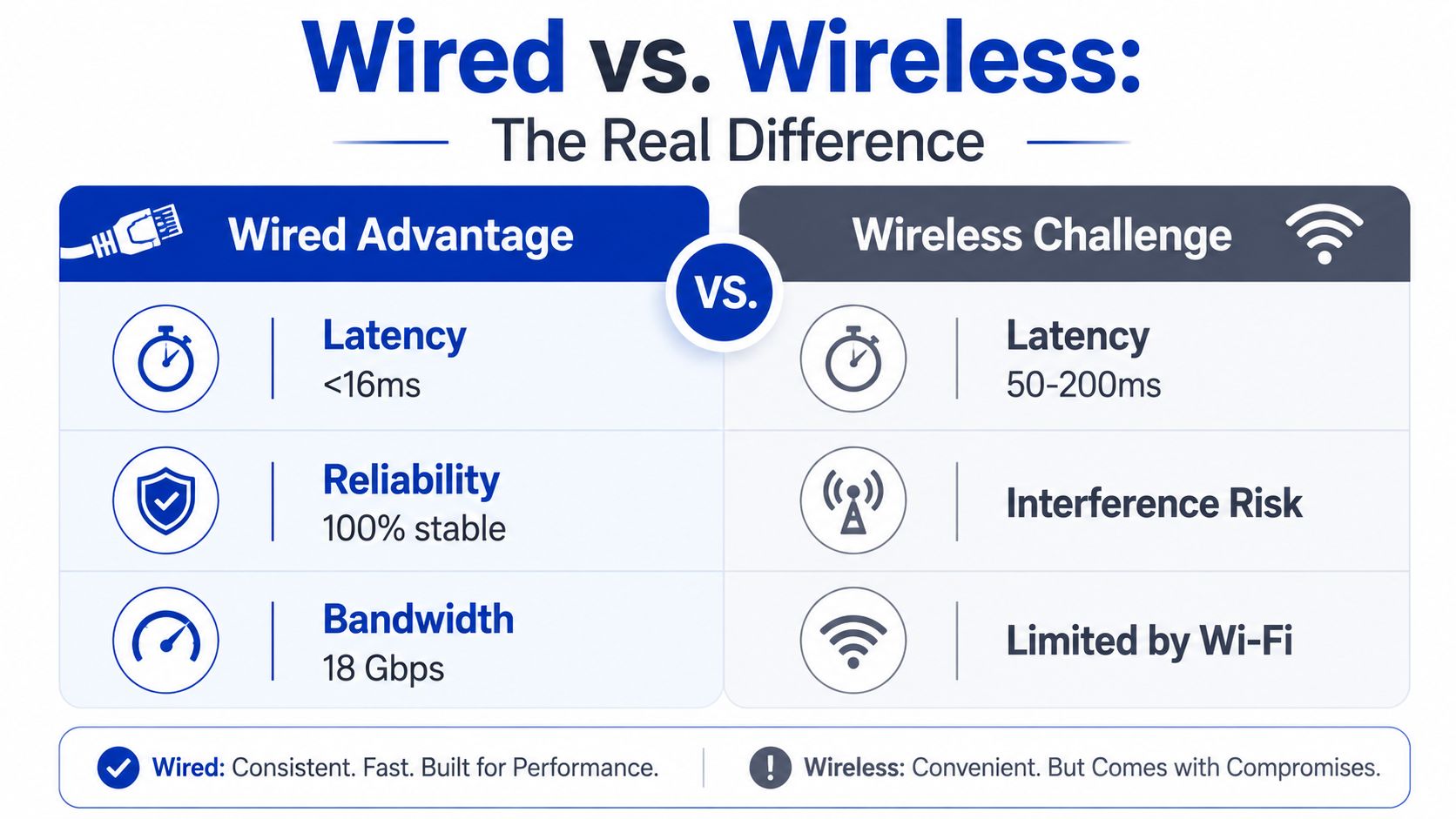
Wired and wireless connections solve different problems. A cable usually takes less troubleshooting, while wireless gives you freedom to move around the room and share the projector with several devices.
| Factor | Wired | Wireless |
|---|---|---|
| Setup | Plug in the correct adapter and select the input | Pair devices and negotiate the Wi-Fi connection |
| Latency | Low and consistent | More variable and affected by the network |
| Picture | Digital signal can reach the projector's supported resolution | Compression or quality changes can appear during congestion |
| Reliability | Doesn't depend on router traffic | Sensitive to network conditions and interference |
| Mobility | Phone stays tethered | Phone can move around the room |
| Protected content | More likely to pass through HDMI and HDCP correctly | Some apps or receivers may block protected playback |
For a fixed presentation, classroom, home cinema, or gaming session, choose wired first. The signal remains digital from the phone to the projector, and the connection doesn't care whether the venue changes its Wi-Fi password or places devices behind a captive portal. A wired setup also avoids the wireless latency window documented in independent projector setup guidance, which reports roughly 120 to 350 ms for wireless projection, depending on the system and conditions (projector wireless troubleshooting guidance).
Wireless makes more sense for casual photo sharing, a shared living room, or a projector that's mounted where cable access is awkward. It only becomes simple when the phone, projector, operating system, and network all support the same casting method.
Practical rule: If the image must appear on time every time, start with HDMI. Choose wireless when mobility matters more than predictable response.
Wired Connections for USB-C and Lightning Phones
Wired connections are the practical default because they reduce the number of variables. The important detail is that the adapter must carry video, not merely power or USB data.
USB-C phones
First, confirm DisplayPort Alt Mode in the phone's official specifications. Some USB-C phones support video output, while other models with the same connector are charge-only for display purposes. A USB-C-to-HDMI adapter can then connect the phone to the projector's HDMI input, following the standard flow documented in Samsung's wired display guidance.
Use either a USB-C-to-HDMI cable that explicitly supports video or a USB-C hub with HDMI output. Don't assume that a cable marketed for charging will work. The cable, phone port, and projector input must all support the same video path. For a suitable accessory option, see this USB-C to HDMI adapter and 4K cable.
Connect the phone, adapter, and HDMI cable, then select the matching HDMI source on the projector. If detection fails, select HDMI manually instead of leaving the projector on Auto. The phone may mirror automatically, although some Android devices require a display or screen-sharing setting to be enabled.
Lightning iPhones
Older iPhones require Apple's Lightning Digital AV Adapter and a separate HDMI cable. Apple's product guidance specifies that the adapter connects to the Lightning port, while the HDMI cable runs from the adapter to the projector (Apple Lightning Digital AV Adapter).
After the picture appears, check audio routing. HDMI can send sound to the projector, but you can switch playback back to the phone if you don't want to use the projector's speaker. Avoid enabling HDR unless the projector can handle the format, because an incompatible HDR handshake can produce a blank or distorted image.
The connection flow is shown in this practical walkthrough:
Wireless Casting for AirPlay Chromecast and Miracast
Wireless casting isn't one universal feature. AirPlay, Google Cast, and Miracast use different receiver requirements, so identify the platform before opening your phone's sharing menu.
AirPlay
The projector, Apple TV, or attached streaming device must support AirPlay. Put the iPhone and receiver on the same Wi-Fi network, then open Control Center and choose Screen Mirroring. If the projector doesn't appear, check whether the receiver is on a guest network or whether the network blocks device discovery.
Chromecast
A projector with Google Cast support, or a Chromecast connected to its HDMI input, needs access to the same local network as the phone. Open a supported app and select its Cast icon. Google Cast depends on local network discovery, including multicast traffic, so an office or hotel network can prevent the receiver from appearing even when both devices show the same Wi-Fi name.
Miracast
Android phones may offer Smart View, Cast, Wireless Projection, or a similar control. The projector must support Miracast, or you'll need a Miracast dongle connected to HDMI. Miracast can create a peer-to-peer Wi-Fi Direct connection, but both the phone and projector still need compatible implementations.
| Standard | Best For | Network Requirement | Typical Latency |
|---|---|---|---|
| AirPlay | iPhone mirroring and Apple media | Same Wi-Fi network, compatible receiver | Variable |
| Chromecast | Supported streaming apps | Same LAN with device discovery | Variable |
| Miracast | Android screen mirroring | Compatible Miracast devices or Wi-Fi Direct | Variable |
For readers troubleshooting the broader home network side, this SwiftNet Wifi TV connection guide gives useful context on wireless device pairing. For a projector with built-in Wi-Fi features, review the DigiDevice 4K high-definition 5G home projector and verify its supported casting method before purchase.
Turn off mobile data during setup if the phone keeps switching routes, and keep both devices on the same Wi-Fi band where possible. Wireless is convenient, but a congested apartment network or an office access point can make a wired HDMI fallback much faster than repeated pairing attempts.
Why Wired Connections Are More Reliable
A wired setup earns its place after the compatibility check, especially when a presentation, lesson, screening, or match cannot pause for pairing. At events, the practical advantage is easier diagnosis: if the image fails, inspect the phone output, adapter, HDMI input, and cable in a defined order rather than chasing a disappearing receiver.
Start with the phone's specification. A USB-C connector does not automatically provide video. The DisplayPort Alt Mode explanation from DataMission outlines this limitation, so confirm video output before buying an adapter. The projector must also accept the adapter's HDMI signal at the selected resolution and refresh rate.
Once those specifications match, cable quality becomes a practical replacement-cost issue. A compatible HDMI cable can serve repeated setups, while failed wireless pairing can consume setup time each time the room, receiver mode, or network changes. For HDMI installations, check bandwidth and HDCP support against both devices. This HDTV 2.1 high-speed cable is one cable to evaluate against those specifications.
Wireless still suits walk-around presenting and content that tolerates delay. Wired output is the safer choice when every setup minute matters, provided the phone supports video output. A cable cannot add that function to an incompatible USB-C port.
Fixing the Usual Phone to Projector Problems
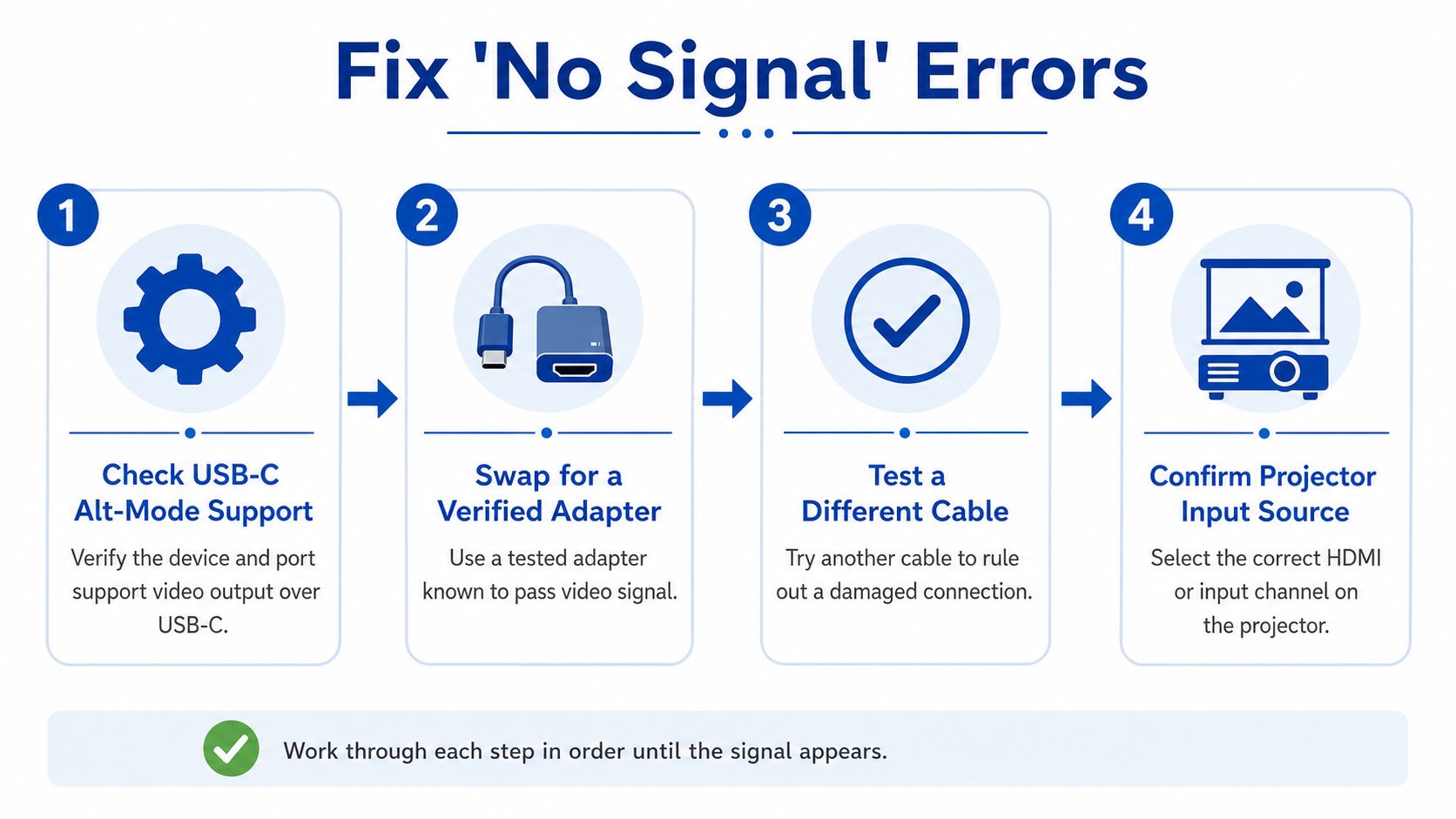
Troubleshoot by symptom instead of swapping random cables. Most failures have a clear cause.
No signal over a cable
Start with the phone. If it's USB-C, verify DisplayPort Alt Mode or video output support. If the phone supports it, replace a charge-only lead with a verified USB-C video cable or adapter, then select the projector's HDMI input manually.
For Lightning iPhones, confirm that the Lightning Digital AV Adapter is connected correctly and that the HDMI cable is seated at both ends. On the projector, choose HDMI rather than Auto. The fix that resolves most wired failures is matching a verified video adapter to a phone that supports video output.
No signal wirelessly
Confirm that both devices use the same Wi-Fi network and that the projector has the correct receiver mode active. On managed office or hotel networks, access-point isolation can block discovery. Miracast may use a direct wireless link, while Chromecast needs local network discovery, so changing standards can change the result.
Temporarily disable mobile data and disconnect VPN software during pairing. If the projector still doesn't appear, restart the receiver and phone before attempting a factory reset. Vendor troubleshooting guidance documents cases where Chromecast-based mirroring requires resets when the connection becomes unreliable (projector network troubleshooting).
Lag, stutter, or a frozen image
Wireless congestion is the first suspect. Lower the phone's output resolution if the projector's native panel can't handle the incoming mode, and move closer to the access point. Protected content can also trigger an HDCP handshake failure, while an incompatible HDR setting may leave the image blank.
A wired connection is the dependable fix for gaming and live interaction. It removes network congestion from the signal path and usually provides a more stable response.
Picture without audio
Check the phone's active audio output and confirm that the projector is selected over HDMI. Bluetooth speakers don't automatically combine with HDMI audio, and some protected apps restrict external playback.
If the picture works but sound doesn't, test a local video or system sound first. That separates an HDMI audio-routing issue from an app-level content restriction. For brightness planning in rooms with daylight, use this projector lumen brightness comparison before changing the connection hardware.
Quick Answers to Common Phone Projector Questions
Can any USB-C phone use a USB-C-to-HDMI adapter?
No. The phone must support DisplayPort Alt Mode or another documented video-output mode. A USB-C connector that only supports charging and data won't produce an image through a passive adapter, regardless of cable quality.
Use a verified USB-C video adapter only after checking the phone specification. Lightning iPhones need the Apple Lightning Digital AV Adapter path instead of a generic Lightning cable.
Is phone gaming playable on a projector?
Wired connections are the practical choice for responsive games because they avoid the extra wireless processing and network dependency. Wireless mirroring can work for slower games, turn-based titles, and casual play, but fast action and competitive controls make delay and stutter easier to notice.
For the most predictable result, connect the phone through USB-C DisplayPort Alt Mode or the appropriate Lightning adapter, select HDMI manually, and disable processing features on the projector if its game mode offers that option.
Why does my iPhone connect but refuse to play some videos?
Some streaming applications restrict playback through external displays when the adapter, projector, or cable doesn't satisfy the required HDCP path. A connection can therefore mirror menus and photos while blocking a protected video.
Use Apple's compatible Digital AV Adapter, verify the HDMI cable and projector input, and test with locally stored or non-protected content. If the projector needs a wireless receiver, check its AirPlay support rather than assuming every iPhone can mirror to it.
| Question | Short Answer | Best Fix |
|---|---|---|
| Will every USB-C phone work? | No, video output support is required | Confirm DisplayPort Alt Mode |
| Which connection suits gaming? | Wired is more predictable | Use USB-C video or Lightning AV hardware |
| Why is protected video blocked? | HDCP or app restrictions can prevent playback | Use a compatible adapter and HDMI path |
DigiDevice carries phone accessories, adapters, cables, and compact projectors that can help you build a compatible setup. Check the specifications first, then visit DigiDevice to choose the cable or projector hardware that matches your phone and intended use.