

Computer Lock Cable: How to Choose and Fit One
Your laptop is open on a shared desk, the charger's plugged in, and you need to step away. A computer lock cable tethers the machine to a fixed object through a compatible security slot, making a quick grab harder without pretending to stop a prepared thief.
Updated for November 2026
What a Computer Lock Cable Stops
A computer lock cable is a steel tether with a locking head that connects a laptop, monitor, dock, or desktop to an immovable object. It's meant to discourage opportunistic removal, not turn an unattended workstation into a secure storage room.
Say you're working at a coworking bench. Someone can lift an unsecured laptop without disturbing the monitor, keyboard, or power adapter. A properly fitted tether forces that person to deal with a physical attachment instead of closing the lid and walking away.
The loss isn't limited to hardware. You may also lose access to local files, expose signed-in accounts, and spend your workday recovering access rather than doing your job.
Think in four failure points
Inspect the system in this order: reinforced slot, lock head, steel cable, and anchor. Each connection needs to hold, because stronger steel can't compensate for a loose head or a cable looped around a removable desk accessory.
Cable diameter isn't the whole story. A removable anchor or poorly seated head can defeat the setup without anyone cutting the steel.
A practical workstation check looks like this:
- Device attachment: The head engages the chassis rather than catching against an opening.
- Lock engagement: The mechanism reaches its locked position and the key comes out.
- Cable route: The tether doesn't pinch a charging lead or pull against a port.
- Fixed anchor: The loop can't slide over the end of the furniture.
For a shared office, put physical tethering within a broader workspace security plan. The DigiDevice guide to setting up security cameras is relevant when you also need visibility around entrances and unattended equipment.
A camera and a cable solve different problems. One helps you observe activity; the other physically attaches the computer to the room.
Start with the room's exposure, then inspect the actual chassis. Buying a familiar-looking lock first and checking compatibility afterward is how you end up with a substantial cable that never gets attached.
Cable Classes by Diameter and Tested Strength
Diameter is the easiest spec to compare and the easiest to overvalue. A thicker cable raises the effort needed for a quick cut, while the slot, head and anchor still decide whether that strength can be used at all.
Computer lock cable classes by strength
| Cable class | Diameter | Construction | Tested resistance | Best fit |
|---|---|---|---|---|
| Standard laptop | 4.4 to 5.0 mm | 7x7 or 7x19 carbon steel | 1,000 lbf tensile; 1,000 lbf shear | Office or classroom laptop |
| Desktop peripheral | 6.5 mm | Thicker steel cable | 1,000 lbf tensile; 1,000 lbf shear | Monitor, dock, or tower |
| Ultra | 8 to 10 mm | Heavy steel cable | About 1,500 lbf tensile; 1,000 lbf minimum shear | Public desk or fixed gear |
| Lightweight coiled | Typically below 4.4 mm | Coiled steel cable, lighter than the 7x7 and 7x19 classes | About 250 lbf tensile | Low-risk travel only |
Kensington's published cable testing specifications support the standard, desktop and Ultra diameter and tensile figures above, and describe 1,000 lbf minimum shear-cut testing for its cable products. The Kensington anniversary release published by Nasdaq reports the roughly 250 lbf lightweight-coil figure and the standard and desktop shear benchmarks.
Match class to exposure
For a supervised office or classroom, the standard laptop cable is usually enough. It routes around a desk without leaving a stiff loop beside the ports, and its 4.4 to 5.0 mm range is the baseline against which the heavier classes should be judged.
A desktop-peripheral cable gives up some flexibility for a more substantial tether. That trade makes sense behind a monitor, dock or tower where the cable stays in place and nobody has to coil it into a bag after each session.
An Ultra-class cable fits counters, demo gear and fixed displays where the computer is visible and unattended for longer stretches. Before choosing it, make sure the heavier cable can bend around the anchor without levering the lock head sideways.
A lightweight coil is a convenience choice. Keep it for low-risk travel where access to cutters is unlikely and where the cable mainly stops a casual grab.
Read the test, not the adjective
Tensile resistance describes pulling force. Shear testing describes a cutting load under specified test conditions. A high number in one column does not imply the same performance in the other, and neither figure covers every cutter, abrasive tool or attack angle.
The plastic sheath mostly protects desk finishes and device surfaces. A thick jacket can make a modest cable look serious, so judge the steel, diameter and stated test rather than the outer shine.
Buying rule: Choose thicker cable for fixed desktops, monitors and public areas. Reserve thin coils for low-exposure travel.
Write down diameter, tensile rating, shear rating and test attribution before comparing listings. If a seller offers only heavy-duty language, treat the cable as unrated until the lock head engagement and the other three failure points are specified.
How to Check the Security Slot
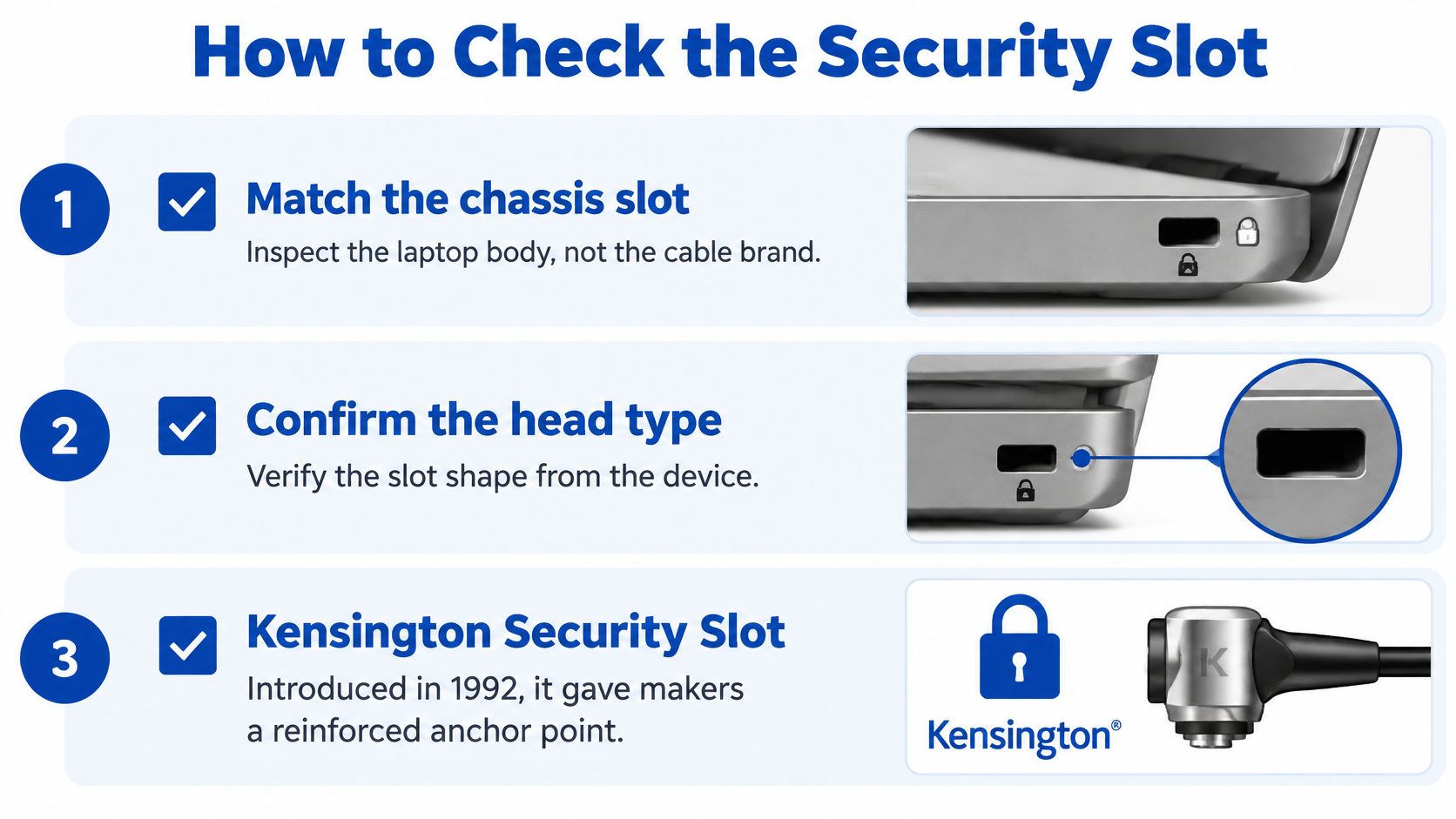
Compatibility lives in the chassis, not in the cable brand. Inspect the opening on your exact computer before ordering, even if another laptop in the same product family accepts your existing lock.
The Kensington security guide traces its original Security Slot to 1992 and describes the Nano Security Slot as approximately 70% smaller than the traditional opening, developed for thinner electronics.
Security slot types and the head that fits
| Slot | Size cue | Typical gear | Buy this head |
|---|---|---|---|
| Standard security slot | Original reinforced opening | Slotted laptops, monitors, printers, projectors, docks | Standard Kensington-compatible head confirmed by the device manual |
| Nano security slot | Much smaller than the traditional opening | Ultra-thin laptops and compact peripherals | Nano-compatible head |
| No slot | Smooth chassis edge with no designated lock opening | Some thin laptops and all-in-ones | Model-compatible anchor plate, enclosure, or secure dock arrangement |
| Separate chassis or peripheral loop | Eye, ring, or dedicated dock opening | Towers, monitors, docks | Cable or locking hardware designed for that attachment |
These aren't the only connector families. Noble Wedge is a distinct type, so a small opening shouldn't automatically be identified as Nano.
Confirm the opening before you buy
- Shut down and inspect the chassis. Look along both sides and the rear for a reinforced opening, sometimes marked with a padlock symbol. Use a flashlight rather than probing it with a screwdriver.
- Read the exact model's manual. Check the security features or ports diagram. Packaging from an old cable doesn't establish compatibility with a new laptop.
- Match the named connector. If the manual specifies Nano, choose Nano-compatible hardware. If it specifies Wedge, don't substitute a standard or Nano head.
- Resolve a missing slot separately. Consider a supported enclosure, chassis attachment, or model-compatible plate. Don't force a head into an unrelated opening.
- Check what the attachment secures. On a monitor or tower, confirm that removing a lightweight stand or panel won't leave the valuable equipment free.
Use this visual checklist while inspecting the machine:
Watch the slotless workarounds
A locked dock doesn't necessarily retain the laptop attached to it. Test the release mechanism before assuming that securing the dock also secures the computer.
Adhesive plates need particular care. Textured finishes, curved lids, and unsuitable adhesives can undermine the attachment; use a plate approved for the surface and follow its preparation and curing instructions.
Match the head to the slot you can positively identify. Then select cable thickness for the room, not the other way around.
How to Install and Remove the Lock
Installation is complete only when the device, head, tether, and furniture form a continuous attachment. A locked mechanism alone doesn't prove that the computer is secured.
Before fitting anything, place the laptop in its normal working position. Connect the dock and charger, open the lid, and check where your hands and cables need to move.
Install without loading the chassis
- Clear the slot. Remove loose dust with a soft, dry brush and confirm the connector type. Don't scrape inside the opening with metal tools.
- Choose a captive anchor. Route the cable around a structural desk frame or another fixed point that can't lift away. A chair, loose monitor arm, or detachable shelf isn't a reliable anchor.
- Set useful slack. Leave enough movement to open the lid and reach the dock. Check that the loop can't slide over the end of the anchor.
- Engage a keyed head correctly. Insert the key, seat the T-bar or cleat fully as directed by the manufacturer, turn it to the locked position, and remove the key. Stop if you need force.
- Set a combination before attachment. Follow the lock's reset procedure while you can clearly see the dials. Attach the head, scramble the code, and store the combination away from the computer.
- Perform a gentle retention check. Pull straight outward, then apply light sideways pressure. The head shouldn't withdraw or rotate free, and the chassis shouldn't flex or creak.
Keep the security tether separate from delicate leads. Use cable organizer clips to guide charging and display cables rather than trapping them underneath the steel loop.
The process should leave every connection accessible for inspection:
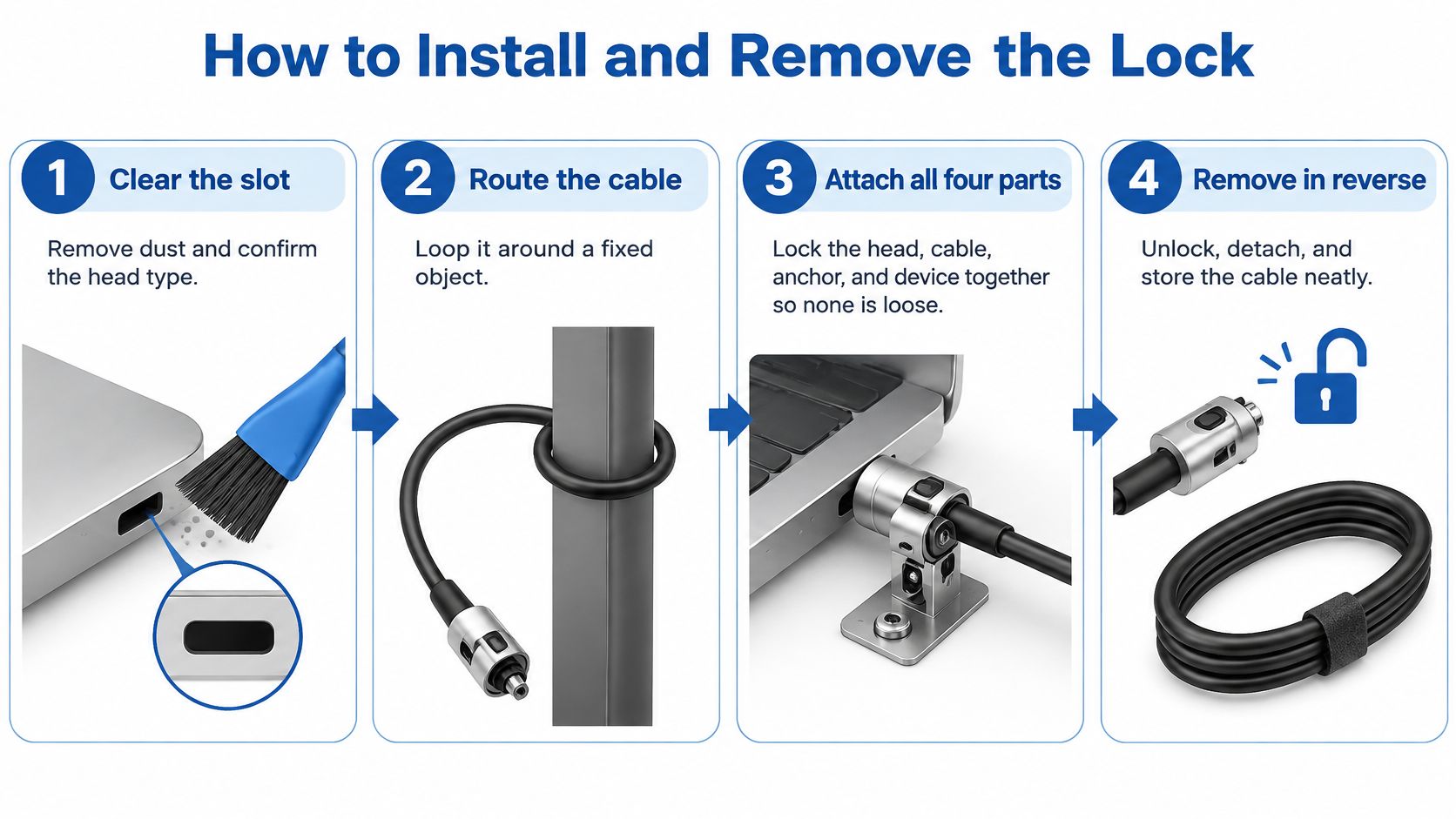
Remove without twisting the opening
- Support the equipment. Make sure a small dock or lightweight laptop won't fall when released.
- Release the mechanism. Insert the correct key or align the combination fully. Relieve cable tension before trying to operate a stiff head.
- Withdraw in the intended direction. Follow the mechanism's release motion, then pull the head clear without levering against the chassis.
- Store the cable in a relaxed coil. Avoid sharp bends at the head and end loop. Keep the key with your secure key storage, not in the laptop sleeve.
If the correct key won't release the head, don't escalate to pliers against the computer. Check the manufacturer's recovery procedure or arrange authorized removal.
Fit check: You should be able to use the computer normally, but you shouldn't be able to carry it away independently of the anchor.
Don't test that by lifting the furniture with the laptop. A gentle movement check is enough to reveal slack, a slipping loop, or an unsecured dock.
Common avoidable mistakes are leaving the key in the head, securing only the docking station, and treating an incompatible connector as a tight fit that needs more pressure. None improves with force.
Rooms Where a Cable Lock Pays Off
Laptop applications accounted for 52.4% of the global computer lock market in 2025, according to DataIntelo's computer lock market report. That market share isn't a theft probability, but it illustrates how strongly this product category serves portable equipment.
A shared-desk installation should attach the laptop to the furniture, not merely tidy its cables:
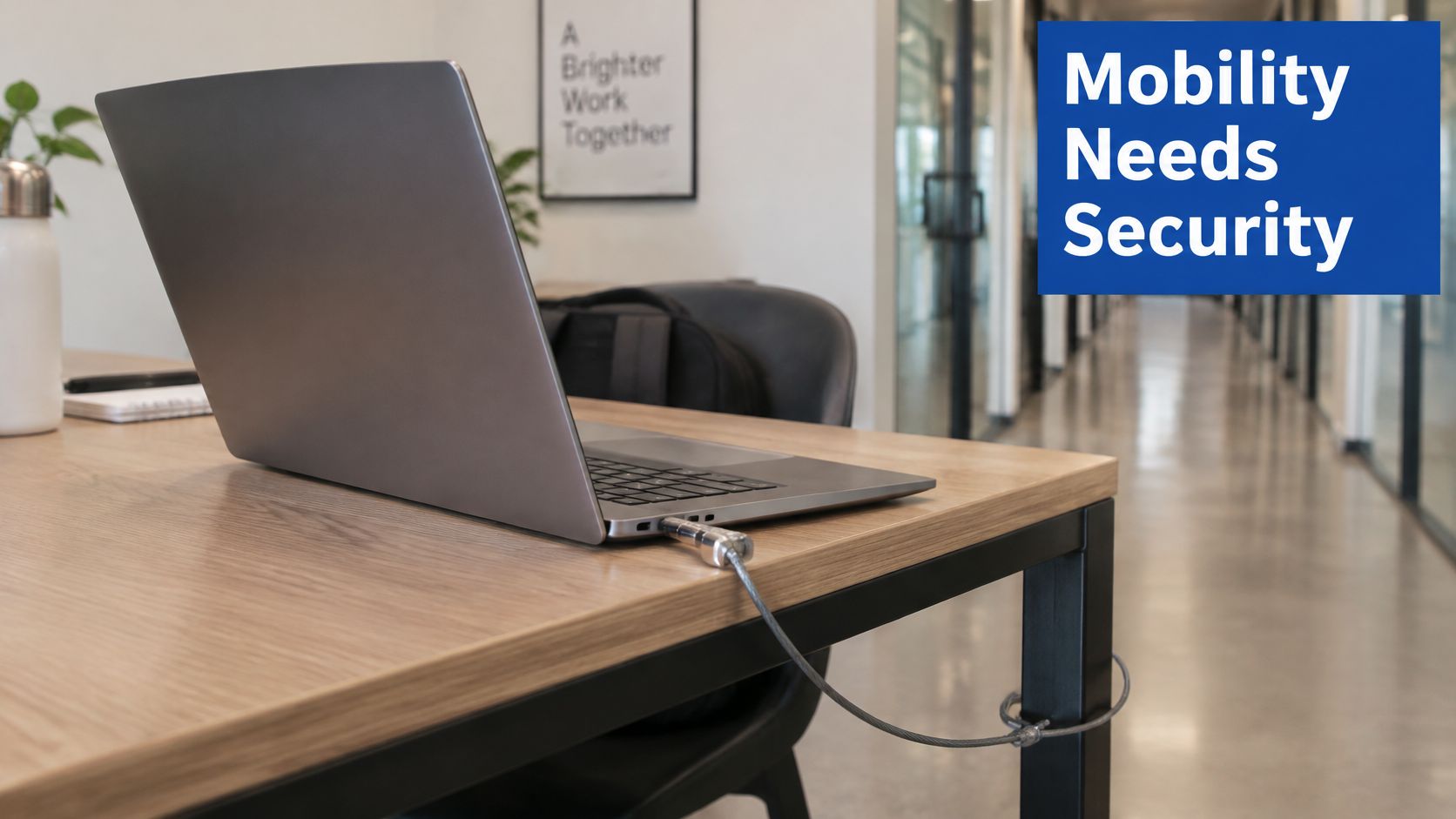
Match the setup to the room
At an assigned office or home desk, a standard cable is a practical choice when the machine returns to the same position regularly. Put the anchor behind the desk where it doesn't interfere with knees, cleaning, or height adjustment.
On a school cart or library loaner station, the administrative arrangement matters as much as the cable. Keyed-alike locks simplify staff access, but the shared key needs controlled storage and an accountable owner.
For a cart that moves, check that cables can't snag wheels or neighboring equipment. Locking computers to a movable cart also doesn't secure the cart to the building.
At a trade show or coworking table, inspect the furniture before selecting the attachment point. A substantial cable around a removable tabletop support is a poor setup, regardless of how intimidating the cable looks.
During airport or café travel, a compact tether is a temporary delay while you remain nearby. For carrying equipment between locations, review the practical considerations in choosing a computer bag with wheels; transport protection and desk security are separate jobs.
This video provides another visual reference for the hardware:
Weigh convenience against coverage
- Advantages: A cable gives a visible warning, works with the computer powered off, and needs no software maintenance. Compare its purchase cost with the disruption of replacing the machine.
- Limitations: Determined cutting remains possible, slotless devices require another attachment, and lost keys or forgotten codes can prevent legitimate removal.
- Data protection: Pair physical security with automatic screen locking, disk encryption, and a recorded serial number. The tether doesn't protect accounts or readable files after a successful theft.
Where computers share space with valuable tools, ABCO Security Services Australia tool protection offers a useful adjacent resource for planning equipment protection beyond a desk.
Features Worth Paying For in 2026
Pay for fit, documented resistance, and usable access, in that order. Decorative finishes and bundles come afterward.
Verified Market Research valued the global computer lock market at USD 857 million in 2025. That describes the market's scope, not the quality of an individual listing, so your purchase still needs a specification check.
Use a priority checklist
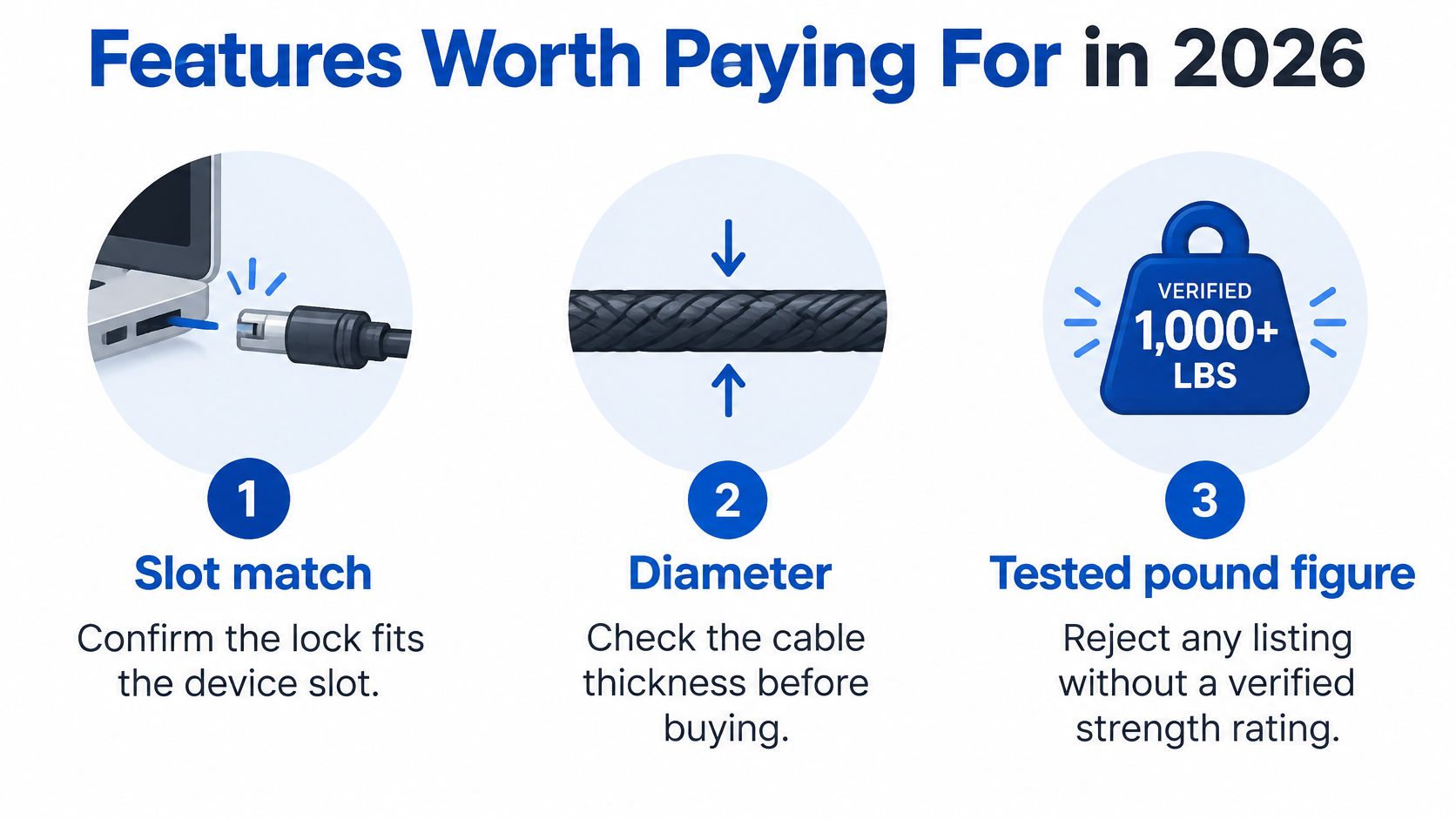
- Confirmed slot match. Require an explicit connector designation that matches the device documentation. Compatible with laptops isn't specific enough.
- Documented cable class. Look for diameter and a tested pound figure with an identifiable manufacturer or test description. Reject an unexplained strength number just as you would an unexplained heavy-duty label.
- Suitable access method. A key suits an owner who can keep it off the desk. A resettable combination helps shared equipment when someone is responsible for changing and storing the code.
- Measured reach. Run a piece of string along the intended route before ordering. Allow for the end loop, head position, lid movement, and adjustable desk travel.
- Surface protection. Check that the sheath and head won't scrape the lid or desk during normal movement. Treat the coating as protection for finishes, not proof of cutting resistance.
Keep these buying priorities beside the listing:
Extras that change daily use
A pivoting head can keep the cable away from a crowded port bank. A spare key or documented combination-reset procedure helps prevent avoidable service interruptions.
A stated head pull test is more useful than a cosmetic upgrade. For shared fleets, check whether the access arrangement fits your staff procedures before choosing between individually keyed, keyed-alike, and combination locks.
If you're planning the whole workstation, use gaming desk setup ideas to consider placement before buying accessories. A tidy layout still needs a structural attachment point.
For premises where controlling who enters matters more than tethering individual machines, compare that broader requirement using Wisenet Security Ltd's guide to UK business access control costs. Door access and equipment retention deserve separate budget decisions.
Complete this shortlist before checkout:
- Slot: The connector named in the exact device manual.
- Cable class: The construction suited to the installation environment.
- Access: Key or combination, with a named person responsible for recovery.
Leave the purchase unfinished if any entry is still a guess.
Keep the Lock Working and Commit to a Setup
Check the installation periodically and whenever furniture or equipment changes. A cable that was captive around the original desk frame may slide straight off a replacement support.
Release the head and confirm that it still seats cleanly. Inspect the loop and the area behind the head for exposed strands, crushed coating, sharp bends, or loose fittings.
Maintain the attachment, not just the cable
- Clean gently: Wipe the exterior and brush loose dust away from the slot. Don't drip oil into the laptop opening.
- Replace damaged parts: Broken strands and distorted heads call for replacement, not tape or a tighter bend.
- Recheck the anchor: Confirm that maintenance staff haven't moved the loop onto a removable component.
- Preserve access: Keep the recovery information somewhere an authorized person can reach without needing the locked computer.
A gaming desk with cable management can make inspection easier, but don't hide the lock head behind an inaccessible cable bundle. You should be able to see the engagement point without dismantling the workstation.
If the machine has a confirmed slot and a regular desk, choose the appropriate cable and fit it. If it has no supported attachment, resolve that problem before spending more on thicker steel.
What do I do if I lose the key?
If the head is still attached, don't assume the laptop is unsecured, and don't pry the lock out. Use the manufacturer's documented key-recovery process or arrange authorized removal with proof of ownership.
Until replacement access is arranged, keep the equipment under supervision. Never store the spare key in the sleeve that travels with the computer.
How often should I reset a combination?
Reset it after a staff departure, suspected disclosure, or any change in who should have access. Test the new combination before relying on it, then store it away from the device.
A shared code needs an owner. Without one, people tend to keep using a familiar combination after its access permissions should have changed.
Will a cable lock void my warranty?
Check the computer manufacturer's warranty terms rather than assuming a universal answer. Using a designated security slot is different from drilling the chassis or bonding an unsupported plate to the lid.
Damage caused by forcing an incompatible head may be treated differently from ordinary use. Confirm both the connector and the approved attachment method before installation.
DigiDevice offers electronics accessories and practical setup guides to help you plan a better-equipped workspace. Visit DigiDevice to check prices and current availability, and confirm your computer's slot type against any lock's compatibility details before checkout.