

Video Conferencing Setup That Actually Works in 2026
You join an important call with a clean shirt, a polished presentation, and a camera angle that looked fine in preview. Then your face freezes, your voice arrives late, and a hollow echo makes every sentence sound like it came from an empty stairwell. Most video conferencing failures aren't caused by one bad app setting. They happen because the entire call pipeline wasn't tuned as a single system.
Updated for March 2026, this guide focuses on the choices that make the biggest practical difference, from room acoustics and microphone gain to upload stability, platform settings, accessibility, and fast pre-call checks.
Why Your Calls Keep Falling Apart
A video call can fail in several ways at once. Your screen share stutters while the other person asks you to repeat yourself, or the image looks sharp but your voice sounds distant and metallic. The temptation is to restart the application, but the root problem often sits earlier in the physical chain.
Think of the call as four connected stages:
- Capture: The camera and microphone collect your image and voice.
- Environment: Lighting, reflections, background noise, and room acoustics shape what those devices capture.
- Transport: Your network carries audio, video, and screen-sharing data to the meeting service.
- Platform: Codecs, device routing, drivers, and server-side processing turn the stream into a conversation.
The weakest stage usually determines the experience. An expensive 8K webcam can't overcome a saturated Wi-Fi uplink, and a close microphone can still produce an unpleasant call in a hard-walled room. A frozen face may point to packet loss or a struggling video driver, while delayed audio often indicates queueing and bufferbloat rather than a defective headset.
Practical rule: Diagnose the symptom at the stage where it starts, not where you first notice it.
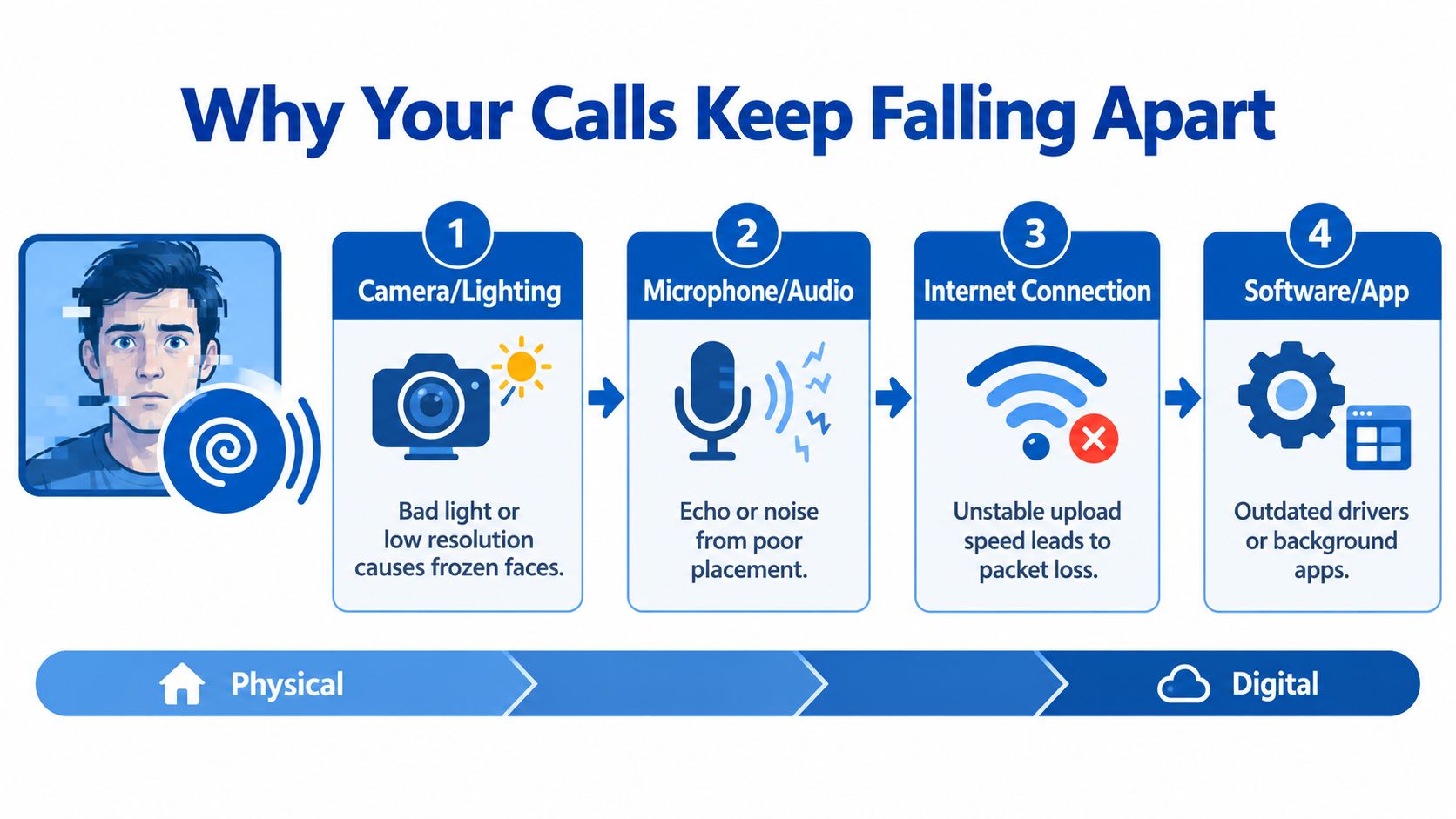
A “tin can” voice generally suggests reflections, poor microphone direction, or aggressive processing. Motion blur is more likely to come from shutter speed and frame-rate behavior than from insufficient resolution. If calls drop only when someone starts uploading files, your uplink is the stronger suspect.
For offices and hybrid spaces, it can also help to understand the difference between ordinary meeting technology and systems built around location or presence data. This comparison of identity-based networking provides useful context when a workplace needs more than a basic meeting link. For a home-office-specific diagnosis, use this guide to fixing dropped calls in a home office.
The rest of the setup should follow this pipeline. Don't buy a better camera before checking the room, don't blame the platform before checking the uplink, and don't judge a microphone until you've tested its placement and gain.
Room, Lighting, and Background That Flatter Your Face
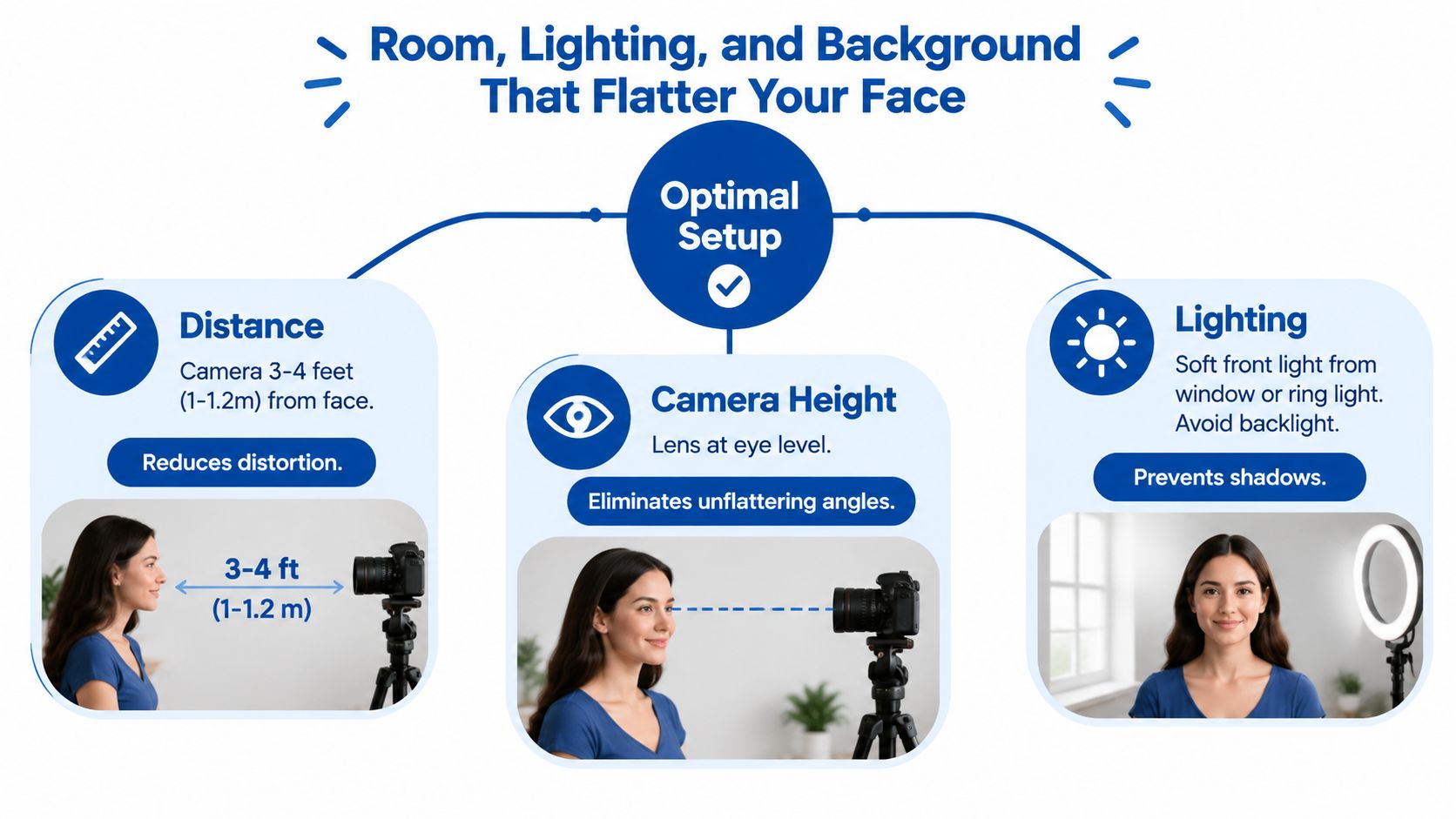
Your room is part of the camera system. A window behind you can turn your face into a silhouette, while a bare desk and painted walls can send your voice bouncing back into the microphone.
Start with geometry rather than equipment. Keep the camera roughly 3 to 4 feet, or about 1 to 1.2 meters, from your face, and place the lens at seated eye level. This prevents the familiar low-angle view that makes you appear to look down at everyone.
Build the scene around soft front light
Place your main light about 45 degrees to one side, slightly above eye height, and in front of your face. A soft fill source or a pale reflector on the opposite side reduces deep shadows under the eyes. Aim for an even face rather than the brightest possible face, and avoid relying on a ring light as your only source because it can flatten facial depth.
The practical benchmark for a room system is 400 to 500 lux at face level, with even illumination across participants, according to this video-conferencing room benchmark. You don't need to obsess over a meter if the image looks balanced, but measuring once can explain why a camera appears noisy despite having a decent sensor.
Treat the background as an acoustic surface
Sit with your back near a solid wall when possible, and keep the background visually calm. A reflective glass panel directly behind you creates visual distractions and can bounce light into the lens. A rug, curtains, upholstered chair, or bookshelf behind the speaker absorbs reflections that microphones otherwise reproduce as a hollow tail.
For a shared room, camera placement and microphone coverage need to be planned together. SnapDial's conference room setup guidance is a useful reference for thinking about participant position, room size, and equipment coverage as one layout problem.
A quick validation test is simple. Sit in the farthest position anyone will use, place a remote call, and listen for hollow audio while checking for dark facial shadows or washed-out skin tones.
For more control over a single-person workspace, this guide to choosing lighting for photography translates well to video calls. The principles are the same: control direction, soften the source, and keep the brightest area from sitting behind your head.
Choosing and Framing Your Camera
A better camera helps only when its sensor, lens, exposure, and network demands match the room. You don't need a cinema body for recurring calls, but you do need consistent framing and exposure.
| Tier | Typical Sensor | Output | Best For | Trade-offs |
|---|---|---|---|---|
| Built-in laptop camera | Small integrated sensor | Often limited to 720p | Informal catch-ups and travel | Fixed focus, weak low-light performance, limited framing |
| Mid-tier USB webcam | Around 1/2.8-inch or larger | Commonly 1080p at 30 or 60 fps | Client calls, interviews, regular remote work | Requires desk space and manual setup |
| Mirrorless or DSLR webcam | Larger interchangeable-lens sensor | Clean HDMI through a capture card | Presentations, production work, controlled studios | Higher cost, tripod, exposure management, and more failure points |
For most professional calls, 1080p at 30 fps is a sensible balance between detail and bandwidth. A 720p stream at 60 fps can make movement-heavy demonstrations appear smoother, but it gives you less image detail. Resolution doesn't compensate for a dirty lens, poor light, or a face that's too small in the frame.
Frame the person, not the room
Use a head-and-shoulders composition with the eyes in the upper third. Leave headroom roughly equal to the size of one eye, and align the face using the rule of thirds rather than placing it dead center with a large empty background.
Turn off digital zoom. It crops the image and can make compression artifacts more visible without adding real detail. Before the call, lock exposure and white balance if your webcam software supports it, then disable auto beauty filters. Automatic adjustments can change skin tone and brightness whenever a window or shared screen changes.
Laptop cameras are acceptable for casual conversations, but they struggle when the room is dim or the camera sits below eye level. A mid-tier USB webcam generally gives you more useful control than chasing maximum resolution.
If your camera has an unusually wide lens, use this field-of-view guide to understand why the room may look spacious while your face appears smaller and more distorted.
Microphones, Routing, and Echo Control
Audio deserves priority because listeners can tolerate a mediocre image more easily than a voice that is thin, delayed, or echoing. The right microphone isn't automatically the most expensive one. It should capture your voice close to the source while rejecting the room.
A handheld dynamic microphone placed about four inches from your mouth can outperform a more expensive condenser sitting across the desk. A lavalier keeps the frame clean, a headset provides predictable distance and playback isolation, and a condenser offers sensitivity that can become a liability in a reflective room.
Choose the pickup pattern for the room
A dynamic microphone is forgiving when the room is noisy and the speaker can keep a consistent position. A lavalier works well when you move, but clothing friction can become a problem. A condenser suits a treated room, not a bare office full of keyboard noise and reflections.
Set up routing before opening the meeting:
- Select the intended input: Choose the microphone in the operating system and conferencing app.
- Prevent fallback switching: Don't let the laptop microphone become the system default when your main device disconnects.
- Keep playback predictable: Use headphones or a headset when possible so speaker output doesn't return to the microphone.
- Control automatic gain: Disable app behavior that suddenly raises sensitivity after a quiet moment.
Record a 30-second clip, watch the input meter, and keep peaks between -12 and -6 dB. Then reduce input gain by 20 percent to leave room for laughter, typing, or a louder sentence. These are setup targets, not guarantees, so listen to the recording as well as watching the meter.
Test echo with the speakers changed
Speak once with speakers muted and once with them active. If the second recording develops a hollow, comb-filtered quality, force echo cancellation on or switch to headphones. Keep noise suppression at medium rather than maximum when possible, because aggressive suppression can remove consonants and make speech sound watery.
For additional troubleshooting ideas, this guide to improving conference audio clarity is useful when the room and microphone appear correct but callers still hear a return signal. You can also review this echo-cancelling microphone guide before changing hardware.
One study of a hybrid speech-noise reduction method reported about a 16% reduction in average noise loudness and about a 42% reduction in noise events, while emphasizing that real-time conferencing processing must stay within delays of a few tens of milliseconds. Those findings are described in the study on low-latency noise suppression. The practical lesson is straightforward: processing helps, but microphone distance and room control still come first.
Network Tuning for Stable Video Calls
A video conferencing setup doesn't need the fastest connection advertised by your provider. It needs a stable uplink that remains available while other devices work.
A university conferencing guide gives 1 Mbps or higher for 720p room-system video as a practical bandwidth target and recommends testing the connection in advance, joining several minutes early, and keeping a backup communication plan. See its video-conferencing setup guidance for the full preparation approach.
Prefer stability over headline speed
Wired Ethernet is the first choice because it avoids radio contention. A USB Ethernet adapter costing less than a new mesh node can be the more effective purchase if your computer is close enough to run a cable. MoCA adapters are useful when coaxial cabling is already available, while powerline networking depends heavily on the building's electrical wiring.
Wi-Fi can work well, especially on the 5 GHz band, but distance, walls, neighboring networks, and simultaneous uploads can introduce jitter. A mesh system may improve coverage, but it doesn't automatically remove congestion between the room and the router.
| Connection type | Typical jitter | Best use case |
|---|---|---|
| Ethernet | Lowest when the local network is healthy | Important calls, presentations, room systems |
| MoCA | Usually stable where coax is available | Offices separated from the router |
| Powerline | Varies by electrical circuit | Temporary wired access where cable runs are difficult |
| 5 GHz Wi-Fi | Variable with distance and congestion | Flexible desks near the access point |
Treat any precise jitter threshold as a diagnostic target rather than a universal law. If the call becomes unstable when another person starts cloud synchronization, your network is sharing too much uplink capacity.
Create a quiet lane for the meeting
Enable WMM on the router if available, give the conferencing device a high-priority network profile, and reserve upload capacity during important calls. Before joining, run two speed tests within 60 seconds, close cloud sync, Steam uploads, and security-camera uploads, and use a low-latency DNS resolver if your network supports that change.
For wireless-heavy homes, this Wi-Fi 7 versus Wi-Fi 6E comparison can help you evaluate an upgrade without assuming a newer router will solve every problem. The strongest fix is often simpler, a cable, fewer background uploads, or a better position for the access point.
Platform Settings, Security, and Accessibility
Good hardware still needs a deliberate software configuration. Across Zoom, Teams, Meet, and Webex, the settings that matter most are the ones that prevent unwanted automation, route devices correctly, and keep participants in control of what they see.
Start with this configuration pass:
- Hardware acceleration: Keep it on unless the computer shows driver-related rendering problems.
- Original sound or music mode: Leave it off for ordinary speech, since speech processing is usually more helpful than a flat, unprocessed feed.
- Background treatment: Use blur when the CPU is limited, rather than a detailed virtual background that consumes more processing.
- Monitor detection: Enable dual-monitor detection when presenting so the platform can distinguish the meeting from the shared display.
- Screen sharing: Default to a single application window, which reduces accidental exposure of unrelated messages or documents.
- Input and output devices: Select them manually instead of trusting automatic switching.
- Recording permissions: Require sign-in or explicit authorization before recording meetings.
Security belongs in the setup routine. Use waiting rooms for external participants, avoid relying on personal meeting links for every event, and rotate meeting IDs when a link has been shared widely.
Prepare for accessible participation
Federal rules require interoperable video conferencing services to support captioning, third-party sign language interpretation, and user controls for captions and display settings. The compliance deadline is January 12, 2027, according to the FCC announcement on video-conferencing accessibility.
Hosts should test captions with a 90-second sample, check names and technical terms, enable interpreter channels, and assign an additional language track when the platform supports it. Don't assume captions are accurate because they appear on screen.
Accessibility analysis also highlights live captions, layout control, and notification management as important to neurodivergent users and anyone managing distraction. Set a readable caption size, map keyboard shortcuts, and use strong contrast in shared templates. The exact control names vary by platform, but the host can usually make the meeting less cognitively demanding by reducing visual clutter and unnecessary alerts.
Pre-Call Checklist and Quick Fixes
A reliable video conferencing setup should be repeatable under pressure. Use the following routine before a client call, interview, presentation, or meeting where a failure would be costly.
The 10-minute routine
- Check the room. Put the key light in front of you at an angle, close distracting applications, and remove reflective objects behind your chair.
- Clean and frame the camera. Wipe the lens, place it at eye level, and confirm that your head and shoulders fill the frame.
- Connect the headset first. Select the intended microphone and speakers before opening the meeting platform.
- Record a short sample. Listen for echo, room reflections, clipping, and keyboard noise.
- Confirm the video preset. Use a moderate resolution and frame rate that your uplink can sustain.
- Enable captions. Turn them on before participants arrive if the meeting requires them.
- Test the network. Prefer Ethernet, pause large uploads, and check that the connection remains stable.
- Open the meeting early. Confirm the preview image, microphone meter, speaker output, and screen-share window.
- Run a backup test. Keep a phone, chat channel, or alternate meeting method available if a participant can't connect.
- Join with the final layout. Don't wait until the presentation begins to discover that the wrong screen or microphone is selected.
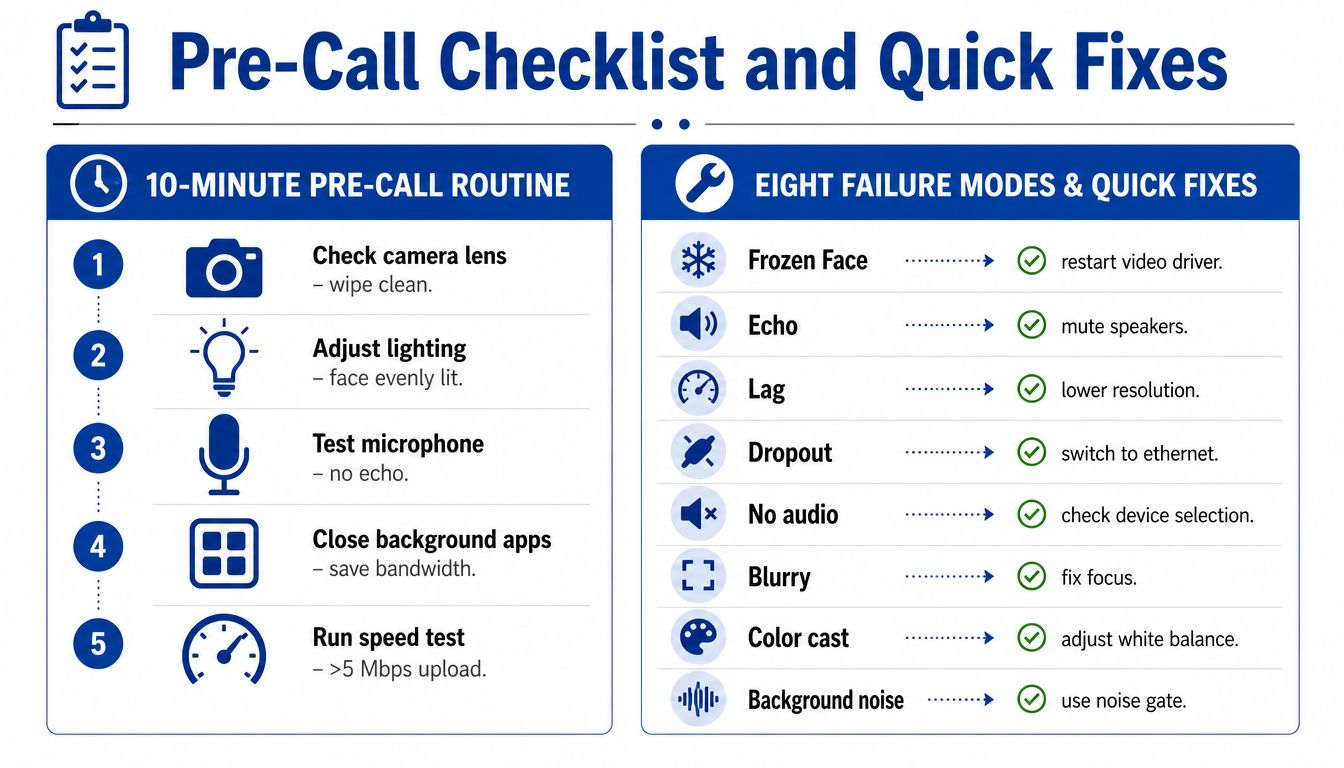
Eight fast diagnoses
| Failure mode | 30-second diagnostic | Setting or action to change |
|---|---|---|
| Frozen video | Turn video off and listen for whether audio remains stable | Restart the camera driver, reduce video load, or move to a steadier connection |
| Echo | Mute speakers and ask whether the return signal stops | Use headphones and force echo cancellation |
| One-way audio | Check the input meter while speaking | Select the microphone manually and verify operating-system permissions |
| Choppy screen share | Stop sharing and compare ordinary video | Share one window, close sync tools, and reduce motion-heavy content |
| Muffled voice | Move the microphone closer and make a short recording | Reposition the mic, reduce gain, and check for clothing or desk obstruction |
| Dropped call | Note whether another device is uploading | Switch to Ethernet or pause background traffic |
| Poor phone join-in quality | Compare the phone connection with a nearby wired or stable Wi-Fi device | Move to a stronger signal area or use the phone only for audio |
| Reconnection loop | Leave the meeting and test another network path | Restart the app, disable problematic VPN behavior, or change connection type |
Quick answers before you buy anything
Is 720p or 1080p enough
720p is adequate for ordinary meetings when the face is well lit and properly framed. 1080p gives more detail for client calls, demonstrations, and presentations, but it also demands more from the camera, computer, and uplink. Choose the highest stable setting, not the largest number on the product box.
Are Bluetooth microphones acceptable
Bluetooth microphones can work for casual meetings, but wired headsets or USB microphones usually provide more predictable routing and fewer battery or interference surprises. Test the complete Bluetooth path before an important call, especially after operating-system or platform updates.
Can a laptop camera handle client calls
A laptop camera can handle a client call when the lens is clean, the room is bright, and the camera sits near eye level. It becomes a weak choice when the room is dim, the camera angle is low, or consistent framing matters. An external webcam gives you better placement and repeatability.
How often should you rerun the checklist
Run the full checklist before important calls and whenever you change rooms, cameras, microphones, routers, or platform versions. For routine meetings, use the short version: headset, microphone, camera framing, lighting, network, and screen-share target.
A video conferencing setup isn't a parts list. If the call still fails after these checks, start with the weakest link. Listen before replacing the microphone, test the uplink before blaming the platform, and inspect the light before buying a higher-resolution camera.
DigiDevice curates practical electronics for clearer, more dependable workspaces, including headphones, microphones, adapters, chargers, and connectivity tools that support a complete video conferencing setup. Visit DigiDevice to compare the equipment that fits your room, workflow, and call priorities, then check the product details before you buy.